
Best AI Video Maker from Photo: How to Choose the Right Tool
Compare leading AI video makers for photos by motion control, subject consistency, editing workflow, output options, cost transparency, and intended use.
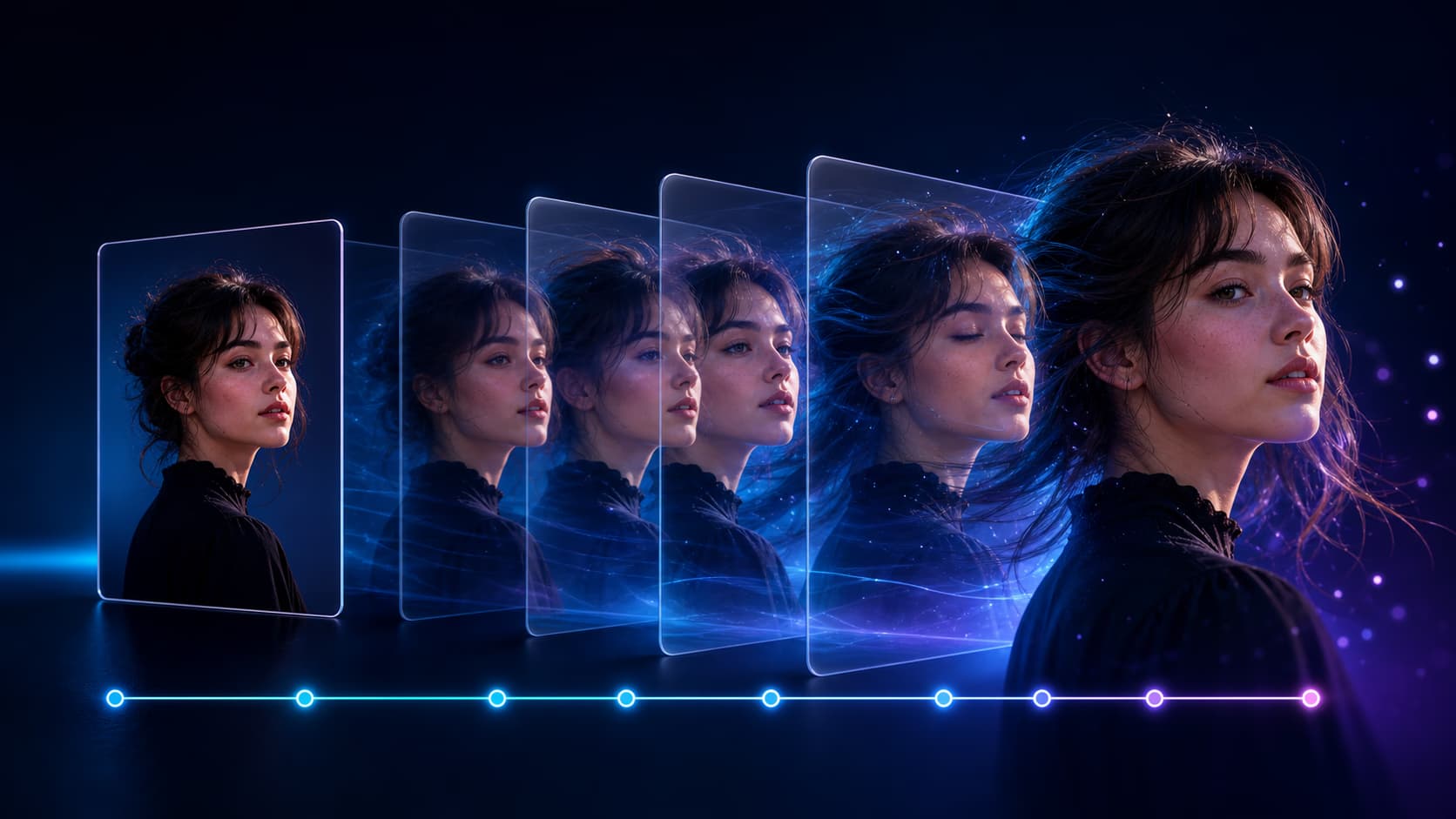
The best AI video maker from a photo depends on what you need to preserve, how much control you want, and what happens after the first clip is generated. A fast portrait animation tool, a multi-model image-to-video workspace, and a full video editor may all be excellent—but for different jobs.
This guide compares five practical options and gives you a repeatable way to test them with your own photo. Features and plan limits change, so verify the current settings and terms on each product before committing to a paid workflow.
Quick recommendations
| Tool | Best fit | Main strength | Check before choosing |
|---|---|---|---|
| Photo to Video AI | Trying multiple image-to-video models in a focused photo workflow | Multiple supported models, visible generation cost, common aspect ratios, failed-job credit refunds | Free-credit outputs include an evaluation watermark |
| Runway | Creators who also need broader AI generation and editing | Generate from an image, then refine, extend, upscale, and edit in one larger suite | A broader interface may be more than a simple one-photo task needs |
| Adobe Firefly | Adobe-centered creative and keyframe-image workflows | Image and text-prompt generation inside Adobe’s creative ecosystem | Confirm the currently selected model, plan access, and output settings |
| Gemini with Veo | Quick photo-to-video creation inside Gemini | Straightforward conversational prompting and generated audio support | Access requires an eligible Google plan; current clips are short |
| Fotor AI Image Animator | Template-led portrait, face, and casual photo animation | Preset-style animations and approachable portrait use cases | Templates may offer less shot-level control than a model-focused workflow |
There is no universal winner. Start by defining whether you care most about identity preservation, cinematic camera movement, simple presets, an editing ecosystem, audio, cost, or the ability to compare models.
What “best” should mean for photo-to-video generation
Do not choose a tool only from its homepage demo. Evaluate it against the photo and publishing context you actually have.
1. Subject consistency
The source image should remain recognizable as new frames are generated. For portraits, inspect the eyes, mouth, hairline, face shape, hands, and clothing. For products, inspect the silhouette, label, logo, seams, and small repeated details.
No generative tool can promise exact consistency in every frame. The practical question is whether the output is stable enough for your use case and whether you can reduce drift with a cleaner source, restrained motion, or another model.
2. Motion control
Look for control over:
- subject action;
- camera direction and speed;
- environmental motion;
- duration;
- aspect ratio and resolution;
- start or end frames when needed;
- audio on models that support it.
Preset effects are fast, but a motion prompt is more flexible. The best workflow for many creators supports both a quick starting point and enough control to refine the result.
3. Model choice
Different models behave differently on portraits, products, landscapes, illustrations, large movement, subtle movement, and generated sound. A multi-model interface makes comparison easier, while a single-model product may offer a more streamlined experience.
Model count alone is not a quality score. What matters is whether the available models fit your images and whether the product explains the cost and supported settings clearly.
4. Total workflow
Ask what happens after generation. Do you only need a downloadable short MP4, or do you also need to extend shots, add captions, edit backgrounds, assemble scenes, add music, collaborate, and export a complete campaign?
A focused generator can be faster for a single photo. A full editing platform may be more efficient when the generated clip is only one step in a larger production.
5. Pricing and usage rights
“Free” can mean a small number of signup credits, a recurring limit, a watermark, reduced resolution, or a restricted model. Compare the cost of a usable output—not only the existence of a free button.
Before publishing commercially, verify:
- whether a watermark is applied;
- which resolution is included;
- whether commercial use is allowed on your plan;
- whether failed jobs consume credits;
- how long generated files remain available;
- what rights and consent you need for uploaded photos.
1. Photo to Video AI: focused multi-model photo animation
Photo to Video AI is designed around a direct image-to-video workflow: upload one photo, optionally describe the motion, choose a supported model and settings, review the credit cost, and generate.
It is a strong fit when you want:
- one focused form rather than a full editing timeline;
- access to multiple supported image-to-video models;
- model-specific controls for duration, resolution, aspect ratio, frames, or sound where available;
- visible credit cost before generation;
- automatic credit returns for failed generation jobs;
- common vertical, widescreen, and square output options where supported.
Sign in to a free account to receive free credits; no card is required. Free-credit videos include a small evaluation watermark. Paid plans unlock watermark-free downloads, higher-resolution options, and commercial-use rights under the applicable terms.
The Photo to Video AI generator is a simple entry point for portraits, products, old photos, landscapes, and artwork. It is not a full non-linear editor, so you may still use another application for captions, multi-clip assembly, music, or detailed finishing.
2. Runway: generation plus a broader editing workflow
Runway’s official AI video generator supports starting from text, an image, or a clip. Its wider workflow includes tools for refining, extending, upscaling, exporting, and editing generated or existing video.
Runway is a strong fit when:
- photo-to-video is one part of a larger AI filmmaking workflow;
- you want generation and editing tools in the same platform;
- you expect to extend clips or assemble longer sequences;
- you want references and additional tools for recurring characters or production work.
Runway also publishes an image-to-video prompting guide. Its central advice is useful across tools: the image defines the composition, subject, lighting, and style, while the prompt should focus on motion and temporal progression.
Choose Runway when the broader production environment is valuable. If you only need to animate one photo and download a short clip, compare whether the additional interface and workflow justify the learning time for you.
3. Adobe Firefly: image-driven video inside Adobe workflows
Adobe Firefly’s image-to-video workflow combines image inputs and text prompts to animate still shots and illustrations. Adobe documents the use of keyframe images and model selection inside the Generate Video experience.
Firefly is a strong fit when:
- you already work in Adobe’s creative ecosystem;
- you want image and text prompting in an Adobe interface;
- keyframe images are important to your intended shot;
- the generated clip will move into a broader design or editing workflow.
Check which model is selected, which settings are supported, and what your current plan includes. Adobe updates Firefly frequently, so current product documentation is more reliable than an old comparison chart.
4. Gemini with Veo: conversational photo-to-video generation
Google’s Gemini help documentation explains how eligible users can select video, upload a photo, enter a prompt, generate a short Veo clip, and download it. Google currently documents eight-second output in Gemini Apps and says generated audio can also be requested.
Gemini is a strong fit when:
- you already use an eligible Google AI plan;
- you prefer refining the idea conversationally;
- you want a quick short clip without learning a dedicated editor;
- generated audio is relevant to the concept.
It is less suitable when you need a wide range of model comparisons inside one workspace or a full timeline editor. Availability and limits depend on the account and region, so confirm access in your own Gemini interface.
5. Fotor: approachable template-led photo animation
Fotor’s AI Image Animator emphasizes portraits, facial movement, talking-avatar-style results, face dance videos, landscapes, and preset video templates alongside prompt-based animation.
Fotor is a strong fit when:
- you want an approachable template-first experience;
- your main subjects are portraits, casual photos, or social content;
- choosing an effect is easier for you than writing a shot description;
- the photo may also need other consumer photo-editing tools.
A preset-led workflow can be faster for a familiar effect. A model-focused tool can be better when you want specific camera language, restrained product motion, or controlled iteration across several models.
How to choose by use case
For portraits and old family photos
Prioritize subtle motion, recognizable facial features, and simple controls. Start with blinking, breathing, a small smile, or a gentle camera push. Avoid a large head turn on the first attempt.
Try a focused animator or template-led tool first. Compare another model if the face changes too much.
For product photos
Prioritize shape stability, label readability, restrained camera motion, aspect-ratio control, and commercial terms. Use a clean source with space around the product.
No tool should be trusted to reproduce every label or logo perfectly without review. Watch the entire clip frame by frame before using it in a listing or advertisement.
For artwork and concept images
Prioritize style preservation, parallax, atmospheric motion, and camera control. A broader creative platform may be useful if you plan to extend shots or edit them into a sequence.
For social media
Prioritize 9:16 output, fast iteration, clean downloads, and a workflow for captions or audio. If the generator does not include editing, plan to finish the clip in a separate editor.
For a complete campaign or film workflow
Prioritize references, editing, extension, upscaling, collaboration, asset management, and multi-shot assembly. A broad production suite is usually a better fit than a one-purpose animator.
A fair way to test AI video makers from a photo
Use the same test package across tools:
- Select one portrait, one product photo, and one landscape or illustration.
- Use the same short prompt for each comparable generation.
- Match duration, resolution, and aspect ratio as closely as the tools allow.
- Record the actual cost of each successful usable clip—not only the displayed cost per attempt.
- Inspect subject consistency, prompt following, camera motion, artifacts, generation time, watermark, and download options.
- Repeat the most important photo at least once because generative results vary.
A useful prompt for the comparison is:
Slow camera push-in. The subject makes one subtle natural movement. Gentle environmental motion. Preserve the original composition and visual identity.
This prompt is restrained enough to reveal whether the tool can create believable motion without asking it to rebuild the entire scene.
Common selection mistakes
Choosing from demo videos alone
Homepage examples are curated. Test your own subject type before paying for a large plan.
Comparing different prompts and settings
If every tool receives a different source, prompt, duration, or resolution, the comparison tells you little about the actual workflow.
Ignoring the cost of failed or unusable attempts
The cheapest generation is not the cheapest usable video. Include retries, watermarks, required upscaling, and editing time in the real cost.
Assuming “AI video maker” always means the same thing
Some products generate motion from one photo. Others make slideshows from several photos. Others are full editors or text-to-video suites. Confirm that the tool actually supports the starting input and output you need.
Overlooking rights and consent
Only upload images you have the right to use. Get appropriate consent for recognizable people, especially when animating private, sensitive, memorial, or commercial material. Generated output should not be used to deceive, harass, impersonate, or violate another person’s rights.
Final recommendation
Choose the smallest workflow that reliably produces the clip you need:
- Start with Photo to Video AI if you want a focused, multi-model way to animate one photo.
- Consider Runway when generation needs to continue into a broader AI editing and production workflow.
- Consider Adobe Firefly when an Adobe-centered image and keyframe workflow is important.
- Consider Gemini with Veo for quick conversational creation inside an eligible Google account.
- Consider Fotor when portrait effects and approachable templates are the priority.
Whichever tool you choose, begin with a clear source photo, one motion idea, and the shortest practical test. The best AI video maker is the one that preserves what matters in your image and gives you a repeatable path from first attempt to publishable result.
Author