Kling AI Image to Video
Prompt templates
What Kling AI Image to Video Does Well
Kling AI Image to Video combines a recognizable first frame with directed subject motion, camera movement and atmosphere.
Cinematic direction
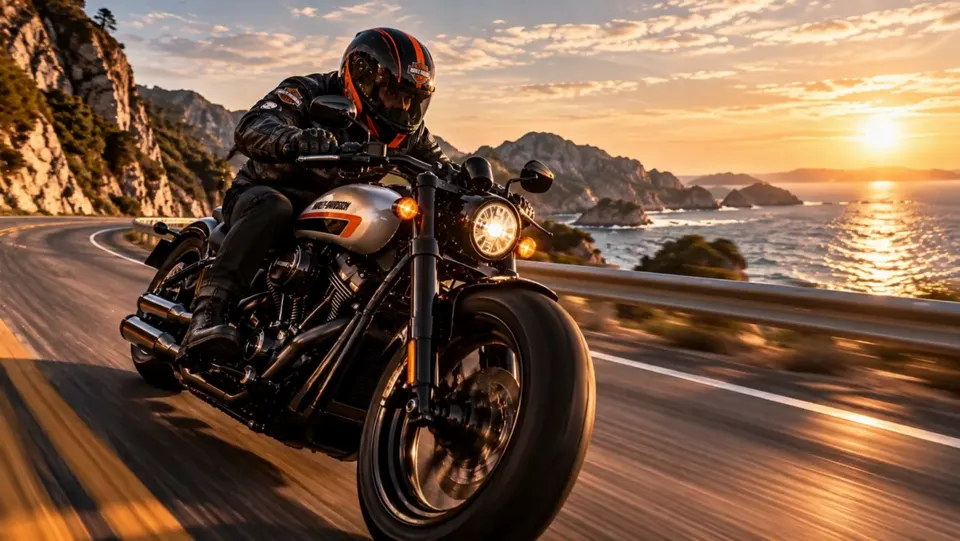
Control the subject and the camera separately
Describe one readable action, then add a push-in, track, orbit or fixed camera. Separating subject motion from camera motion helps portraits, products and narrative frames feel intentionally filmed instead of randomly animated.
Visual consistency
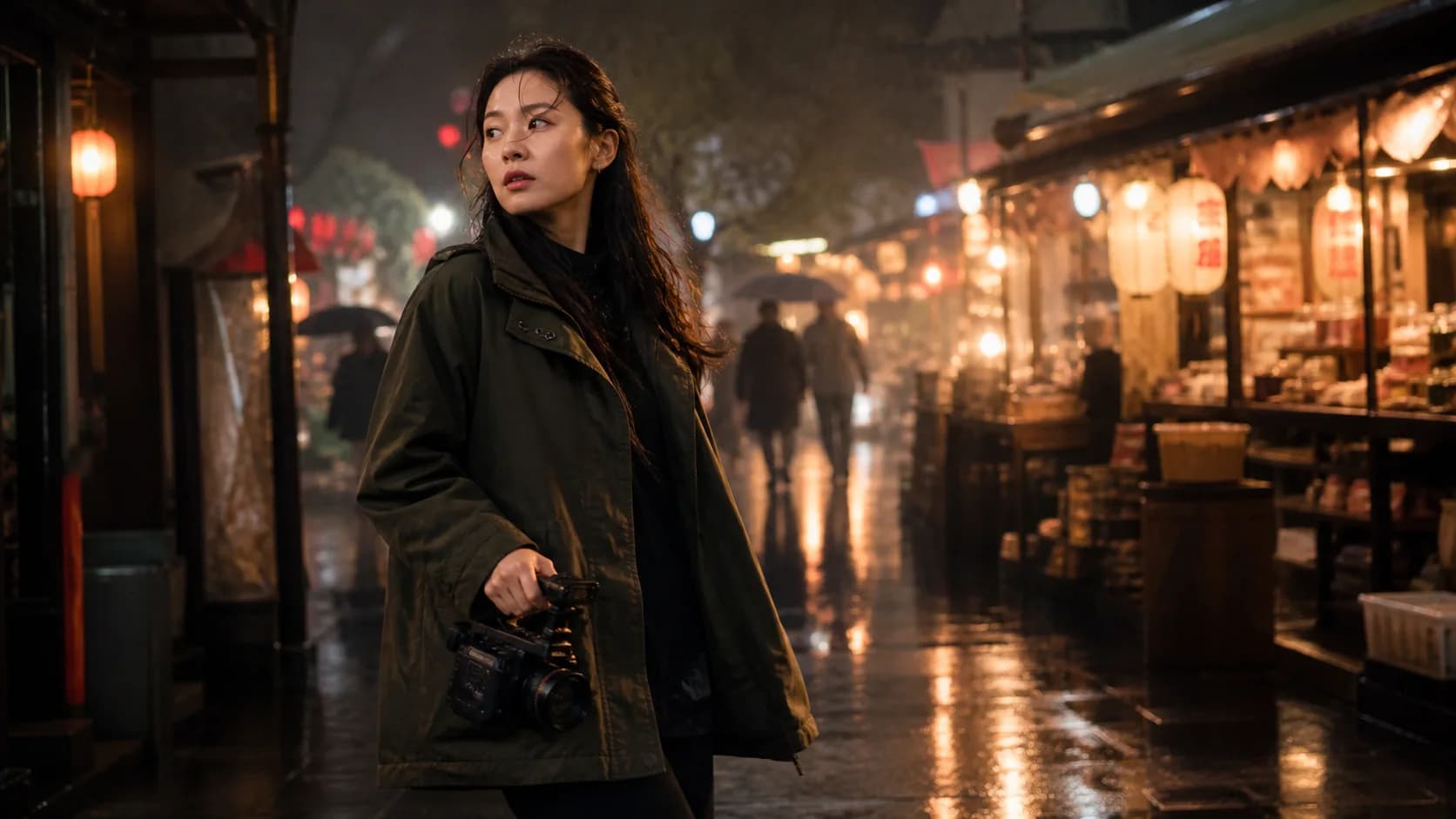
Keep the hero detail recognizable
Use a clear source image to anchor a product, character or setting while Kling develops the shot. Restrained motion works best when logos, faces, materials or fine geometry must remain easy to recognize.
Motion and physics
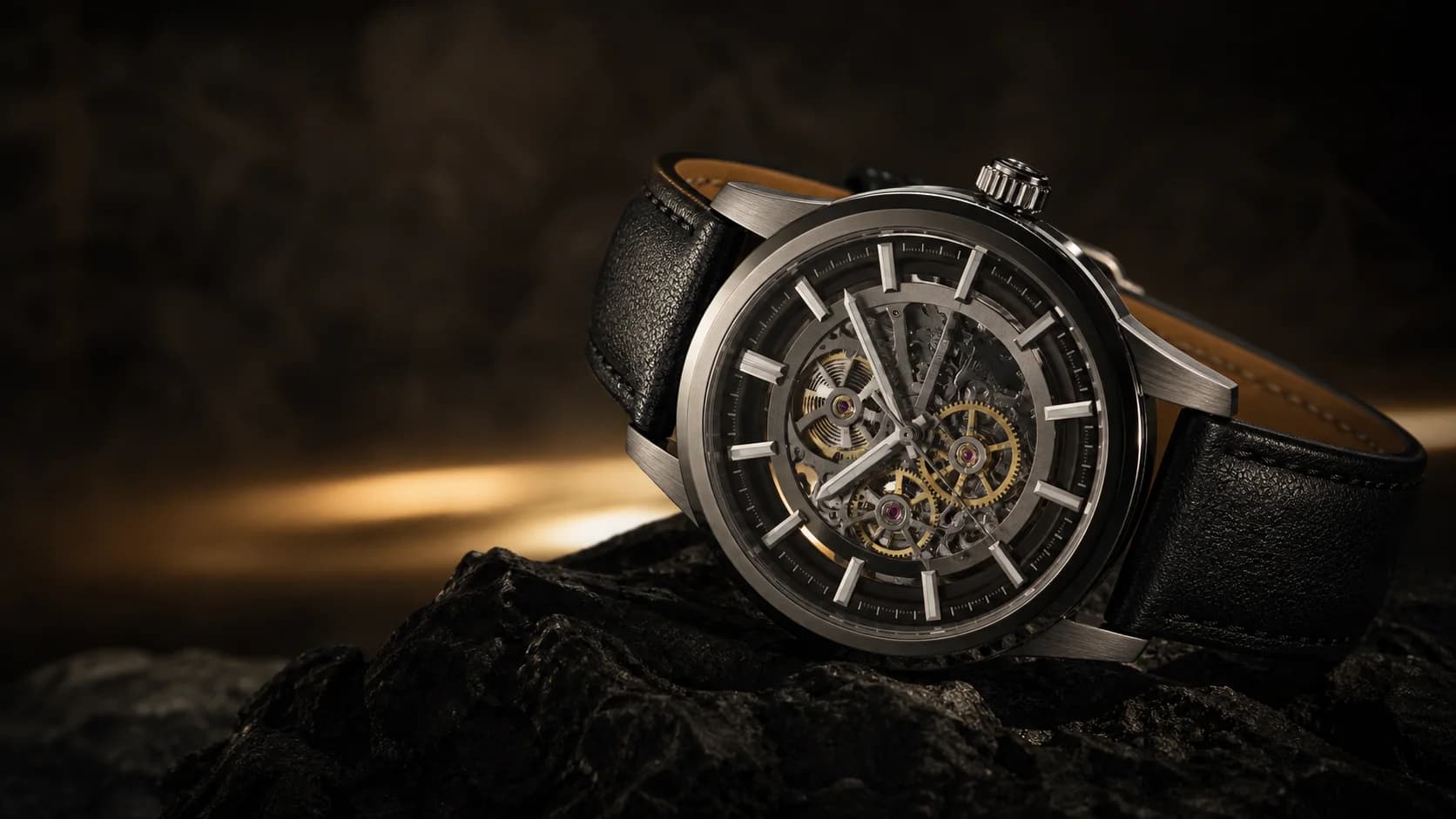
Build action that belongs to the scene
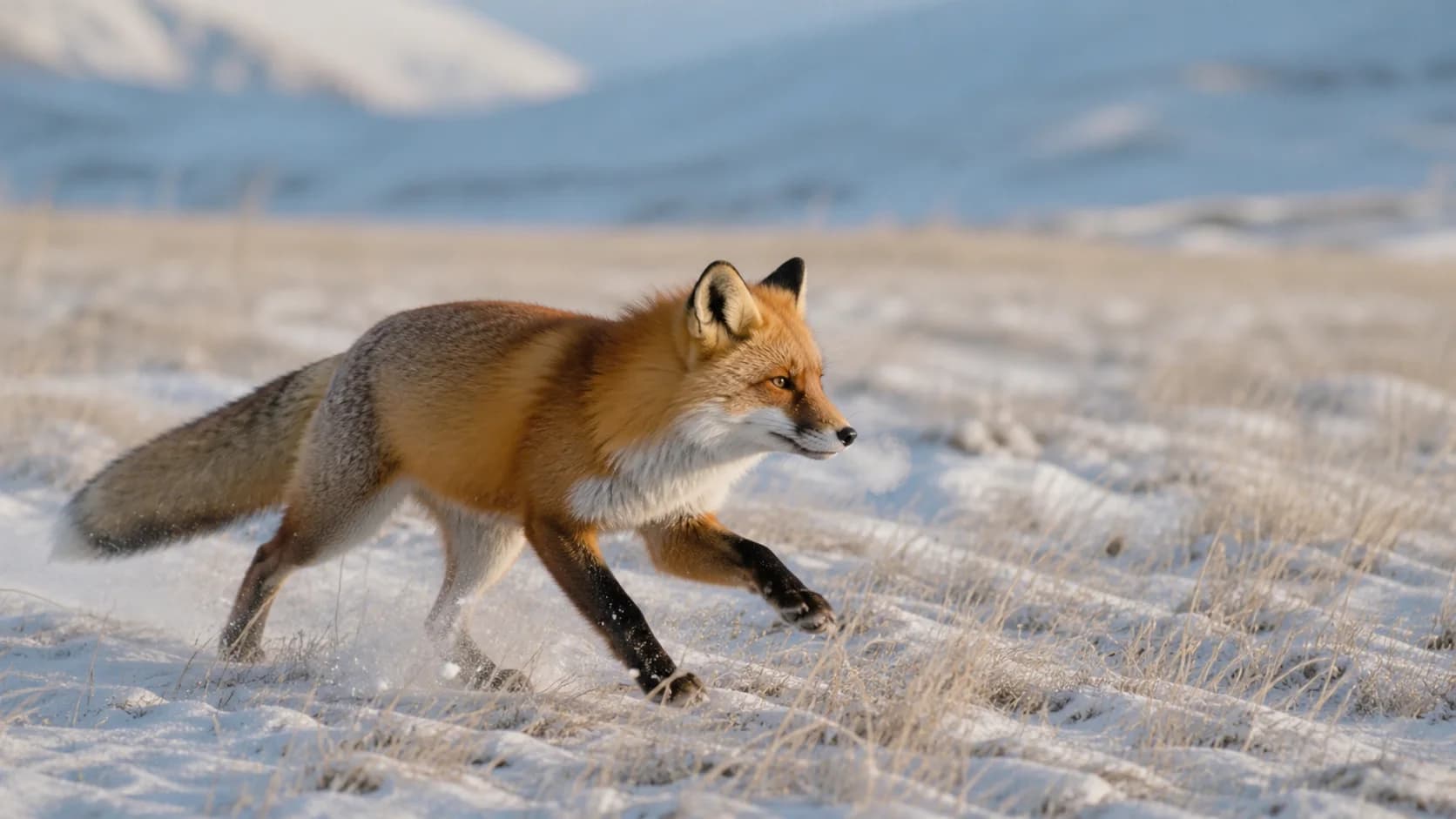
Match the movement to the visible pose and environment. Kling can coordinate the main action with snow, fabric, hair, water, reflections or changing light without requiring a crowded list of effects.
Native audio
Make sound part of the shot
Kling 3.0 can generate dialogue, ambience and sound with the video instead of treating audio as an afterthought. Give it one clear sound direction, name the speaker when needed, and review lip sync before publishing.
Longer storytelling
Let one idea develop for up to 15 seconds
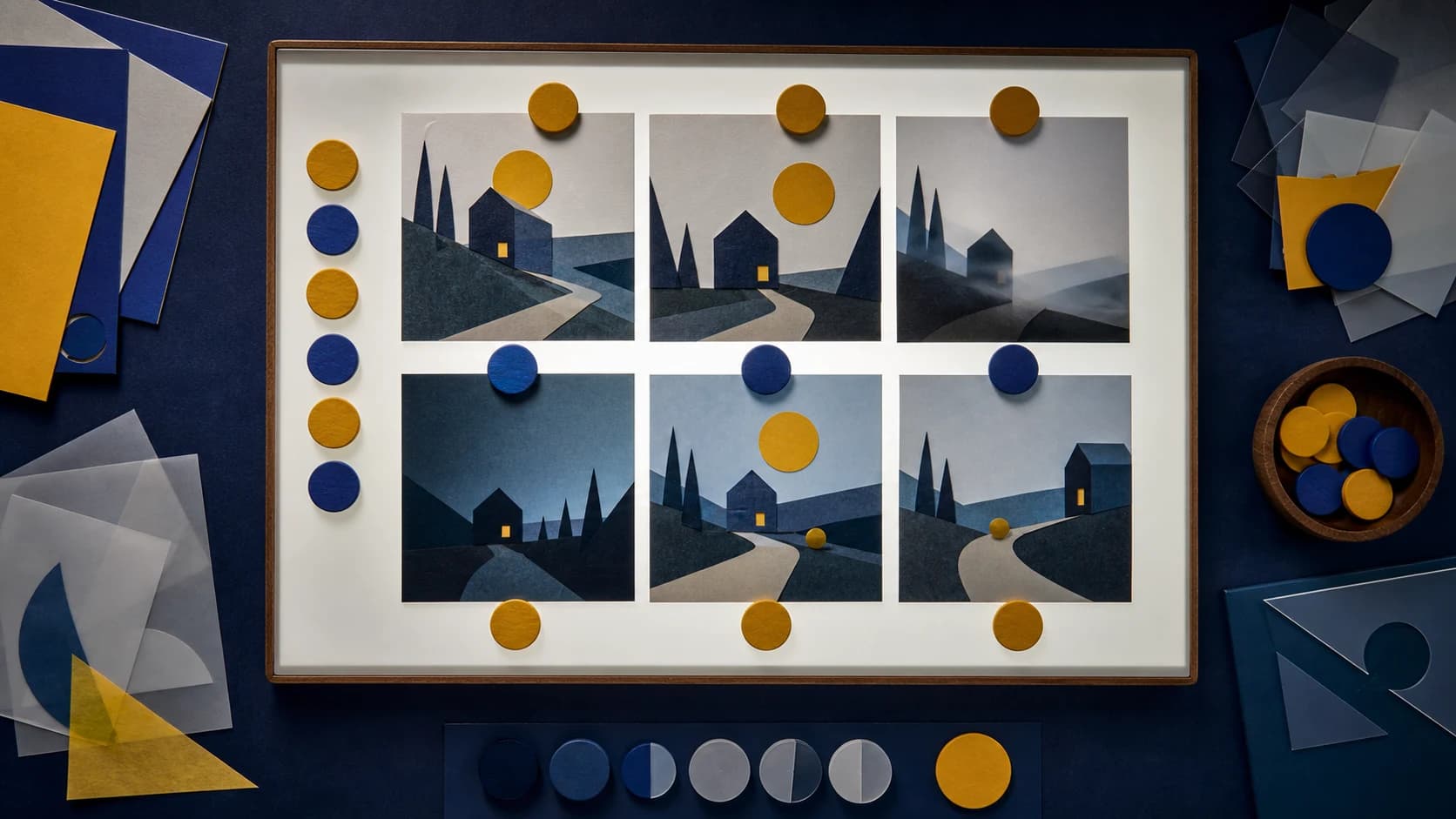
Use a short test to validate motion, or give a scene more time to build. Kling 3.0 supports flexible 3–15 second output, helping product reveals, performances and narrative beats reach a clear ending without a crowded prompt.
How to Use Kling AI Image to Video
Move from one clear image to a directed clip in three steps.
Upload a clear image
Choose a sharp JPG, PNG or WEBP with the subject and important edges visible.
Describe one coherent shot
Write one subject action and one camera move. Need help shaping the idea? Ask the AI Video Agent to clarify the scene and draft a motion prompt.
Choose, generate and review
Keep Kling 3.0 or switch models, check the settings and credit cost, then inspect the completed clip.
Kling AI Video Use Cases
Use one focused workflow for commercial concepts, creator content and visual development.
Product and advertising motion
Turn approved product photography into short reveals, feature shots, landing-page loops and paid-social concepts.
Portrait, fashion and performance
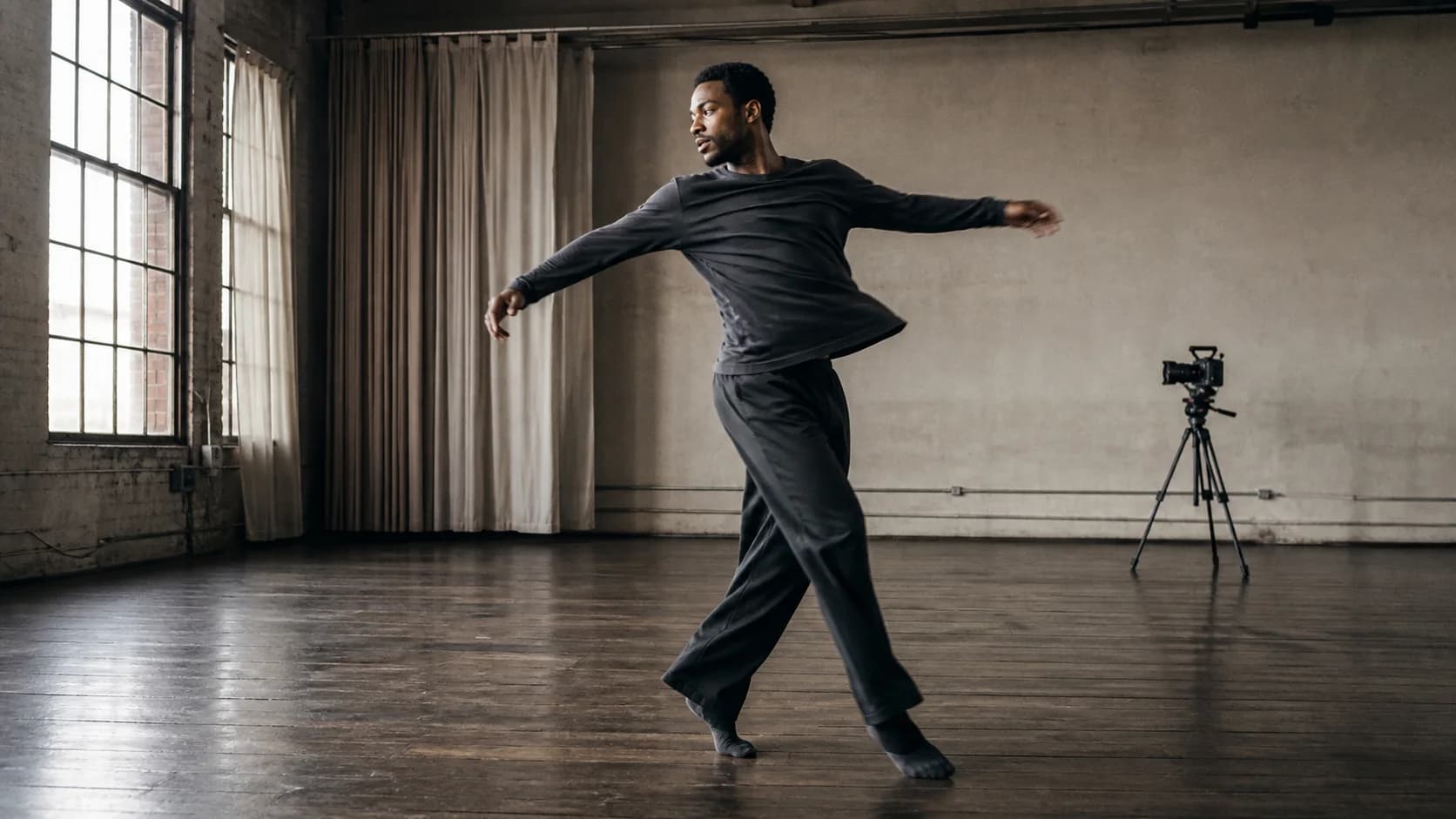
Guide a restrained expression, pose change, cloth movement, dance beat or camera track for short-form content.
Nature and narrative shots
Develop wildlife, travel, concept-art and story frames with motion that follows the visible pose and environment.
Why Create with Kling AI Here
The image, model menu, supported controls, live credit estimate, preview and download stay in one workflow.
Kling ready by default
Open with Kling 3.0 selected and adjust its current duration, quality, ratio and sound controls.
No forced model lock
Switch to Kling 2.6 or another compatible image-to-video model whenever it fits the shot better.
Image-led direction
Use the uploaded frame for appearance and spend the prompt on action, camera and atmosphere.
Cost shown first
See the current credit requirement before generating and preview the finished result before download.
Kling AI Image to Video FAQ
Which Kling AI model is best for image to video?
What is the difference between Kling 3.0 and Kling 2.6?
Can I still select Kling 2.6?
Which Kling 3.0 controls are available?
What kind of prompt works best with Kling?
Does Kling preserve faces, products and text perfectly?
How much does a Kling video cost?
Create with Kling AI Image to Video
Upload an image, choose the right Kling model and see the settings and credit cost before you generate.
Kling AI Image to Video Online
Kling AI Image to Video opens with Kling 3.0 for cinematic image animation, longer shots and flexible quality controls. Kling 2.6 remains available for creators who prefer its natural portrait and image motion, while the complete compatible model menu stays open for every generation.