
LogoPhoto to Video AI
  • Agent
  • First & Last Frame
  • Reference to Video
    • Image to Video
    • Text to Video
    • AI Video Editor
    • Video to Video
    • Lip Sync
    • Motion Control
    • MiniMax H3 Max
    • Kling 3.0
    • MiniMax H3
    • Hailuo AI
    • Text to Image
    • Image to Image
    • GPT Image 2.5
  • Pricing
New account bonus

Sign up for free credits

Get free credits
LogoPhoto to Video AI

Veo 3.1 Image to Video with Native Audio

Animate a photo with directed motion, camera language, and sound. Veo 3.1 Image to Video turns a still into a scene with ambience, effects, or dialogue created alongside the visuals.
PNG, JPG, WEBP · 2 images max

Prompt templates

Prompt templates

Veo 3.1 Lite is selected by default. Describe visible action and optional sound cues clearly.
Public
Private
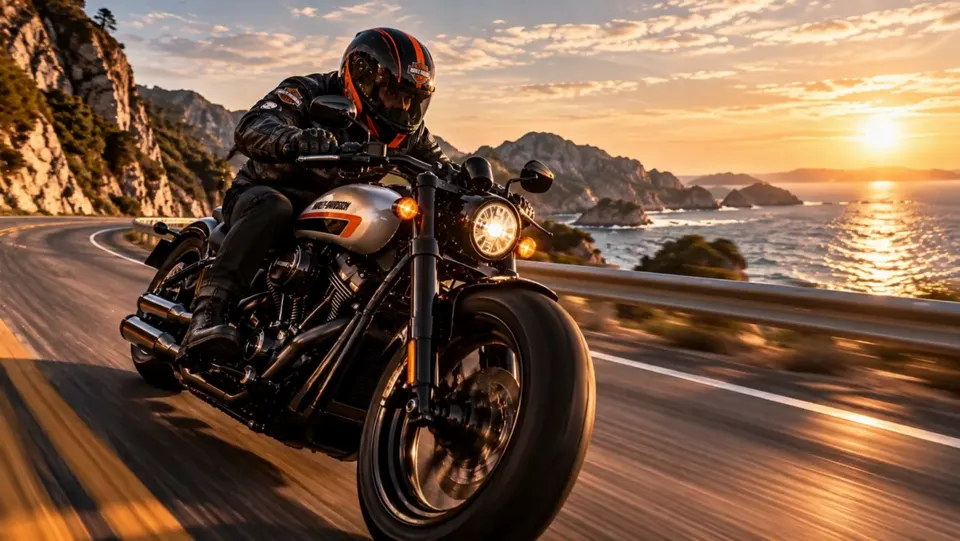
A motorcyclist rides along a coastal road at sunset.
Preparing generatorControls will be ready in a moment.

Turn One Still Image into a Directed Scene

Veo 3.1 Image to Video turns one photo, product shot, portrait, or illustration into a short scene with stronger prompt alignment, realistic motion, camera direction, and native audio. The source image anchors the visual identity while your prompt defines what happens next. Sign up to get starter credits.

Core Veo 3.1 Image to Video Capabilities

Start with one image, then choose the capability that matters to the story: synchronized sound, believable motion, visual continuity, a defined ending, or the right screen format.

Sound generated with the video

Native Sound

Veo 3.1 Image to Video generates motion and native audio in the same pass, so a still can become a scene with ambience, action sounds, or concise dialogue. The source image anchors the look while sound completes the moment.
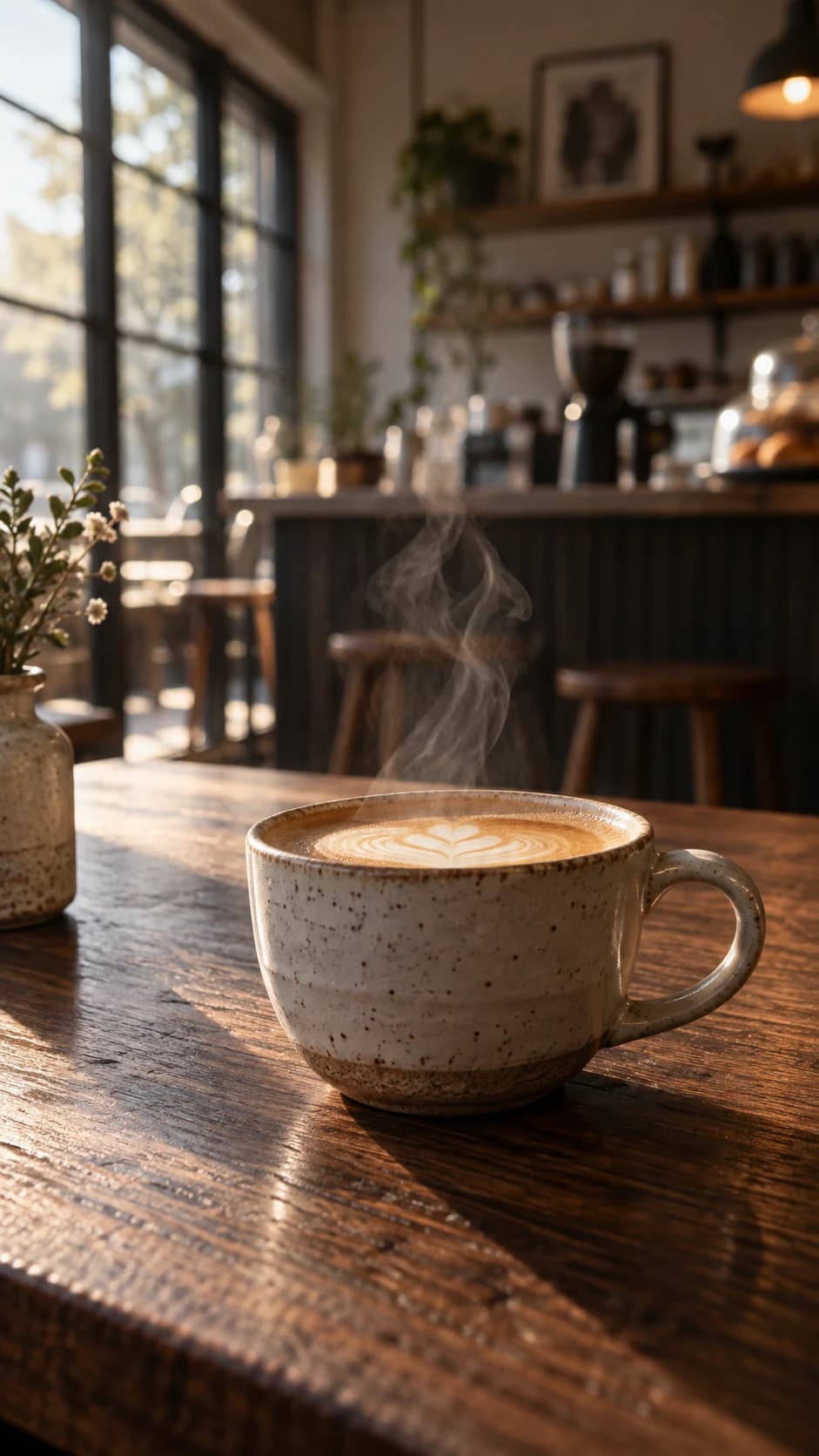
Native Sound

Physics and camera coherence

Realistic Motion

Turn water, fabric, light, and subject movement into one more believable scene. Veo 3.1 Image to Video is built for stronger prompt alignment and realistic physics, with camera direction that supports the action instead of competing with it.
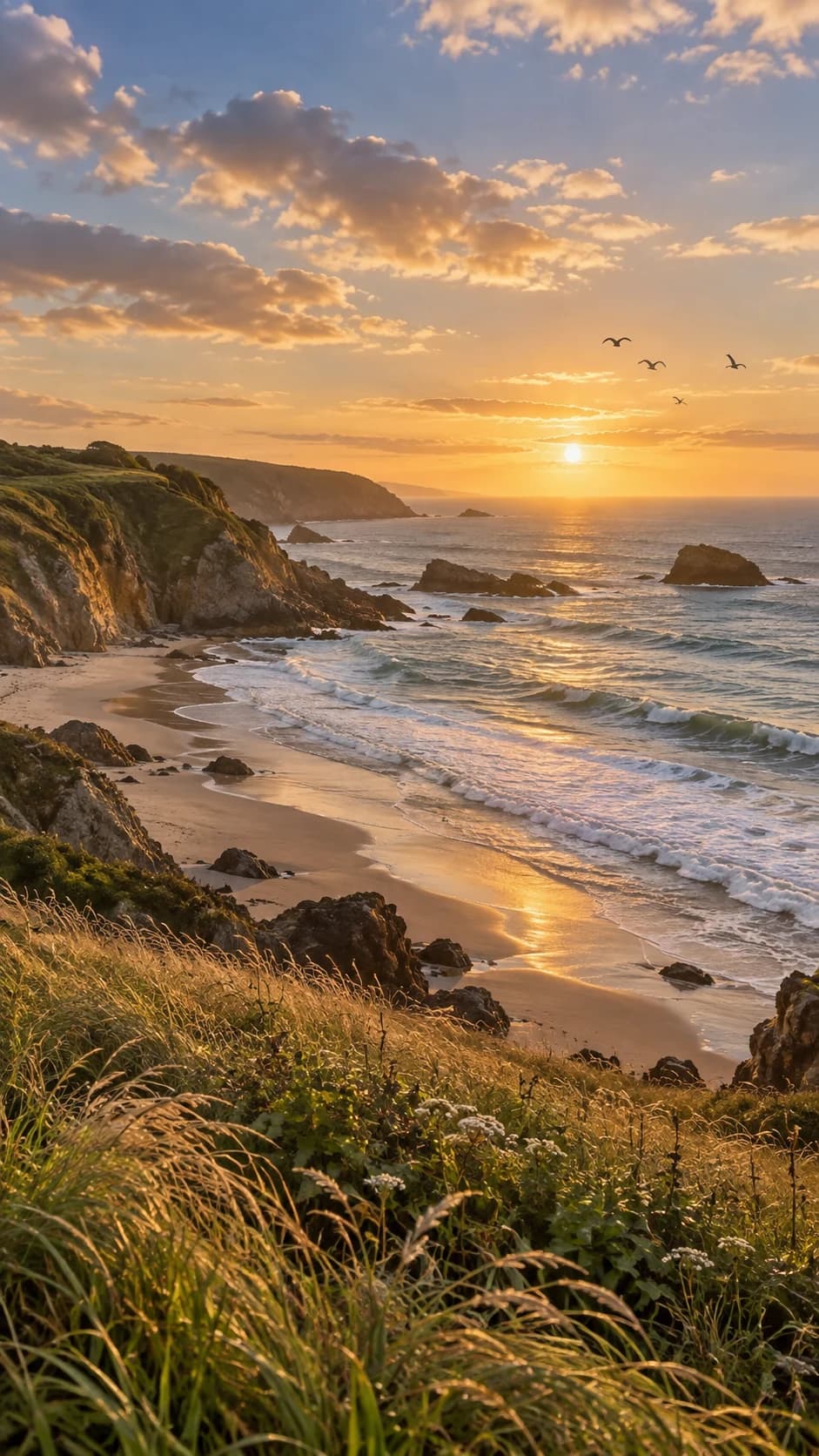
Realistic Motion

A recognizable visual identity

Character & Style

Use a portrait, illustration, product, or handmade scene as the visual anchor. Veo 3.1 Image to Video carries appearance, palette, materials, and art direction into motion, helping brand or character work feel connected. Explore multi-image guidance in Reference to Video AI.

Character & Style

A destination for the transition

First & Last Frame

A clear ending frame helps transformations, before-and-after changes, and product reveals arrive at the intended composition. Use the dedicated First & Last Frame Video Generator when the shot needs both a supplied start and finish.
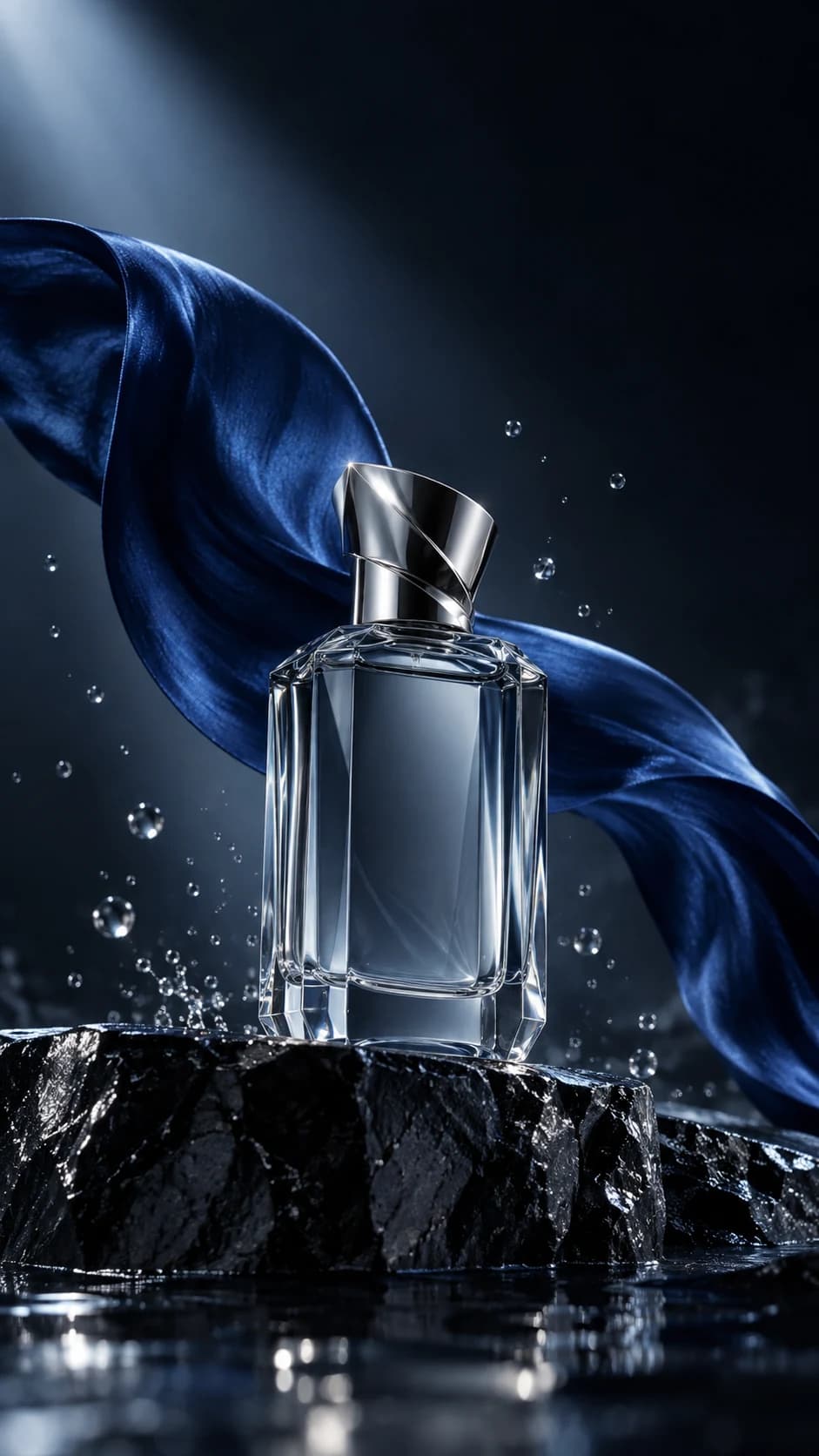
First & Last Frame

Formats for where viewers watch

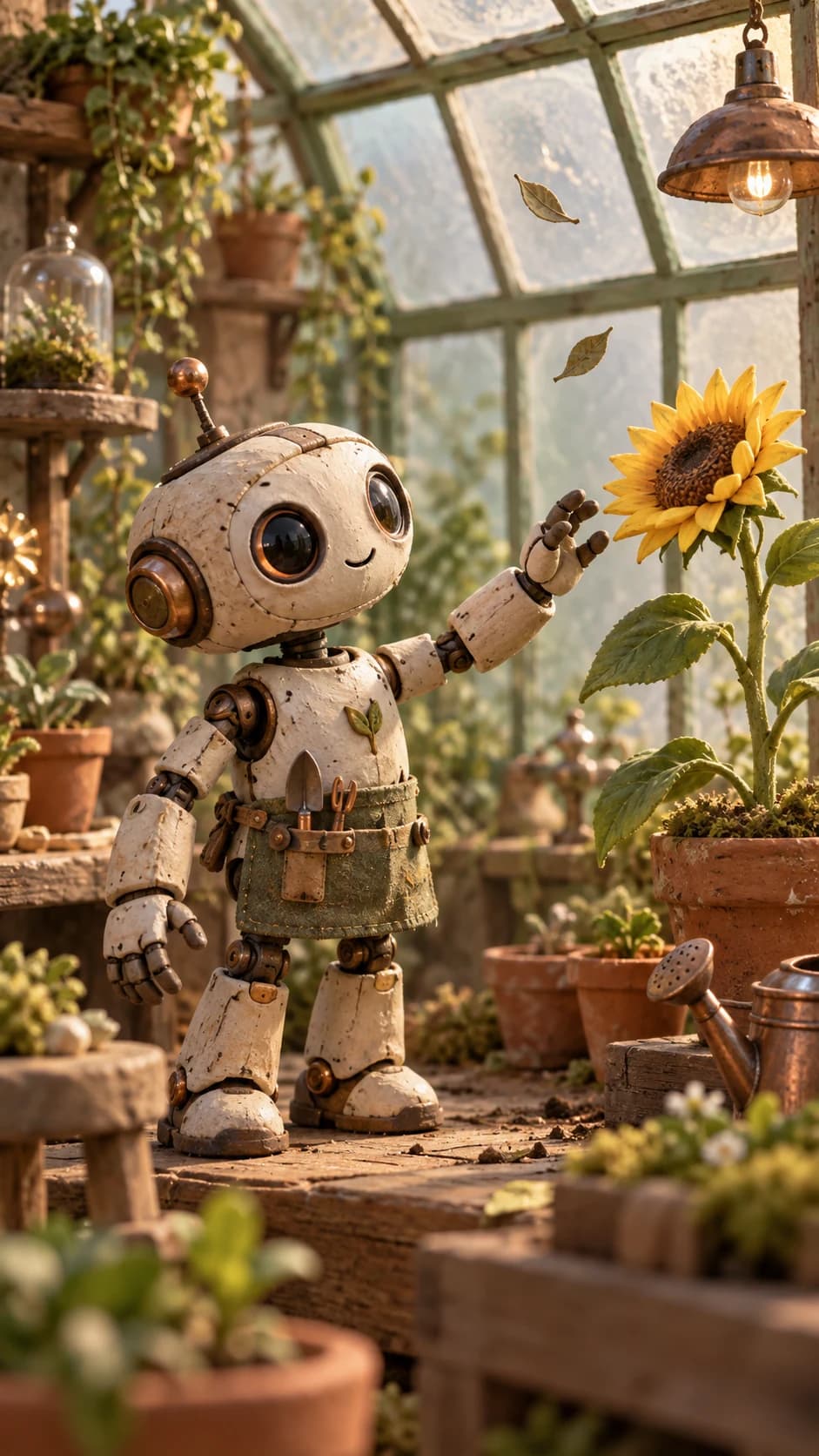
Vertical & Landscape

Create portrait video for Reels, Shorts, and TikTok, or landscape video for websites, presentations, and YouTube. Veo 3.1 Image to Video supports 9:16 and 16:9, while the form shows compatible durations for the selected model.
Vertical & Landscape

How to Use Veo 3.1 Image to Video

Veo 3.1 Image to Video moves from a still image to a short directed clip in three focused steps.

1

Upload a clear source image

Choose a photo, product frame, landscape, portrait, or illustration with a readable subject. Veo 3.1 Image to Video uses that frame to establish the composition and visual identity.

2

Describe motion, camera, and sound

Tell Veo 3.1 Image to Video what moves, how the camera behaves, and what should be heard. A concise sequence is easier to direct than a list of unrelated effects.

3

Review the settings and generate

Start with Veo 3.1 Lite, review the available settings and live credit estimate, then generate. Preview and download the finished clip from the same workflow.

Veo 3.1 Image to Video Use Cases

Veo 3.1 Image to Video creates focused short scenes for products, places, stories, and social publishing.

Product and campaign shots

Use Veo 3.1 Image to Video for controlled reveals, close detail, atmosphere, and camera movement around a clear product frame.

Travel and nature scenes

Use Veo 3.1 Image to Video to add wind, water, weather, wildlife accents, and a deliberate pan or push through a landscape.

Illustrated story moments

Let Veo 3.1 Image to Video add a gesture, expression, camera beat, ambience, or brief spoken line to original artwork.

Social hooks and concepts

Use Veo 3.1 Image to Video for vertical posts, campaign pitches, mood boards, and story development without arranging a full shoot.

Why Create with Veo 3.1 Image to Video Here

Shape the image, movement, camera, and soundtrack as parts of the same short scene.

Veo 3.1 Image to Video starts from your frame

Veo 3.1 Image to Video begins with your composition, so the prompt can focus on movement, camera intent, timing, and atmosphere.

Veo 3.1 Image to Video plans sound with the scene

Direct ambience, action sounds, effects, or concise dialogue alongside the visuals so the sound belongs to the same moment.

Choose a Veo 3.1 Image to Video option

The Veo 3.1 Image to Video form starts with Lite selected. Fast and Quality are also available when their supported settings and credit levels better fit the shot.

A scene you can direct

Coordinate the subject, surroundings, camera, and audio in one prompt so each detail supports the same moment instead of competing for attention.

Veo 3.1 Image to Video FAQ

Can Veo 3.1 Image to Video animate one photo?+
Yes. Upload one image, describe the motion, camera, and sound, and generate a short clip. Veo 3.1 Image to Video uses the still as the visual anchor while the prompt directs what changes over time.
Which model does the Veo 3.1 Image to Video page select?+
Veo 3.1 Image to Video opens with Veo 3.1 Lite selected. The form shows the active model, supported settings, and current credit requirement before you generate.
How do I choose Lite, Fast, or Quality for Veo 3.1 Image to Video?+
Use Lite as the lower-credit starting point for trying a scene. Choose Fast or Quality when the options shown in the form better match your input, format, and creative priority. Review each model's supported controls and live credit estimate before generating.
What formats and clip lengths does Veo 3.1 Image to Video support?+
Veo 3.1 Image to Video supports 16:9 and 9:16 output with 4, 6, or 8 second clips in Google's documentation. The studio shows compatible choices for the selected model and input, because some higher-resolution or reference-based tasks require an 8 second duration.
Does Veo 3.1 Lite support 1080p or 4K?+
For Veo 3.1 Image to Video, Google's Gemini API lists 720p and 1080p for Lite, while 4K belongs to Veo 3.1 and Fast and requires an 8 second clip. Provider-specific options can differ, so use the settings and credit estimate shown for the model selected in the form.
Does Veo 3.1 Image to Video generate audio?+
Veo 3.1 Image to Video supports native audio, including ambience, effects, action sounds, and dialogue. State what should be heard and keep it tied to the visible action.
What is a good Veo 3.1 Image to Video prompt?+
A good Veo 3.1 Image to Video prompt uses a simple order: subject action, environmental movement, camera direction, then sound. For a café frame, try a slow push-in, natural steam, soft room ambience, and a faint cup clink.
How do generation credits work for Veo 3.1 Image to Video?+
The form shows the current credit requirement for the selected model and settings before you generate.
Can Veo 3.1 Image to Video control the first and last frame?+
When Veo 3.1 Image to Video needs a defined opening and ending image, use the dedicated First & Last Frame Video Generator. That workflow keeps the two-frame task distinct from this single-image starting point.
Can Veo 3.1 Image to Video use reference images or extend a clip?+
For Veo 3.1 Image to Video, Google's Gemini API makes reference images and video extension available on Veo 3.1 and Fast, while Lite supports single-image and last-frame paths. This page is the single-image entry; use the dedicated Reference to Video workflow for compatible multi-image creation.
Does Veo 3.1 Image to Video preserve my image exactly?+
Veo 3.1 Image to Video uses the image to guide composition and visual identity, while generation introduces motion and new frames. Use a clear subject, request a small number of changes, and avoid conflicting actions when visual continuity matters.
What is Veo 3.1?+
Veo 3.1 is a video generation model from Google DeepMind. Veo 3.1 Image to Video uses a source image and written direction to create motion, camera behavior, and native audio in the same generated scene.
Do Veo 3.1 videos have a watermark?+
Google applies SynthID to Veo 3.1 Image to Video output. SynthID is different from a visible platform logo; visible marks and export terms depend on the product and plan used to generate the video.

Continue Beyond Veo 3.1 Image to Video

Choose a more focused route when the shot needs two keyframes, multiple references, a product treatment, or a prompt-only start.

First & Last Frame Video GeneratorSet both the opening and ending image when a transition needs a defined destination.Reference to Video AIUse several visual inputs with distinct roles for a more detailed reference-led brief.Product Photo to VideoAnimate product photography for reveals, detail shots, campaigns, and social creative.Animate Old PhotosBring a suitable archive or family photo into a focused photo animation workflow.Text to Video AIStart from a written scene when no uploaded image needs to define the opening frame.Seedance Image to VideoCompare Seedance with Veo 3.1 Image to Video when image-led motion and camera direction matter more than native audio planning.Grok Imagine Image to VideoTry a quick photo-animation workflow for a clear subject action, camera move, and short social concept.

Create a Veo 3.1 Image to Video Scene

Upload one clear image, direct the action, camera, and sound, review the credit estimate, and turn the frame into a clip.

Create with Veo 3.1
View pricing plans

Veo 3.1 Image to Video Online

Veo 3.1 Image to Video brings image-led motion, camera direction, and native audio into one browser workflow. Begin with Lite selected, see the credit requirement before generation, then preview and download the result.

LogoPhoto to Video AI

Email
Use Cases
  • Animated Book Cover Maker
  • AI Construction Timelapse Generator
  • AI Car Video Generator
  • Day to Night Transition
  • Pet Photo to Video AI
  • Animate Illustration AI
  • Fashion Photo to Video AI
  • Food Photo to Video AI
  • Portrait Image to Video AI
  • Wedding Photo to Video AI
  • Anime Image to Video AI
  • AI Furniture Video Generator
  • First & Last Frame Video
  • Reference to Video AI
  • All AI Video Tools
AI Models
  • Seedance Image to Video
  • Veo 3.1 Image to Video
  • Grok Imagine Image to Video
  • GPT Image 2.5
  • Kling AI Image to Video
  • MiniMax H3 AI Video Generator
  • MiniMax H3 Max AI Video Generator
  • Hailuo AI Image to Video
Company
  • About
  • Contact
  • Changelog
Legal
  • Cookie Policy
  • Privacy Policy
  • Acceptable Use Policy
  • Terms of Service
© 2026 Photo to Video AI All Rights Reserved.[email protected]We are not affiliated with the model providers. All trademarks belong to their respective owners.