
Text to Video AI
Prompt templates
Upload reference images for video generation.
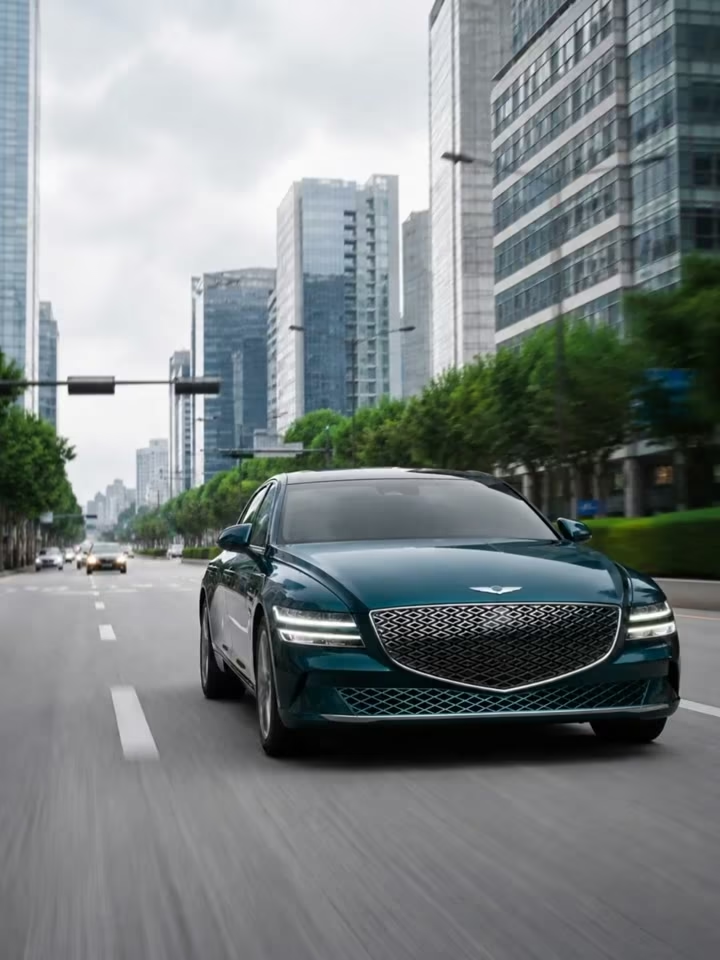
Build a Better Shot with Text to Video AI
Text to Video AI helps you define one coherent shot, direct subject and camera motion, choose a visual language, and match the model and format to its final use.
Prompt-to-scene direction
Turn one prompt into one clear shot
Start with the subject, one visible action, and the environment. Add only the camera, light, and atmosphere needed to make the moment readable. Text to Video AI stays more focused when each generation has one clear visual job.
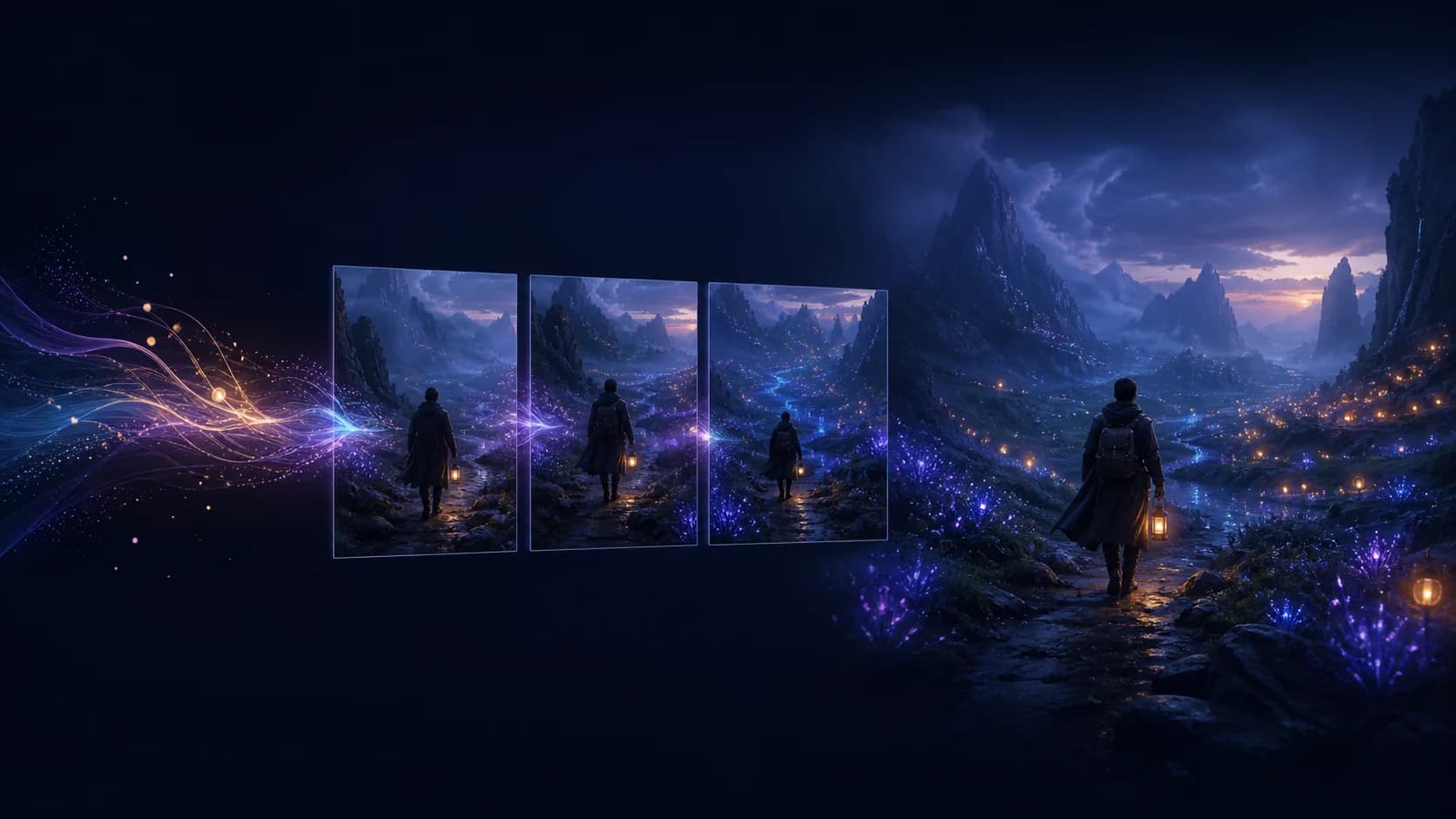
Camera and motion
Direct subject and camera motion separately
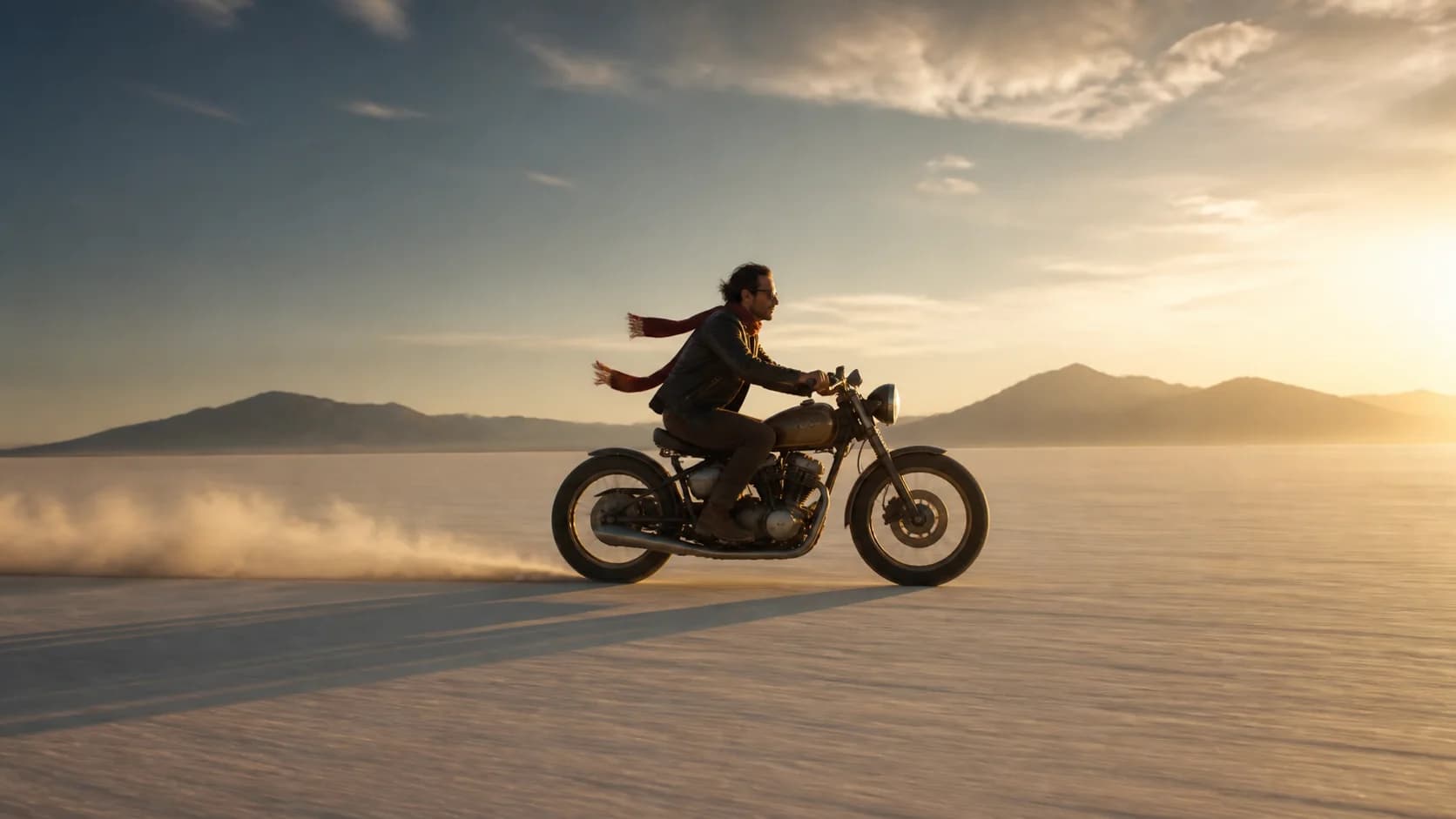
Separate subject motion from camera motion. Describe what the motorcycle, fabric, and dust do, then choose one camera direction such as a low tracking shot or restrained push-in. Keeping movement plausible makes the shot easier to control.
Style and atmosphere
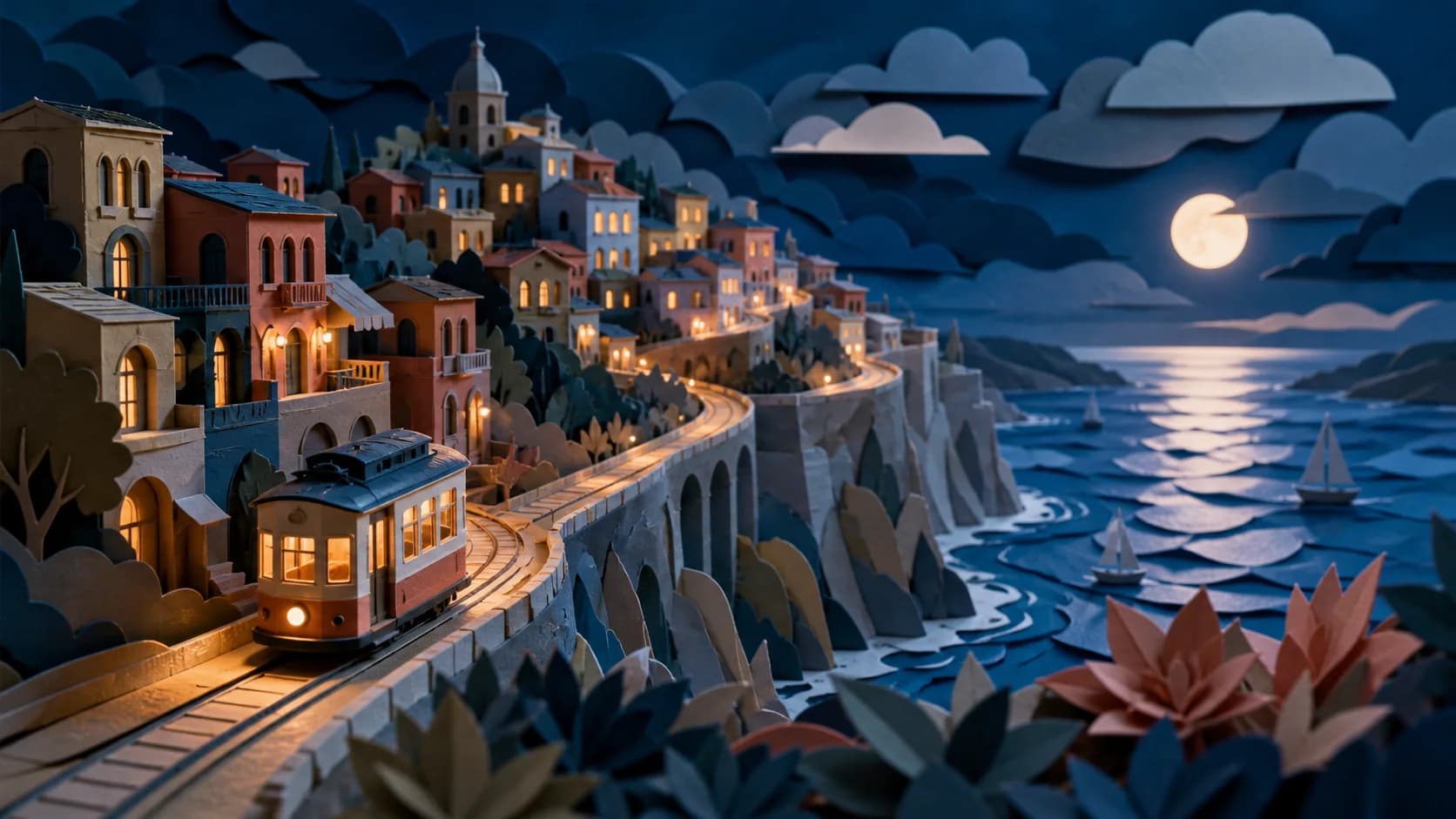
Keep style cues visually consistent
Define a compatible medium, palette, lighting setup, materials, and mood. A focused style brief helps the generator carry the same visual rules through the clip instead of mixing several unrelated aesthetics.
Models and delivery
Match the model and format to the shot
Choose the model around the required duration, ratio, quality, and audio options. Use vertical output for social clips, widescreen for cinematic shots, and an image-led workflow when exact product identity matters more than prompt-first exploration.

How to Use Text to Video AI
Move from a written idea to a reviewable video shot in three practical steps.
Write one focused scene
Describe the subject, one action, environment, camera direction, lighting, and visual style. Keep the most important fact early and remove instructions that compete with each other.
Choose a model and output settings
Compare the available model descriptions and select the supported duration, aspect ratio, quality, audio, and other options that match the destination.
Generate, inspect, and refine
Review the whole clip for motion and consistency. If it is close, change one prompt detail or model choice at a time so you can understand what improved the result.
Text to Video AI Use Cases
Create the missing visual when the project begins with an idea instead of existing footage.
Ads, launch concepts, and product worlds
Develop original campaign environments, mood shots, opening hooks, and unbranded product-film concepts before committing to a shoot. Use source-image workflows when the real SKU must remain exact.
Social clips and music visuals
Generate a short visual beat for Reels, Shorts, music loops, creator posts, and campaign teasers. Compose for the destination ratio and add captions or final audio in a separate editing pass.
Storyboards and moving previsualization
Turn a written scene into motion references for pitches, shot planning, world-building, and team alignment. The result can communicate atmosphere and camera intent even when it is not final footage.
Why Create with Text to Video AI Here
The prompt, model menu, compatible settings, cost, preview, and generation history stay in one focused workflow.
No source upload required
Begin with language when no approved image or footage exists. The generator is ready for a scene, action, camera, and style brief.
Multiple model paths
Compare compatible video models and keep the creative brief in one workspace instead of rebuilding it across separate tools.
Controls follow the model
See the duration, ratio, quality, audio, and other inputs supported by the selected integration before submitting the job.
Review before reuse
Preview complete motion, anatomy, text, physics, and continuity. Keep useful iterations in creation history and refine one variable at a time.
Text to Video AI FAQ
What is Text to Video AI?
Do I need an image or video to start?
Which text-to-video model should I choose?
Can it generate a complete long-form video?
How do I improve prompt accuracy?
Can I use a generated clip commercially?
Create a Shot with Text to Video AI
Write one focused visual moment, choose the compatible model and settings, and turn the idea into footage you can review.
Text to Video AI Online
Text to Video AI creates original short video clips from a written scene without requiring source media. Direct the subject, action, camera, lighting, and atmosphere, compare compatible generation models, review the available settings and live credit estimate, then inspect the completed footage before download or further editing.