
Reference to Video AI
Prompt templates
Use the images to define the subject and style; use the prompt to direct motion without introducing conflicting details.
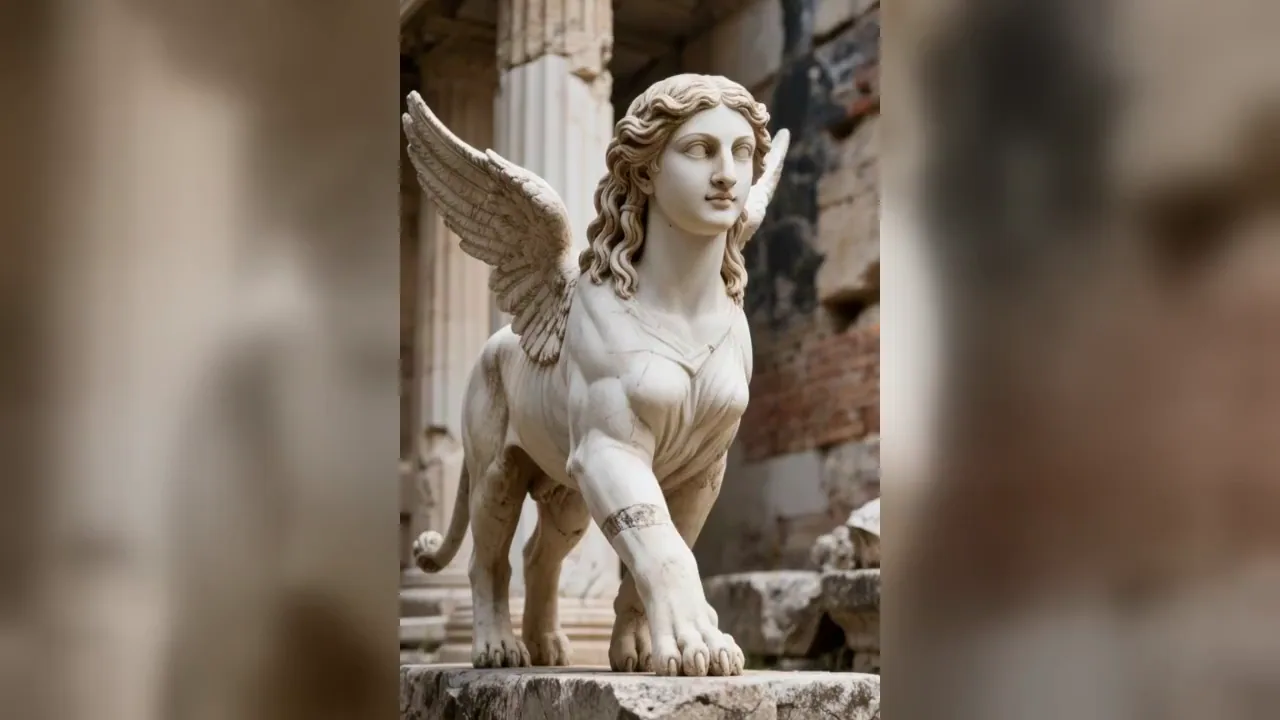
Reference to Video AI Examples
Compare AI videos made from character, product, scene, and style reference images. See how multi-reference guidance can direct new action and camera movement while improving face, outfit, material, and visual consistency.
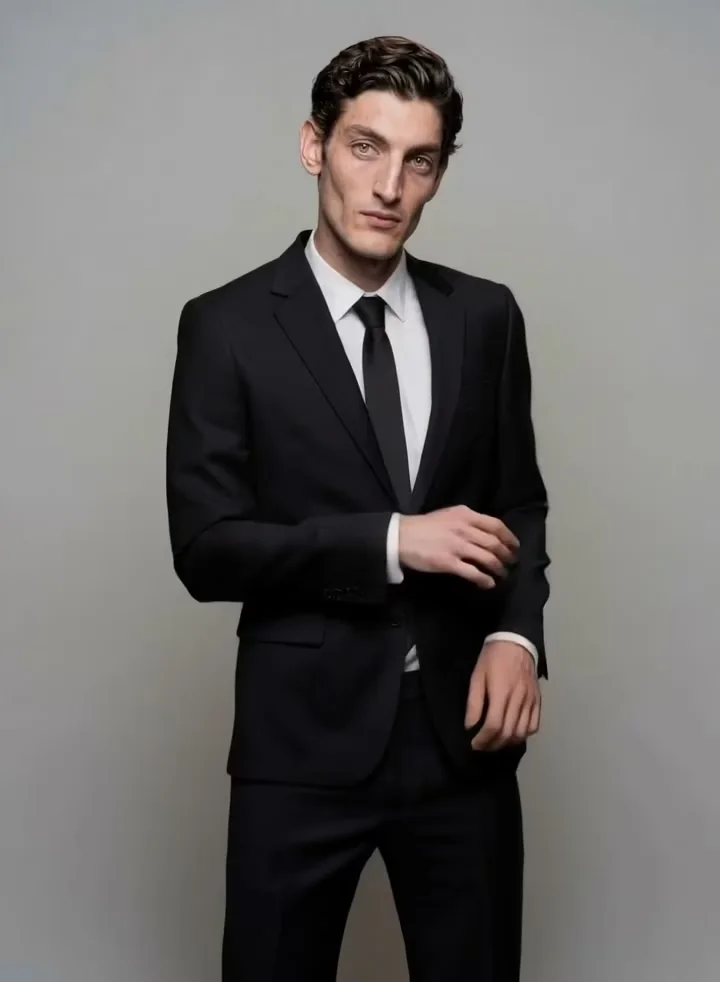
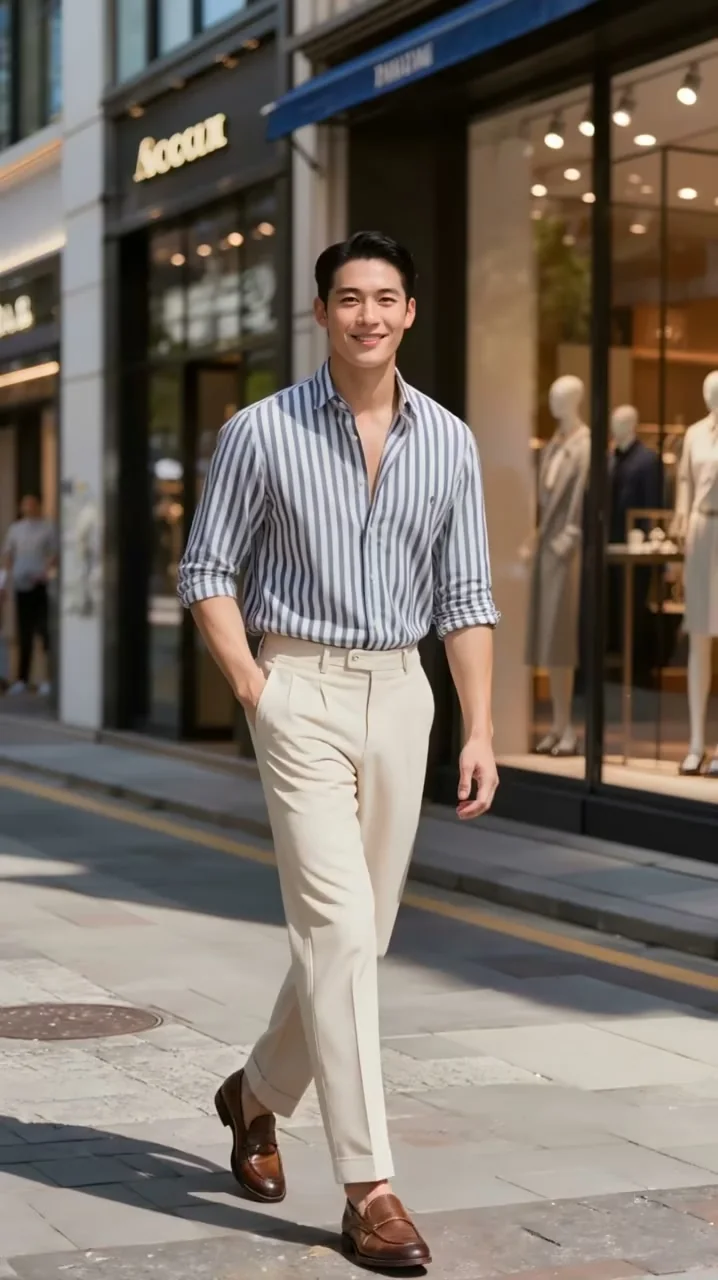
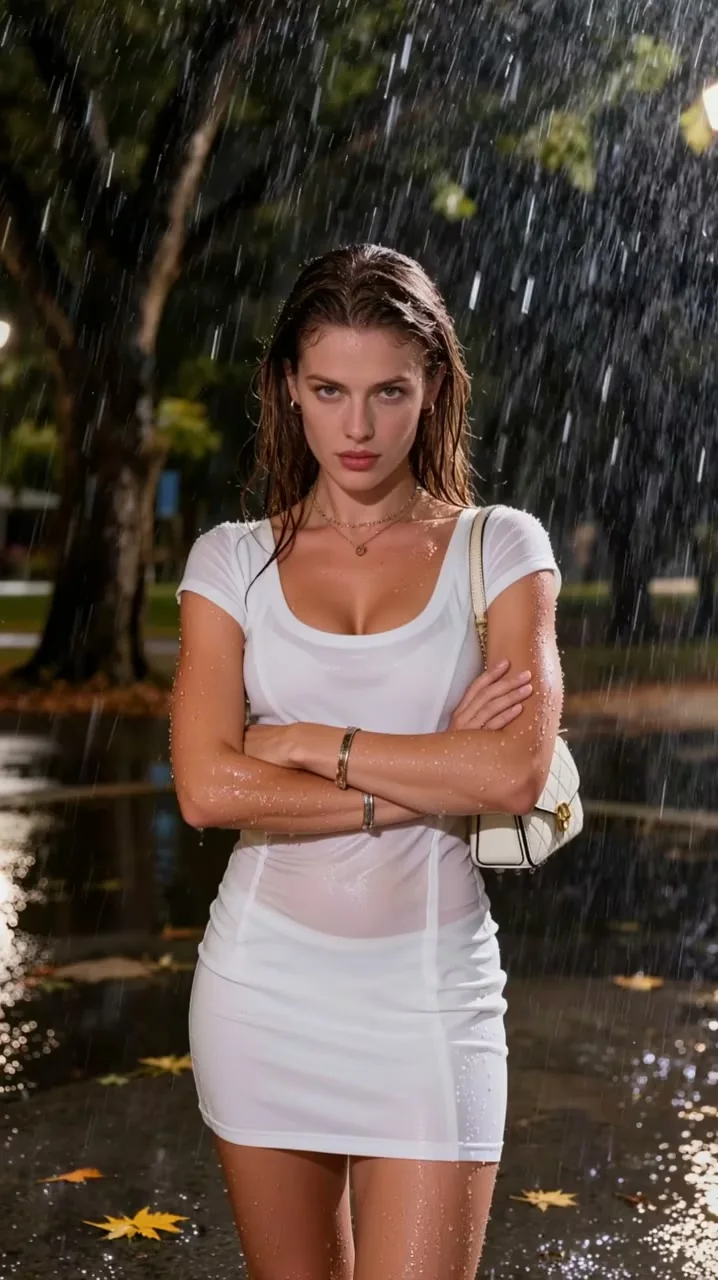
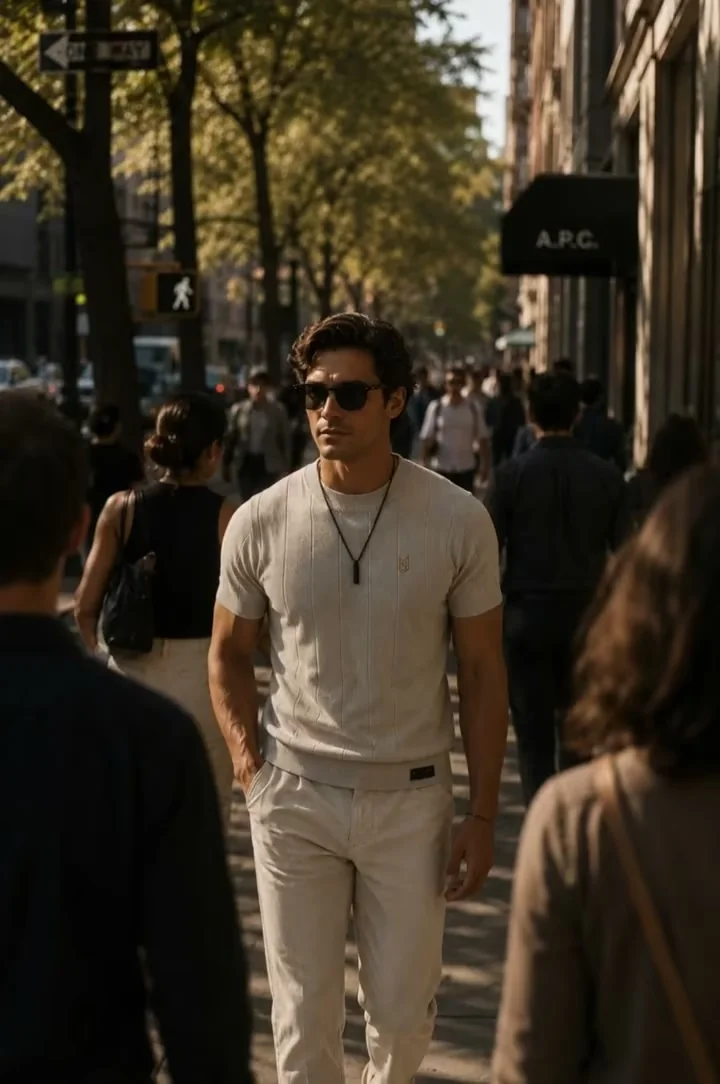
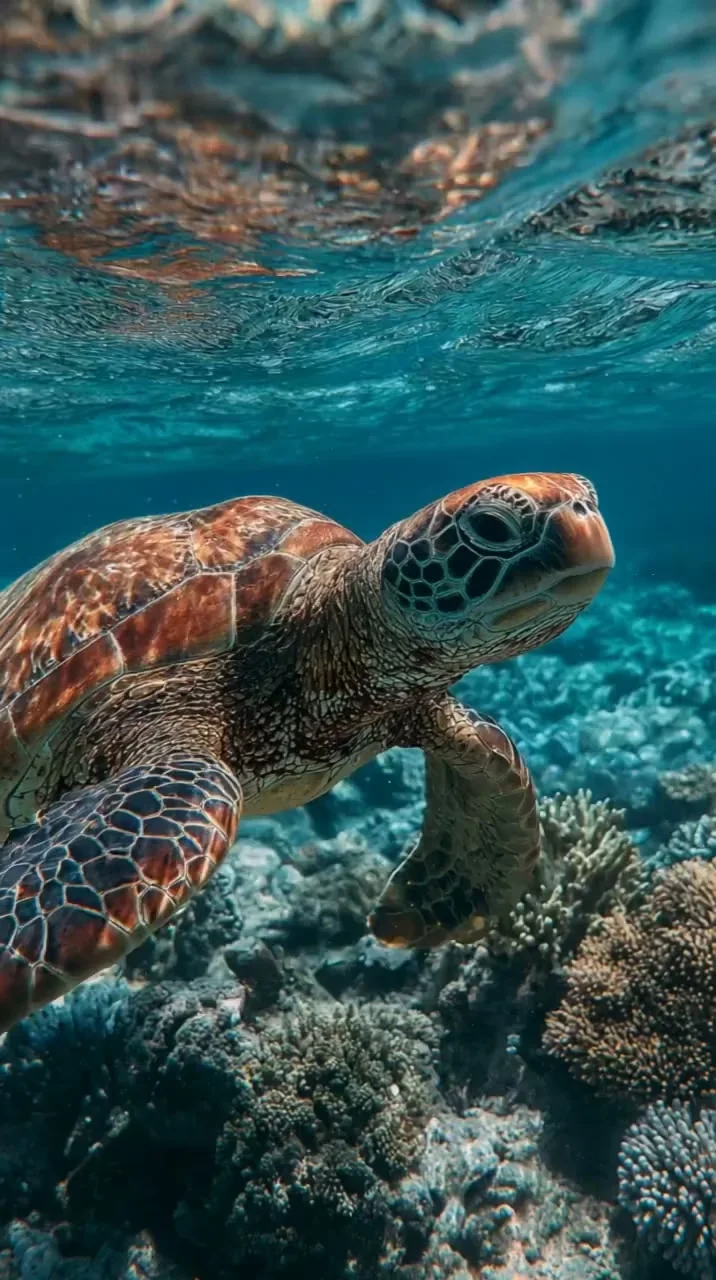
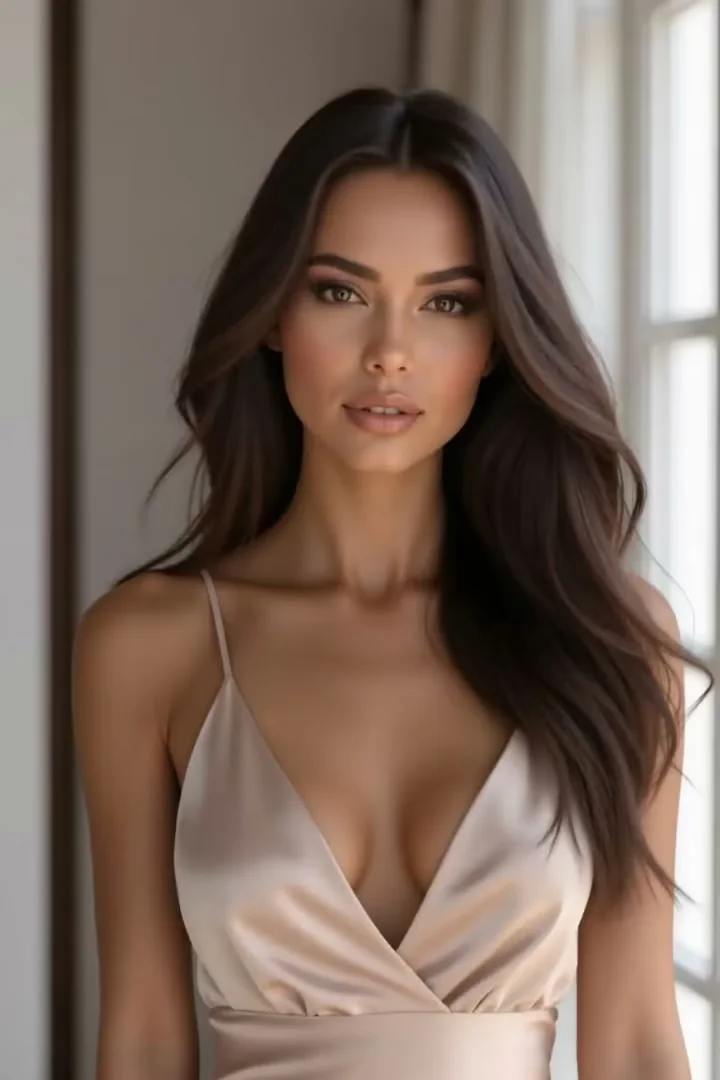

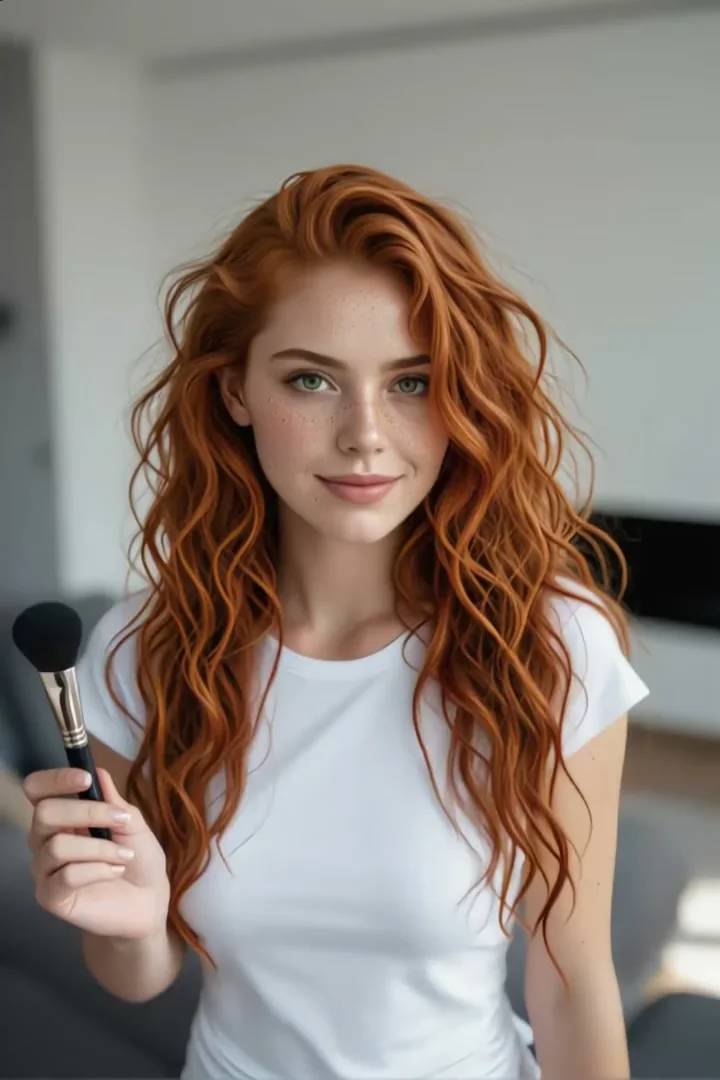
Turn References into One Coherent Shot
Six focused decisions help the model understand what each image should contribute.
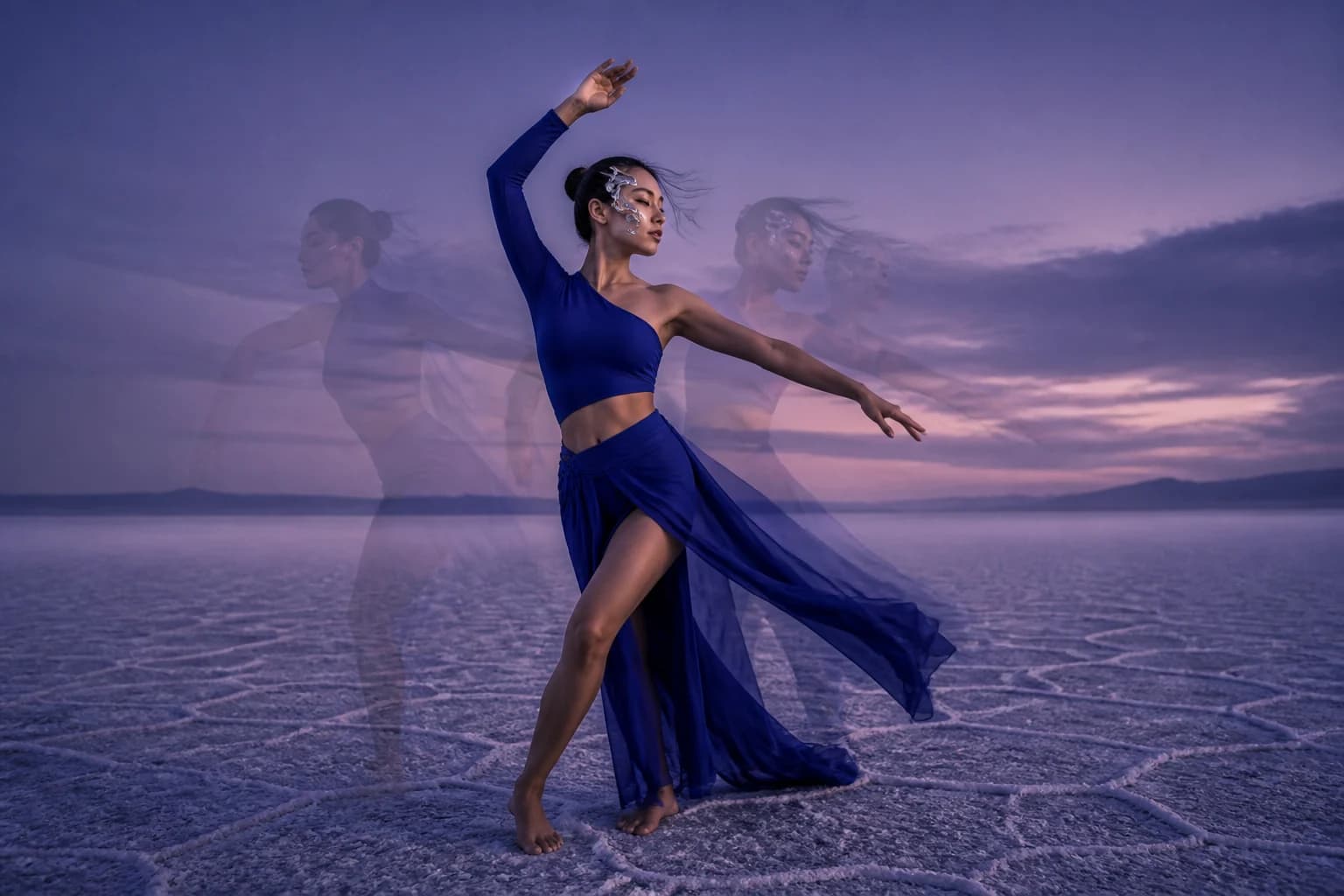
Character continuity
Guide a recognizable character into a new scene
Use clear views of the same character, then direct a new pose, environment, or camera move. Front, three-quarter, and full-body references can clarify face, hair, silhouette, and clothing. Strong motion or occlusion can still change details, so begin with a restrained shot.
- Use sharp references with readable face, outfit, and silhouette
- Choose images of the same identity rather than near matches
- Begin with restrained motion when continuity matters most
Reference roles
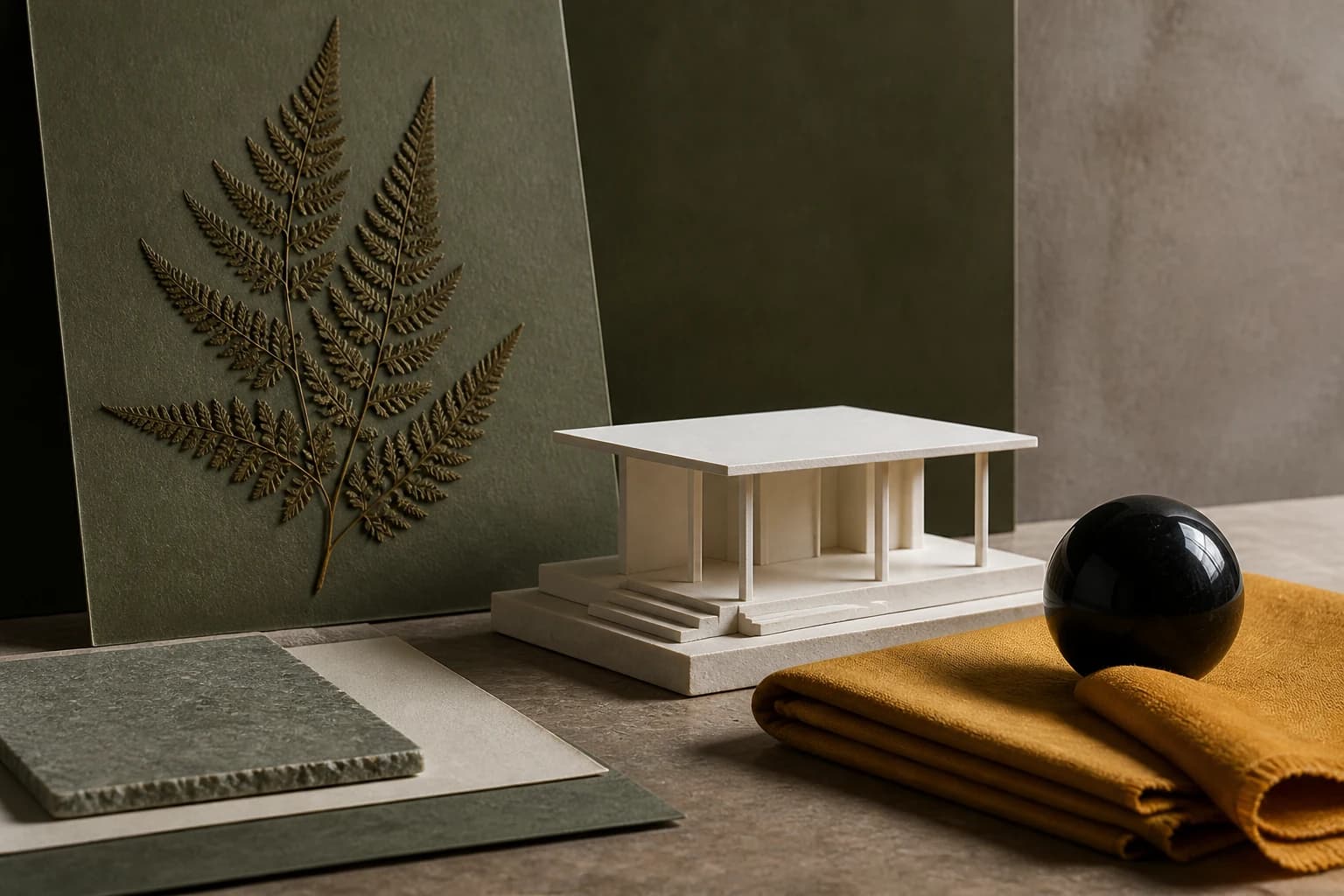
Give every uploaded image one clear job
One reference may establish the subject, another the architecture, and a third the material or color language. Explain how they relate instead of asking the model to guess. The selected model determines how many references the live form accepts.
- Start with the main subject before adding scene or style
- Avoid redundant images that repeat the same angle
- Name the desired scene relationship in the prompt
Product continuity
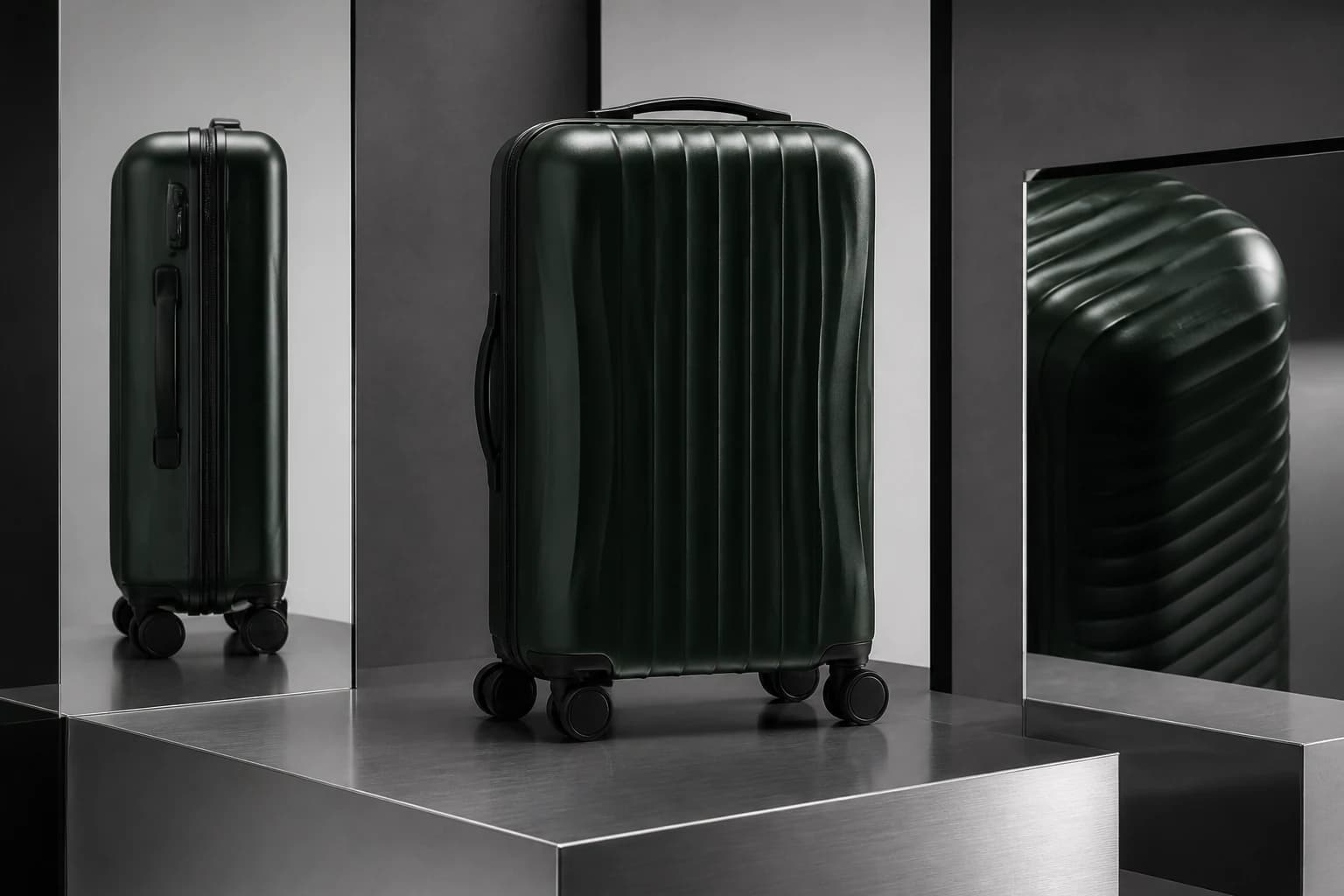
Show shape and material from useful angles
A front view establishes identity, a side view clarifies depth, and a detail image explains texture. Use consistent photography and a restrained camera path when shape or finish matters. References improve guidance, but they are not a 3D scan of unseen surfaces.
- Use the same approved product and packaging version
- Keep white balance and material color consistent
- Inspect labels, logos, proportions, and closures
Creative hierarchy
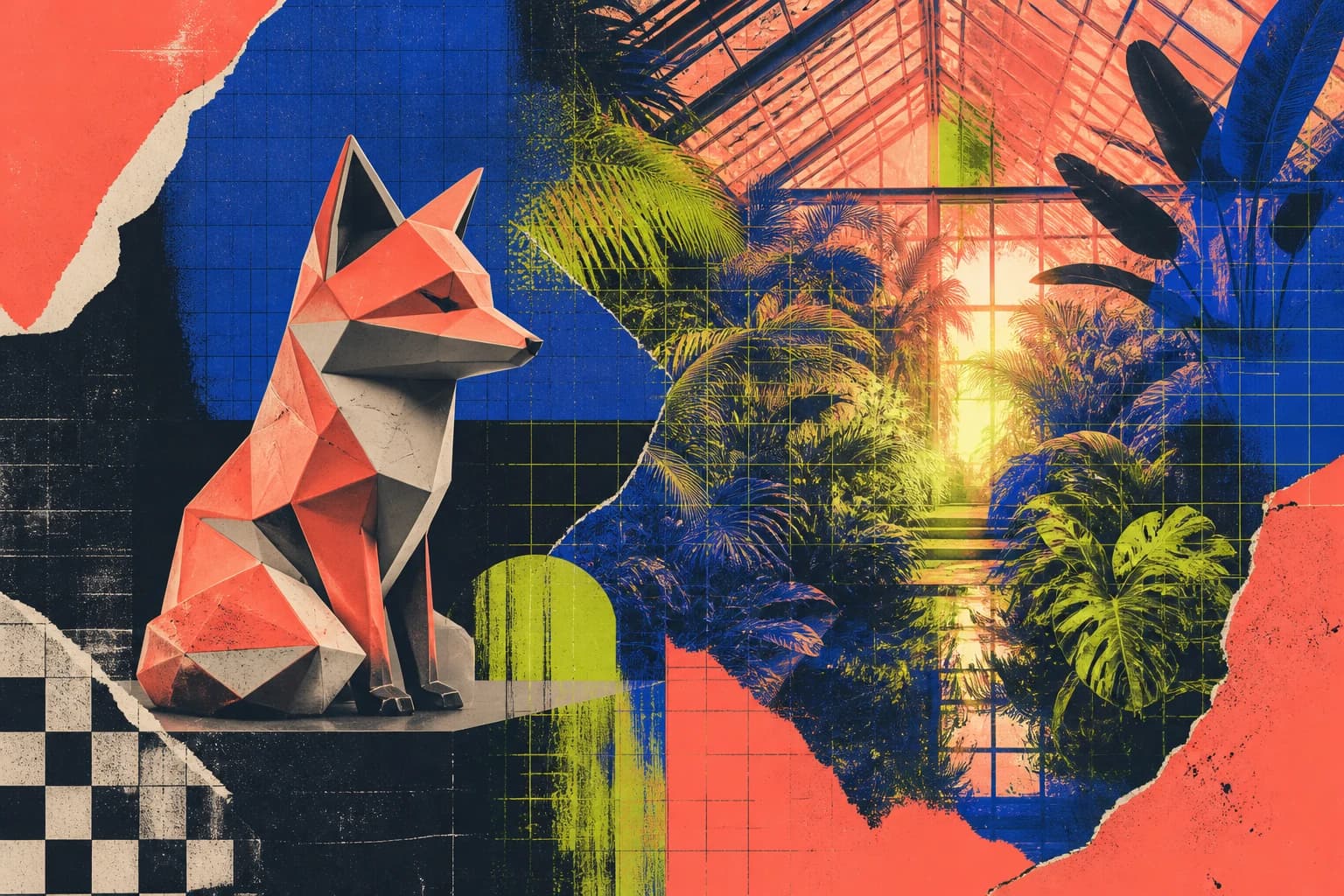
Resolve conflicting references before generation
More images do not automatically create more control. When realism, collage, lighting, and identity cues compete, the model must choose. Select one dominant look, remove contradictory inputs, and keep only the references that support the same shot.
- Use one dominant style with supporting references
- Remove contradictory lighting, identity, or scene logic
- Test one simple shot before adding complex action
Scene composition
Compose a new shot instead of a collage
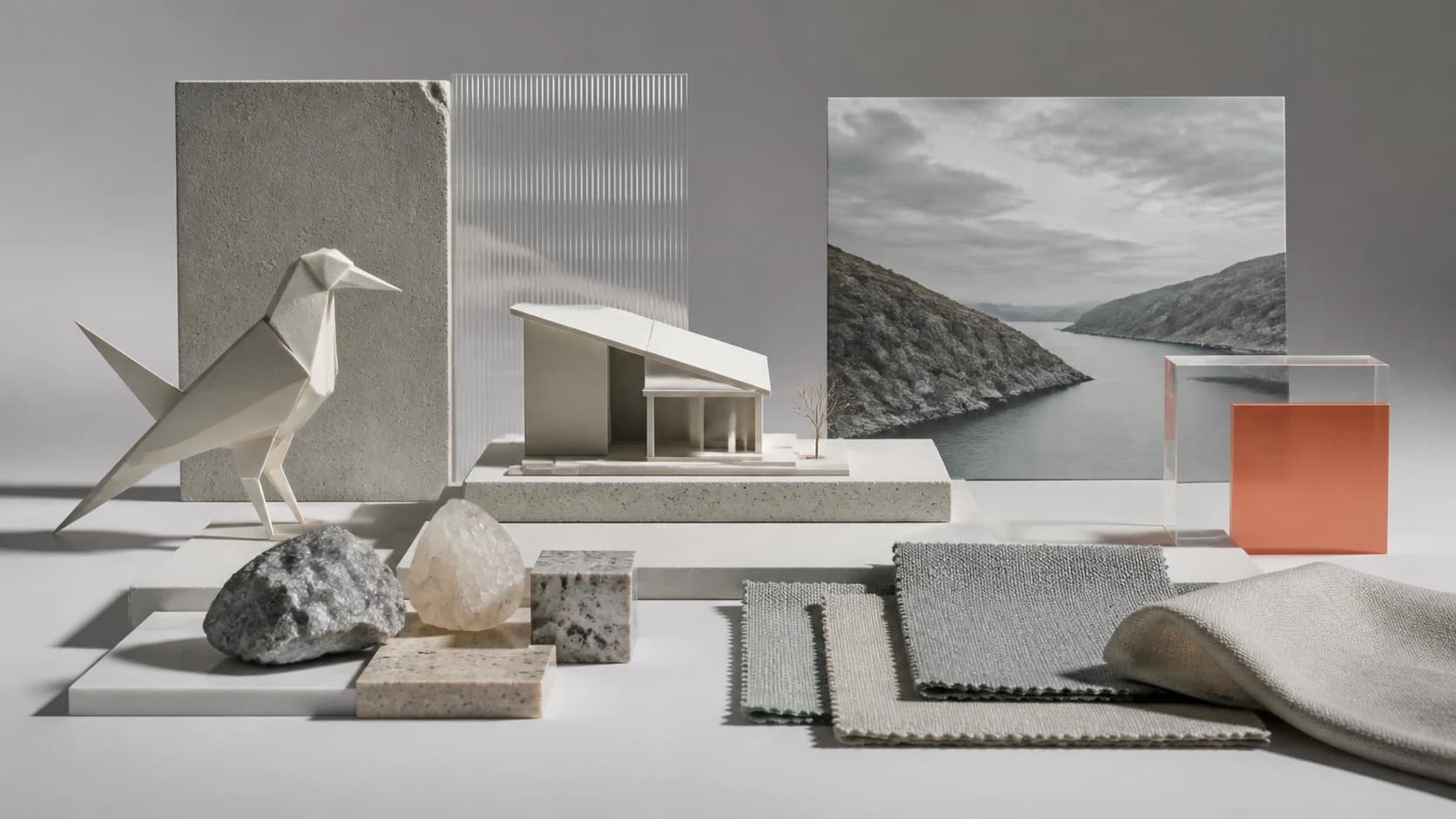
References are ingredients, not panels that must all appear separately. Describe where the subject belongs, how the environment supports it, and what the camera sees. A clear spatial relationship helps the result feel like one designed scene rather than a collection of disconnected clues.
- Name the main subject and its place in the environment
- Choose one camera angle for the new shot
- Use style references to support rather than dominate
Controlled iteration
Change one variable at a time
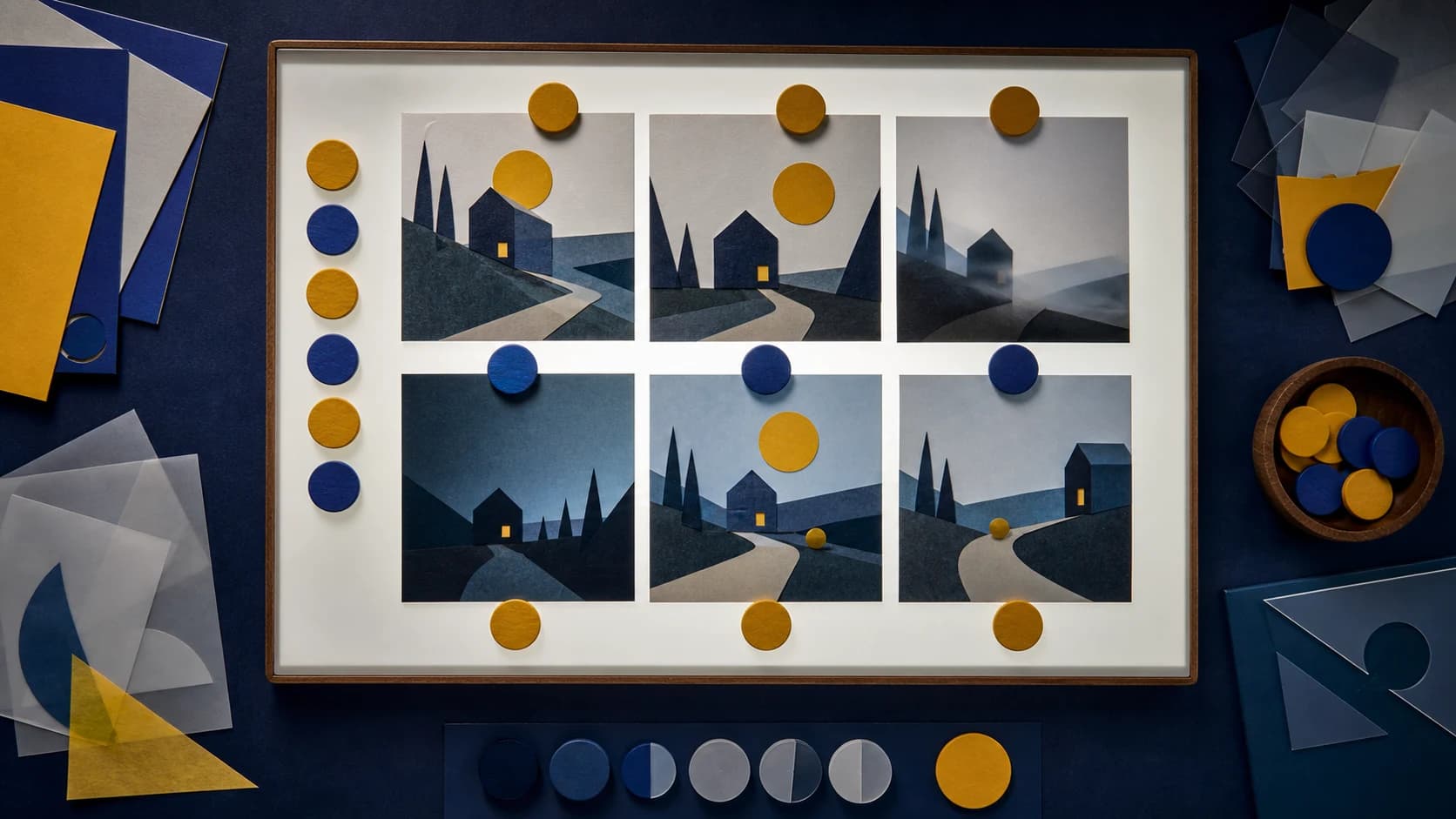
When a result is close, keep the useful references and adjust only one element: camera, action, atmosphere, or lighting. Small controlled changes reveal which instruction affects the result and make successful visual continuity easier to repeat.
- Keep a stable core reference set between variations
- Adjust one prompt variable per test
- Remove a reference when it adds noise instead of control
Who Uses Reference to Video AI
For teams that need new motion and camera direction while their own images define the subject, product, scene, or style.
AI filmmakers and storyboard creators
Create consistent character video concepts for new poses, locations, and camera setups using clear face, outfit, and full-body references.
Ecommerce and product creative teams
Combine approved front, side, packaging, and material references to guide a new product showcase without treating the result as exact 3D reconstruction.
Creative directors and social teams
Assign separate references to the character, environment, palette, and visual style when building campaign tests, story concepts, and social clips.
Why Choose Photo to Video AI for Reference-Guided Video
Turn a focused visual brief into a new shot with model-aware inputs and honest continuity expectations.
Guide one shot with multiple references
Use separate images for the subject, product, environment, material, or style while the prompt directs a new action and camera setup.
Improve continuity cues
Give the model useful views of the same identity or object instead of trying to recreate every face, outfit, shape, and material with text alone.
See model-specific input limits
Reference slots and output controls follow the selected model, so you can see its current image capacity and available settings before generation.
Review identity and details
Check the credit cost first, then compare the generated face, outfit, product shape, palette, and scene with the original references before export.
How to Create a Video from Reference Images
Turn a focused set of visual references into a directed new shot in three practical steps.
Choose your main reference
Upload the clearest image of the primary character, product, object, or environment. Add other views only when they contribute identity, material, scene, or style information.
Describe the new video
Write the action, camera behavior, setting, and relationship between references. Choose an available model and supported duration, ratio, and resolution.
Generate and compare continuity
Review the credit cost, generate, then compare the result with the references. Check identity, outfit, object shape, palette, and background logic before export.
Apply this workflow to your scene
These related scenarios use this tool when you have the matching source material and creative goal.
Reference to Video AI FAQ
What is Reference to Video AI?
How is reference-to-video different from image-to-video?
How many reference images can I upload?
Can AI keep the same face and outfit in a video?
Should I upload different angles of the same subject?
Can one image define the character and another define the scene?
Can I generate a product video from several reference photos?
Is Reference to Video AI free?
Direct a New Video with Your Own References
Upload a focused visual brief, choose a reference-capable model, and create a new shot with free evaluation credits.
Reference to Video AI Online
Photo to Video AI provides online reference-to-video generation for characters, products, environments, styles, and multi-reference concepts. Upload supported reference images, describe a new action and camera direction, review model limits and cost, then generate and inspect the result.