Text to Image
Prompt templates
Put the main subject first, then add visual details and anything the image should avoid.
Pick a preset or use custom width/height (512-2048).
What You Can Make with Text to Image
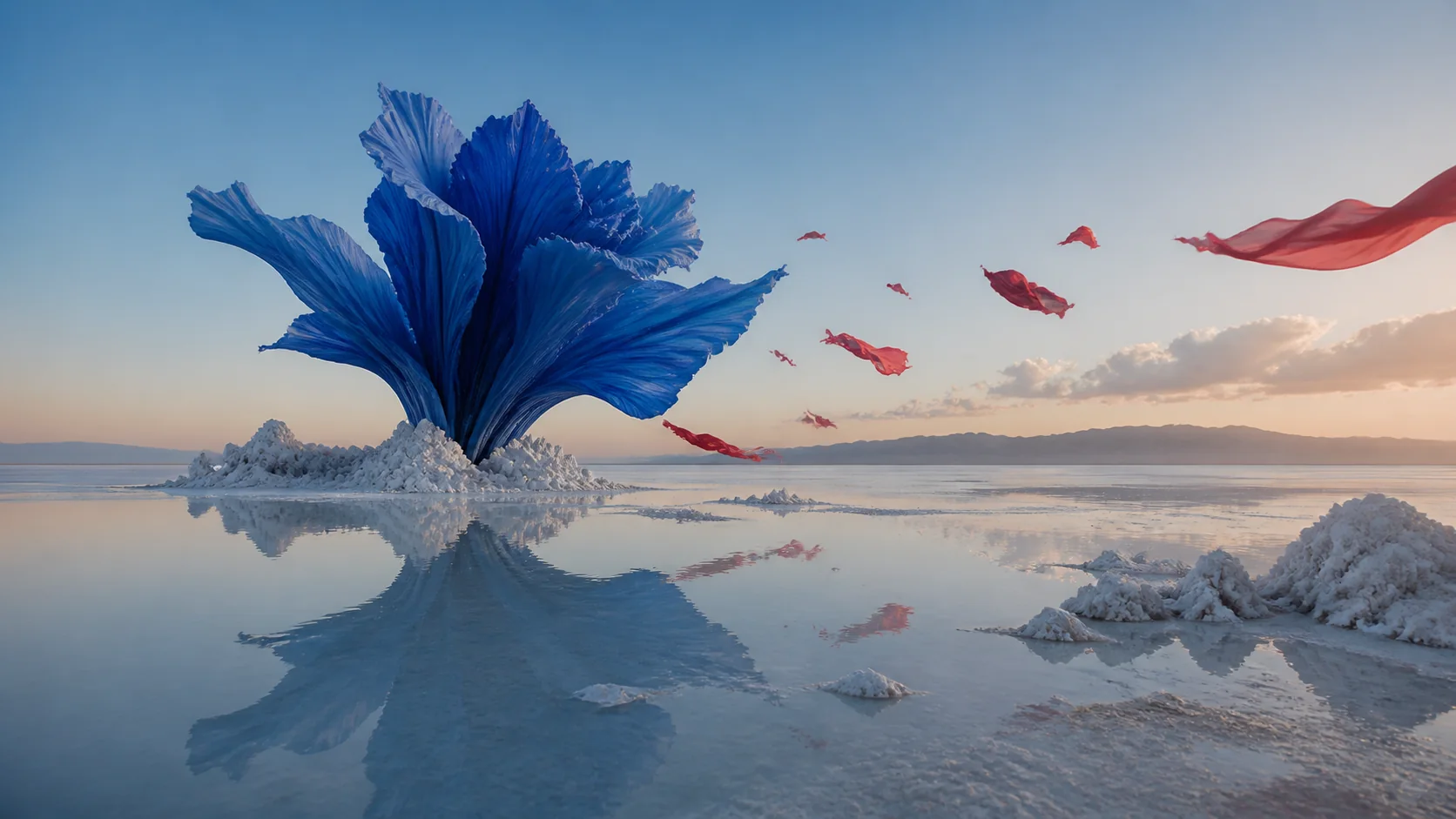
Create campaign concepts, story frames, illustrations, and channel-ready visuals from a written idea.
Idea to image
Turn ideas into original images
Text to Image turns a subject, scene, or creative goal into a campaign concept, story frame, social asset, or source for another workflow.
Commercial concepts
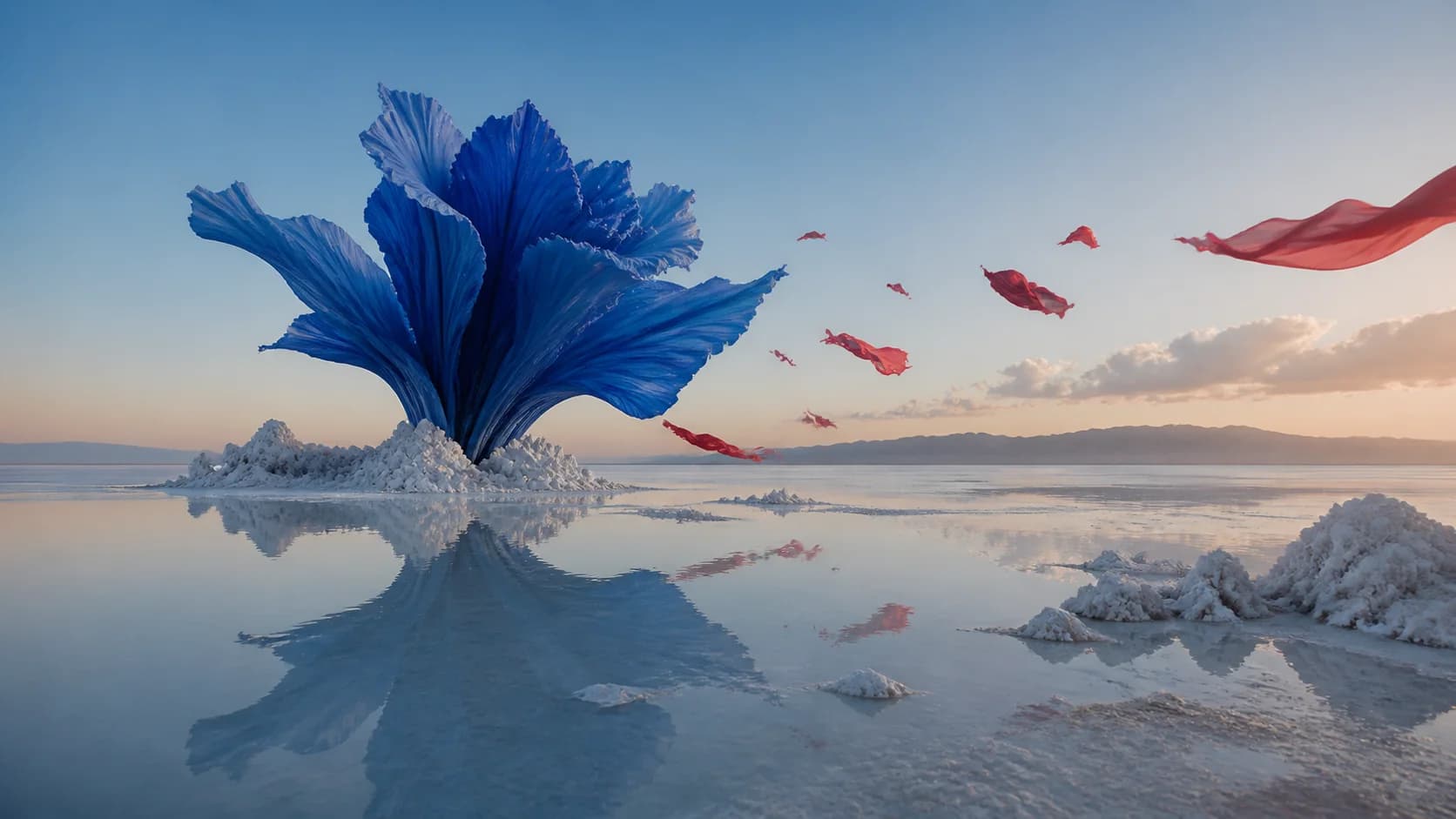
Explore campaigns before production
Compare product scenes, ad concepts, lighting, materials, and composition before investing in photography or final design.
Story worlds
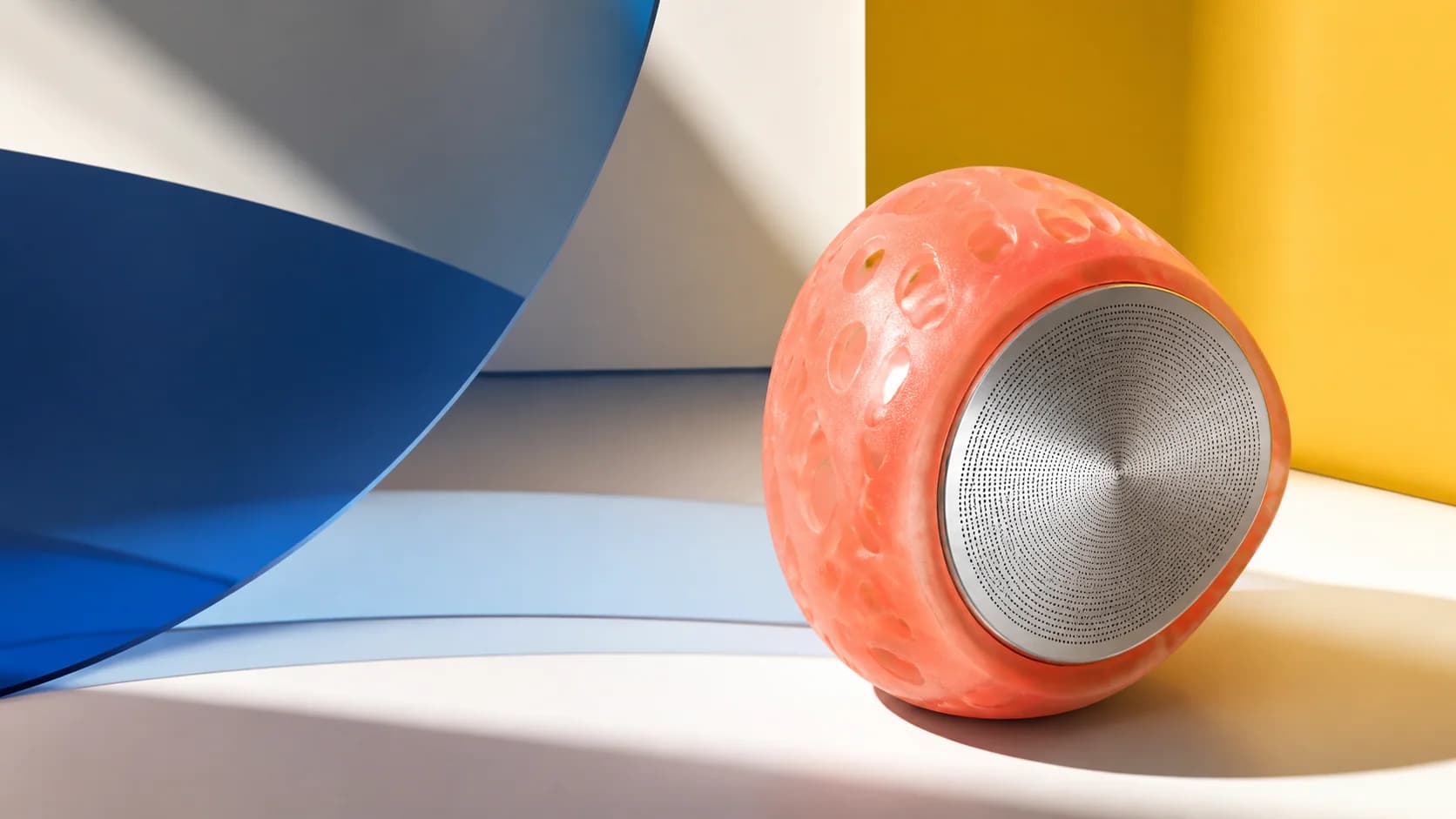
Build characters and story worlds
Develop characters, locations, and editorial scenes for mood boards, story references, presentations, or later image-to-video work.
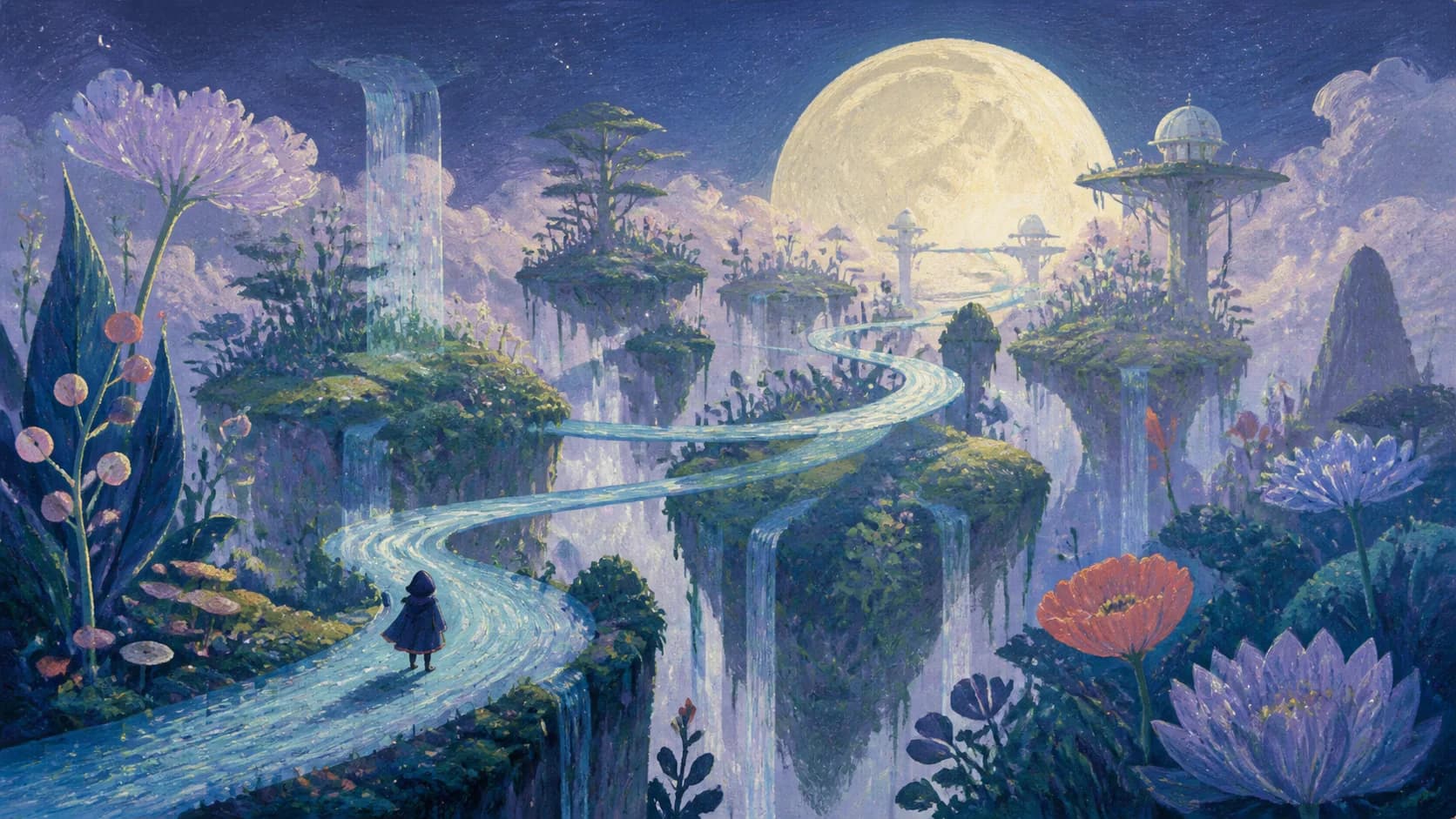
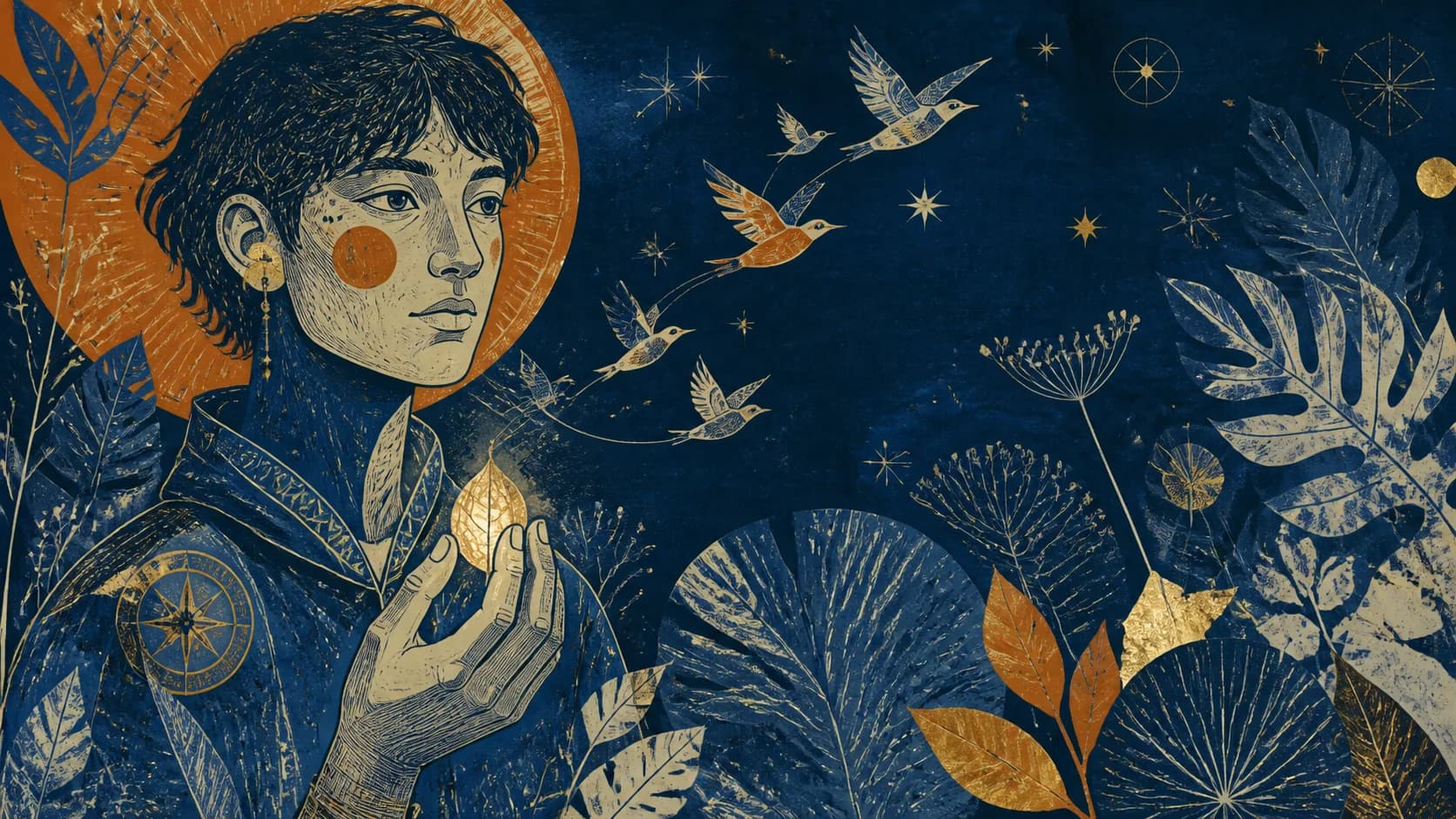
Illustration styles
Explore more than one visual style
Compare printmaking, collage, tactile craft, cinematic photography, and graphic illustration instead of one default look.
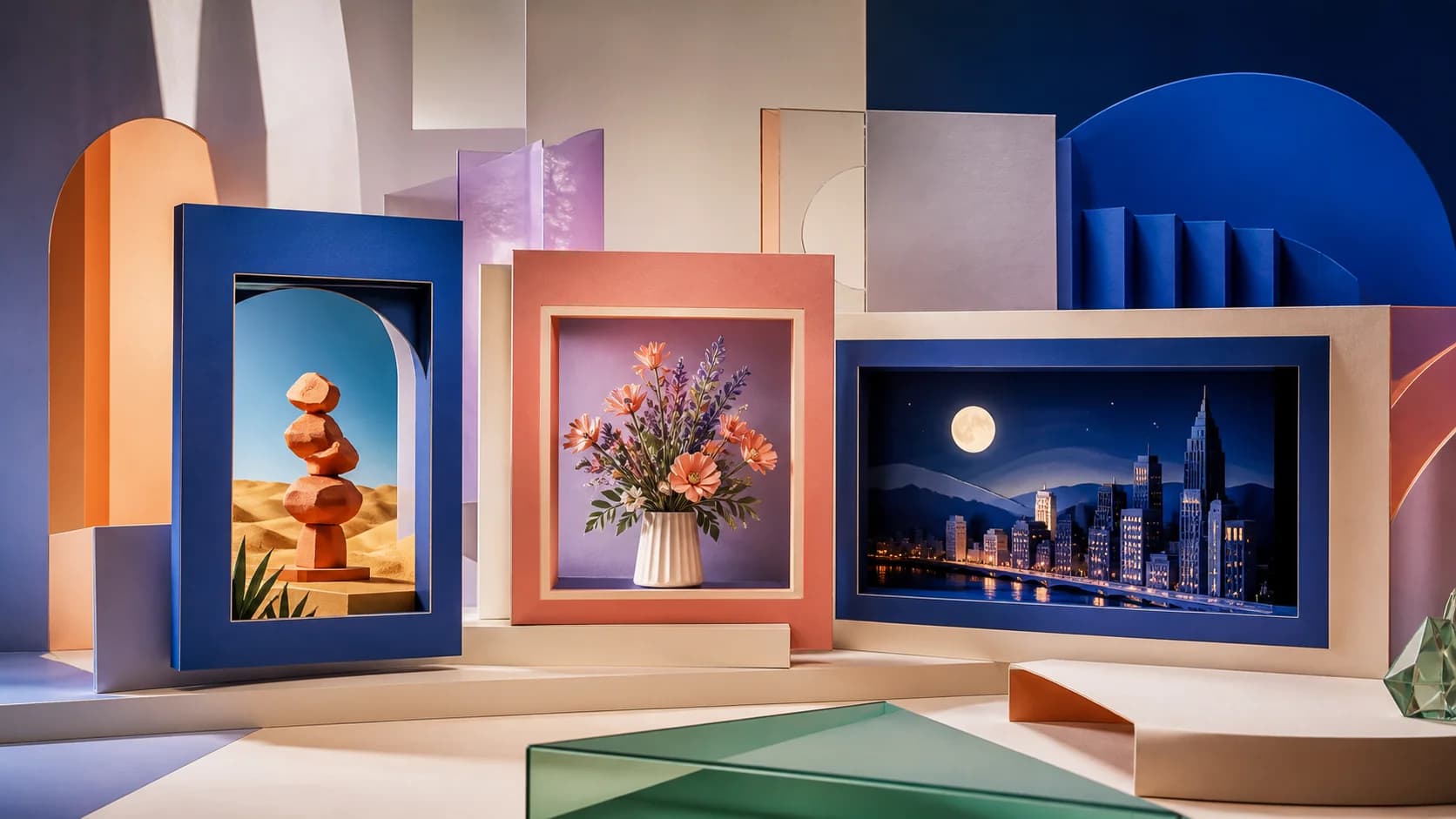
Canvas and delivery
Create for every publishing format
Choose landscape, square, portrait, or custom dimensions for banners, feeds, covers, and short-form placements.
How to Use Text to Image
Write one clear visual brief, choose the right canvas, and refine the result with focused prompt changes.
Write a focused prompt
Describe the subject first, then add composition, setting, style, lighting, color, mood, and important constraints. Keep the first attempt readable instead of stacking conflicting ideas.
Choose a model and size
Start with Z-Image Turbo or select another compatible model. Choose a preset or custom canvas that matches the intended placement before generating.
Generate, review, and refine
Inspect anatomy, hands, text, objects, perspective, logos, and fine details. Change one prompt variable at a time so you know which edit improved the image.
Text to Image Use Cases
Use prompt-based image generation where fast visual exploration matters and every final asset can still be reviewed by a person.
Ads, social posts, and thumbnails
Draft campaign scenes, post concepts, video thumbnails, blog covers, and visual hooks in landscape, square, or portrait formats.
Product and brand concepting
Explore unbranded product scenes, materials, colorways, display environments, mood boards, and campaign directions before photography or design production.
Illustration and story development
Visualize characters, environments, editorial ideas, game concepts, story moments, and artwork directions for creative development.
Who Text to Image Is For
The workflow supports people who can describe a visual goal and need fast, reviewable creative options before or during production.
Designers and art directors
Explore composition, palette, lighting, material, and campaign directions from a written brief.
Marketers and creators
Draft social visuals, ad concepts, covers, thumbnails, and audience-specific creative variants.
Writers and storytellers
Visualize characters, locations, scenes, and tone while developing a story or presentation.
Small teams and founders
Create early visual concepts and briefs before investing in final photography, illustration, or production.
Why Choose Our Text to Image Generator
Text to Image keeps the working prompt, compatible model choices, canvas controls, current credit estimate, preview, and file format in one place.
Fast default model
Start with Z-Image Turbo for responsive visual exploration, then switch models when a different image behavior fits the brief.
Flexible canvas sizes
Choose landscape, square, portrait, or supported custom dimensions before generation instead of cropping every idea afterward.
Multiple model choices
Use one consistent workflow while the live selector exposes compatible image models and their current model-specific controls.
Preview before download
See the current generation cost, inspect the output, and choose PNG, JPEG, or WebP when supported by the active model.
Text to Image FAQ
What is text to image AI?
How do I write a good text to image prompt?
Which image model should I choose?
Which image sizes are available?
Can I generate text inside an image?
Can I use a generated image commercially?
Which output formats can I download?
Turn Your Prompt into an Image
Describe one clear visual idea, choose the canvas, and refine the result with focused prompt changes.
Text to Image Generator Online
Text to Image creates original AI visuals from written prompts for social posts, campaigns, product concepts, thumbnails, illustrations, and story development. Start with Z-Image Turbo, choose a supported size and format, or switch to another compatible image model when the brief needs different controls.