
Video to Video AI
Optional. Up to 7 images. Each image must be 20MB or smaller.
Optional references share a 7 unit input quota: each image counts as 1, one source video counts as 2, and each character ID counts as 1.
Prompt templates
Describe the new look while stating which motion, timing, framing, and subject details should stay consistent.
Used when no source video is provided. Source-video runs let the model decide duration.
720P and 1080P share the same credit tier. 4K uses the higher tier.
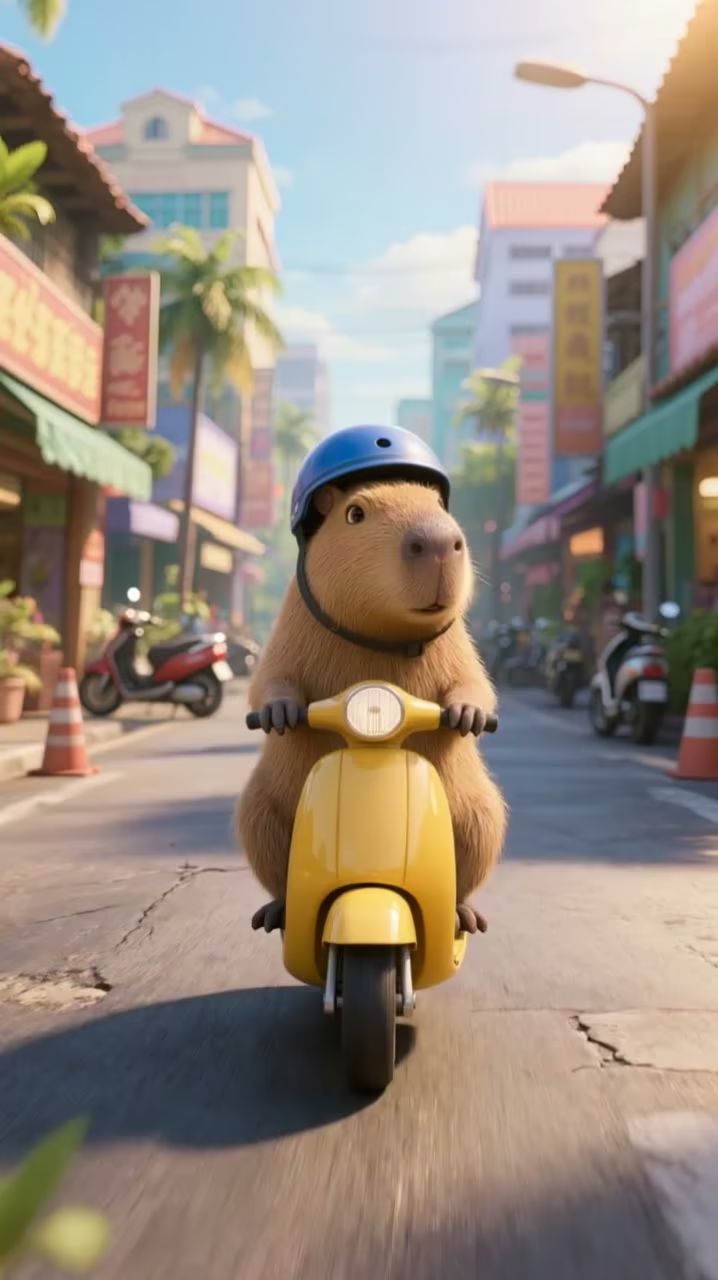
Transform Footage with Video to Video AI
Video to Video AI keeps useful source motion while changing the visual world. Choose readable footage, set the preservation priorities, and describe one cohesive new look.
Motion-preserving restyle
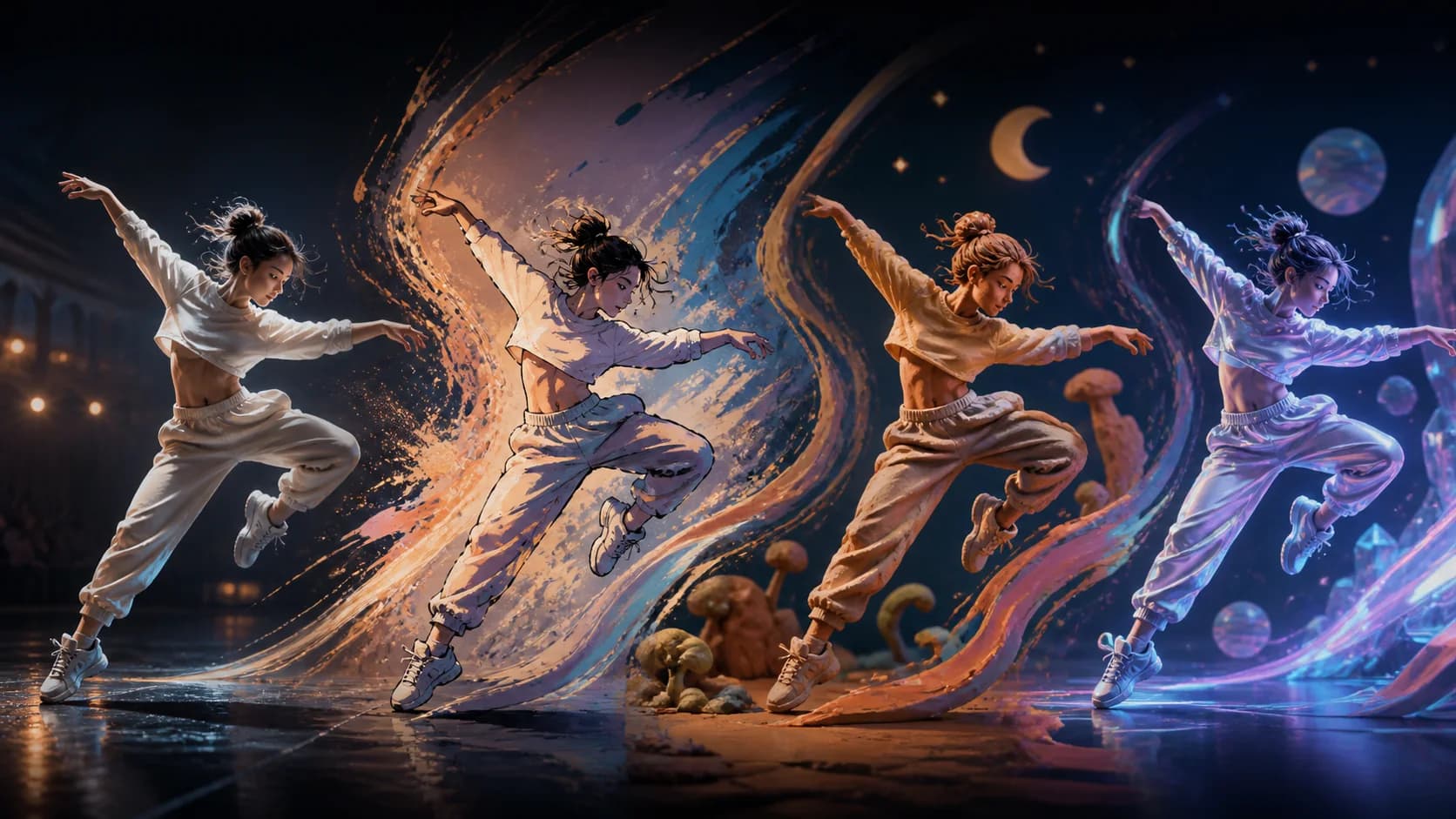
Restyle a performance while keeping its motion
A source dance clip already contains timing, pose, camera, and energy. Video to Video AI can reinterpret that performance as anime, clay, 3D, or illustration while the source continues to guide the sequence.
World transformation
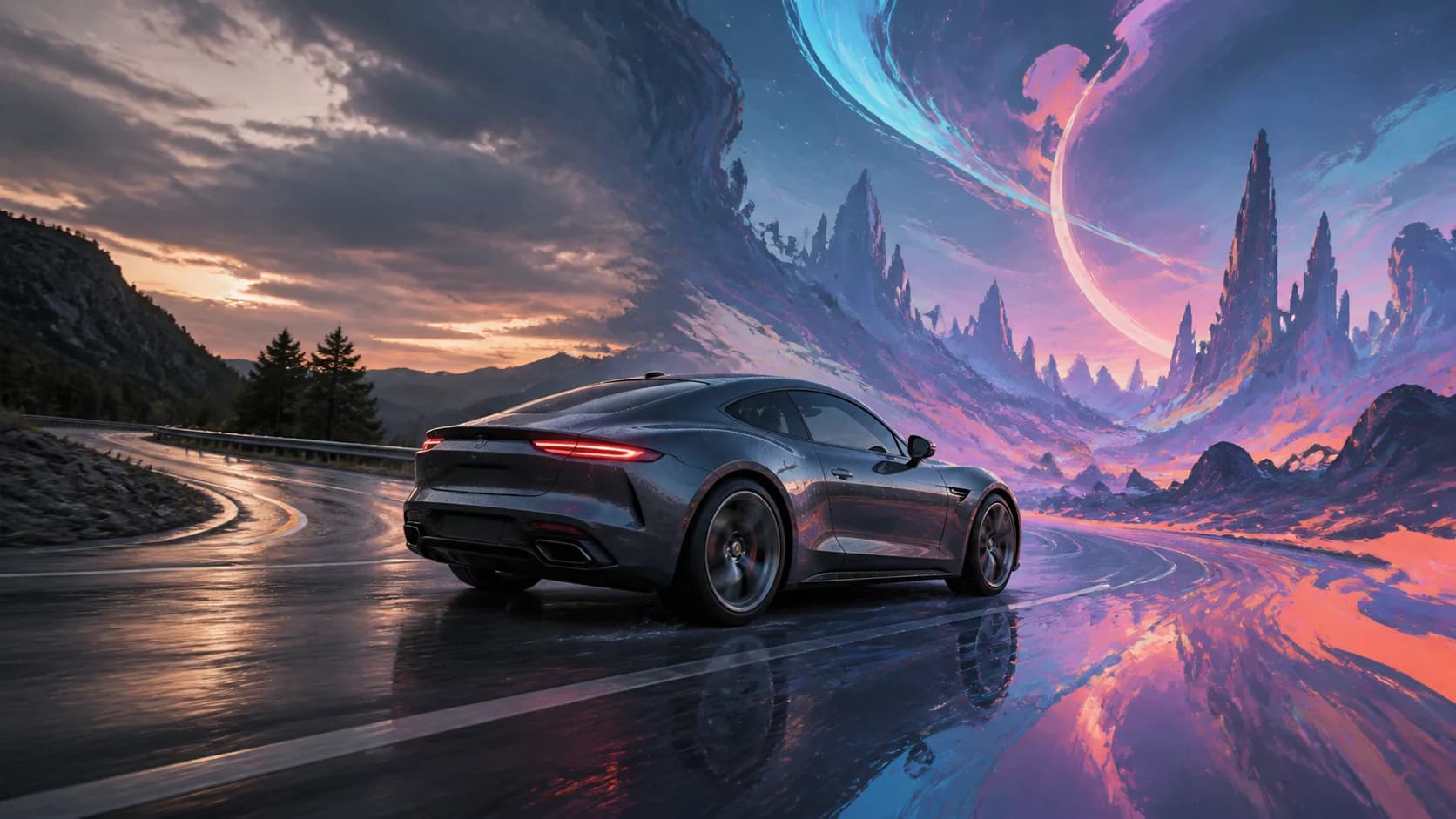
Move the same camera path into a new world
Turn a wet mountain drive into a painterly science-fiction world while preserving the broad travel direction, road curve, camera angle, and vehicle silhouette. Describe the new sky, terrain, light, materials, and palette as one art direction.
Live action to animation
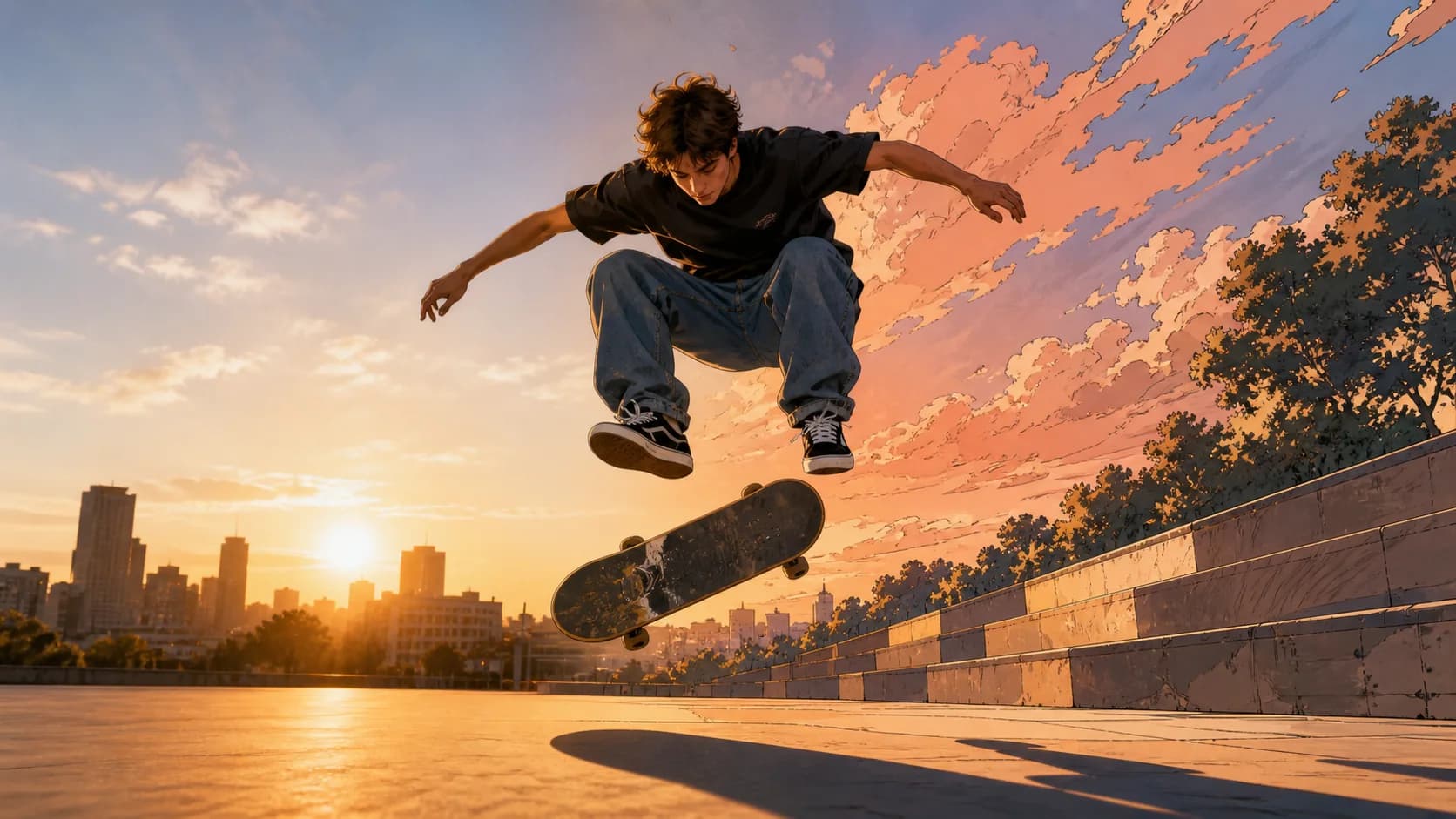
Turn live action into animation
Sports, dance, fashion, and character blocking can provide a strong motion base for animation. This workflow works best with one clear subject, limited occlusion, and a single animation language for linework, palette, and background.
Materials and references
Rebuild footage with tactile materials
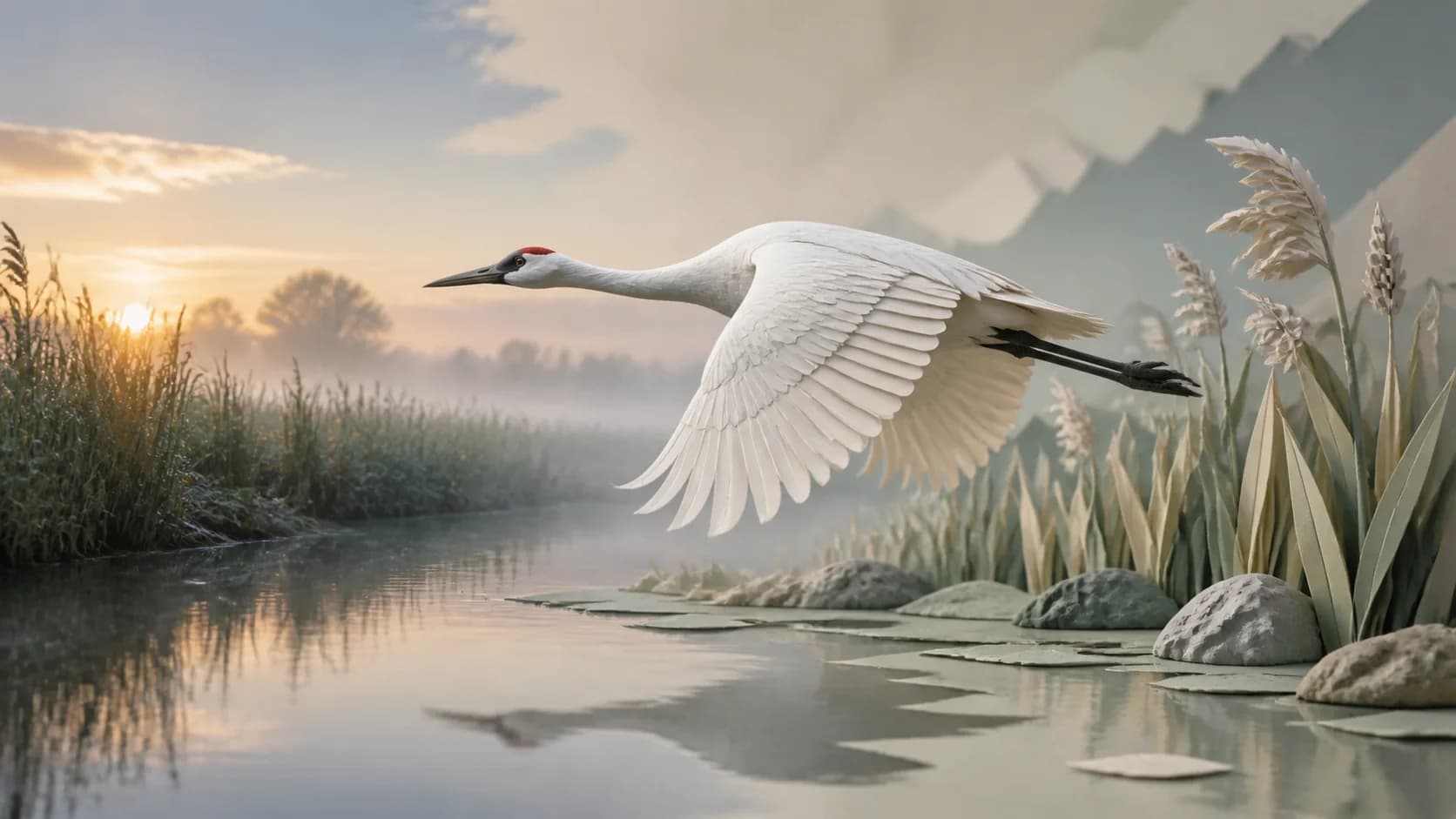
Transform wildlife, landscapes, products, or performances into folded paper, clay, stop-motion, watercolor, or another tactile system. Apply the same material rules to both subject and environment, and use references only when they support that direction.
How to Use Video to Video AI
Begin with footage whose movement and composition are already worth preserving.
Upload a clear source video
Choose a short compatible clip with one readable subject, stable framing, limited cuts, manageable motion blur, and as little occlusion as possible.
Describe one cohesive transformation
Define the new style, environment, materials, palette, lighting, and preservation priorities. Add references only when the active model supports them.
Generate and inspect continuity
Watch the full output for motion, identity, anatomy, edges, and style stability. Refine the prompt, reference, source, or model if another pass is needed.
Video to Video AI Use Cases
Start with movement, timing, or camera behavior that already works, then create a new visual interpretation.
Anime and illustrated performance
Transform sports, dance, fashion, acting, and movement references into a coherent drawn or painted direction while the source guides the action.
Music visuals and creative campaigns
Reimagine an approved performance in surreal materials, cinematic worlds, or campaign palettes. Test several looks from the same useful take before choosing a direction.
Previsualization and VFX concepts
Explore environment replacements, creature treatments, set extensions, lighting worlds, and stylized effects around existing blocking or camera references.
Why Use This Video to Video AI
The source clip, transformation prompt, compatible references, model options, cost, preview, and history remain connected in one workflow.
Source motion stays central
Use timing, camera, framing, pose, and action that already exist instead of asking a text-only generation to invent the complete performance.
Broad visual transformation
Direct a whole-clip style, material, environment, or animation treatment rather than limiting the project to a surface filter.
Multiple compatible models
Compare transformation engines and the source duration, reference, ratio, resolution, and audio controls each currently supports.
Visible limits and cost
See the active inputs and live credit requirement before generating, then inspect the completed motion before download or further editing.
Video to Video AI FAQ
What is Video to Video AI?
What is the difference between video-to-video and AI video editing?
Will it preserve the original motion exactly?
Which visual styles can I create?
Can I use reference images with my source video?
How do I reduce flicker or identity drift?
Transform Footage with Video to Video AI
Upload a clear source clip, define one cohesive visual world, and see how a compatible model reinterprets its motion and composition.
Video to Video AI Online
Video to Video AI uses existing footage as motion and composition guidance while generating a new visual style, material system, environment, or animation treatment. Upload a compatible source, describe one cohesive transformation, add supported references when useful, compare model-specific controls and cost, and inspect the completed clip for temporal consistency.