AI First and Last Frame Video Generator
First frame
Last frame
Prompt templates
Focus on how the video moves between the two uploaded frames instead of redescribing each image.
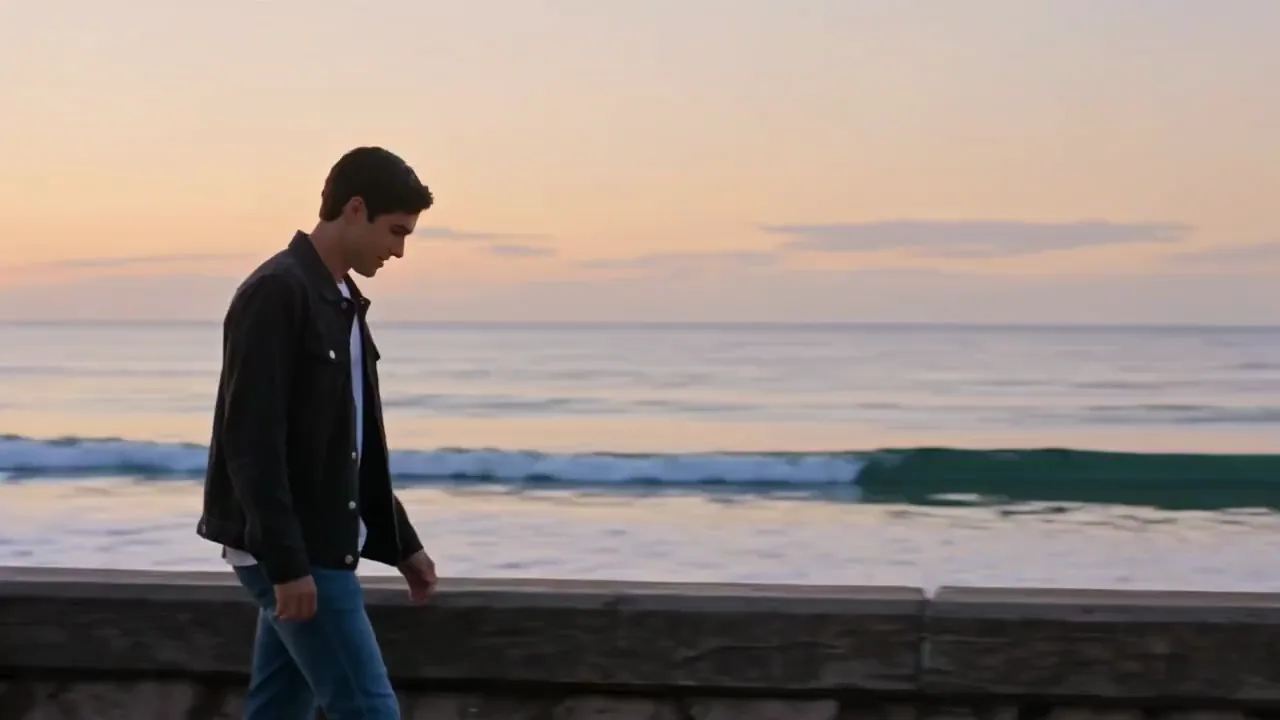
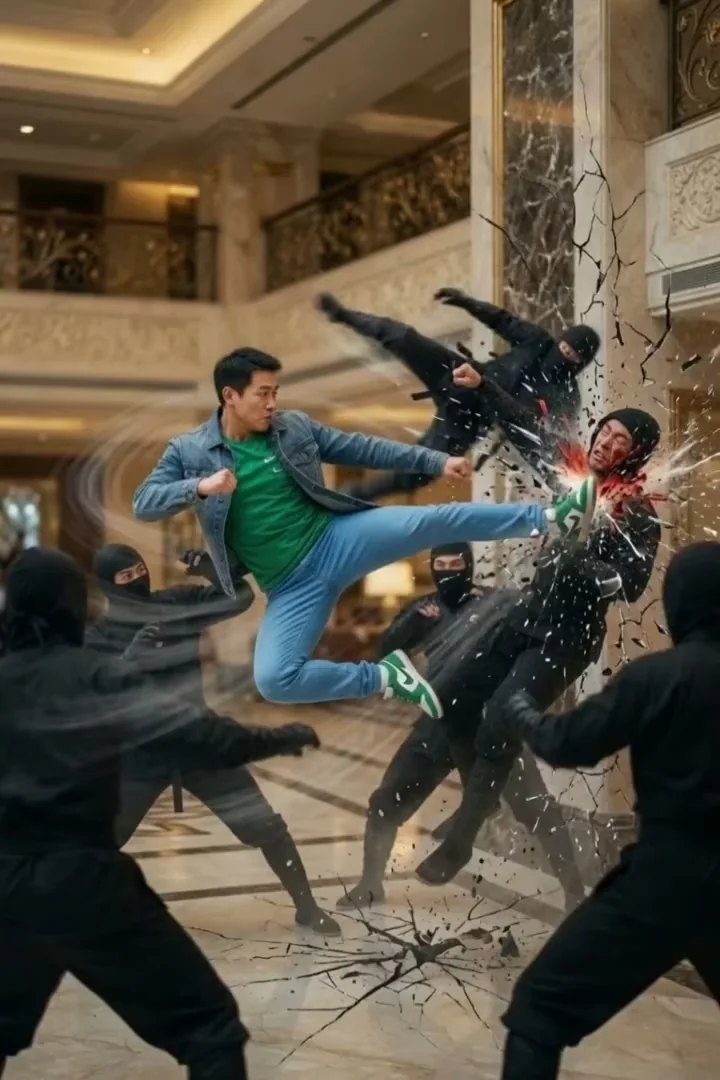
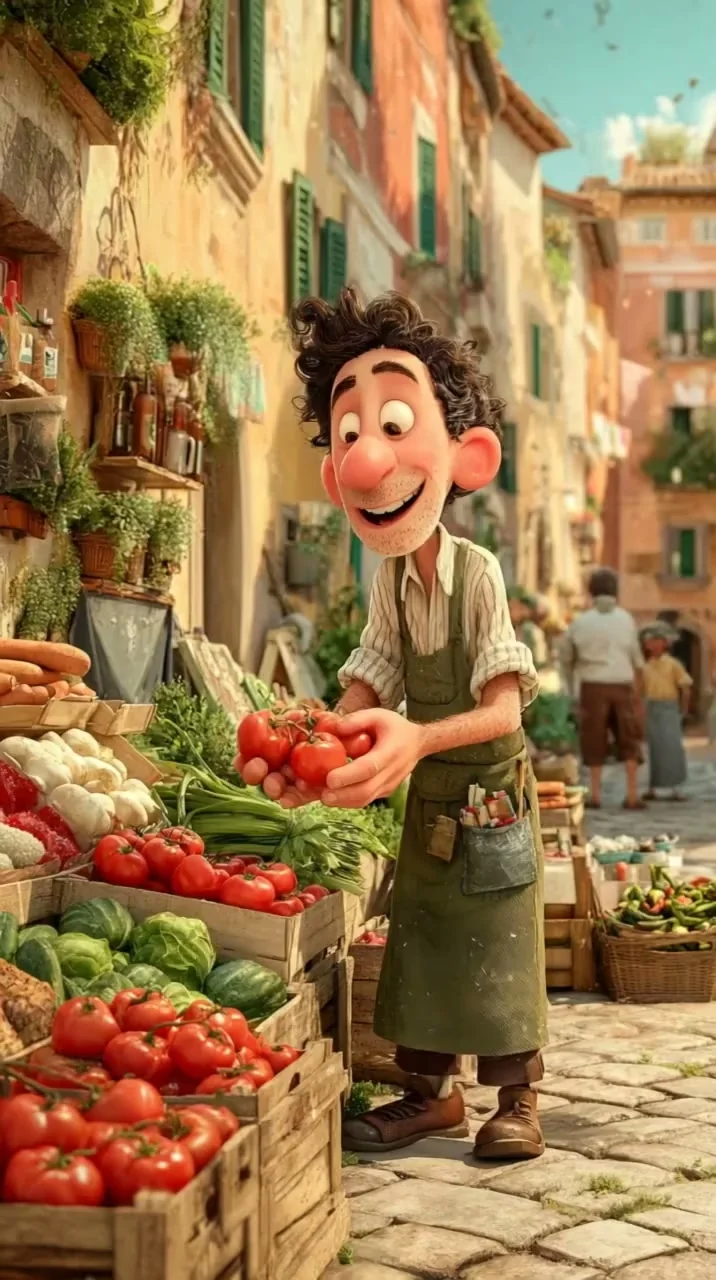
First and Last Frame Video Examples
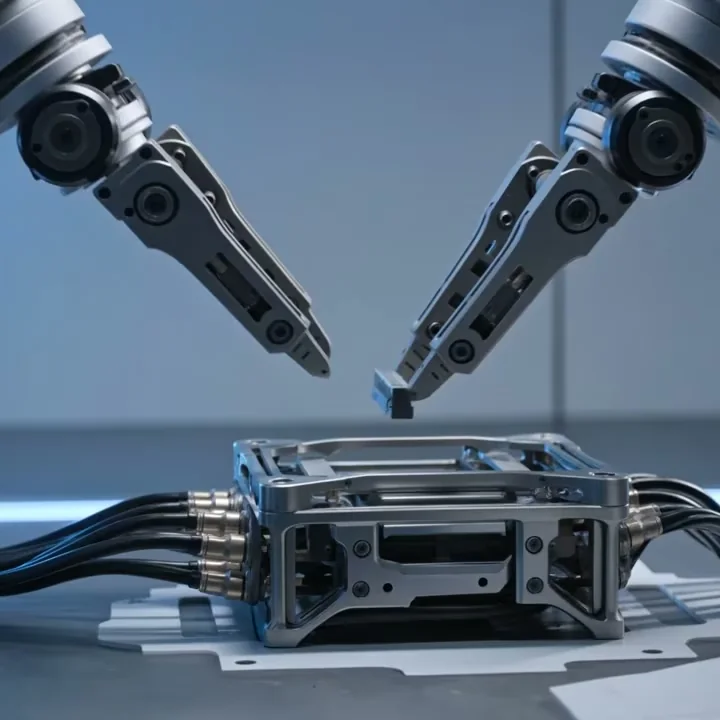
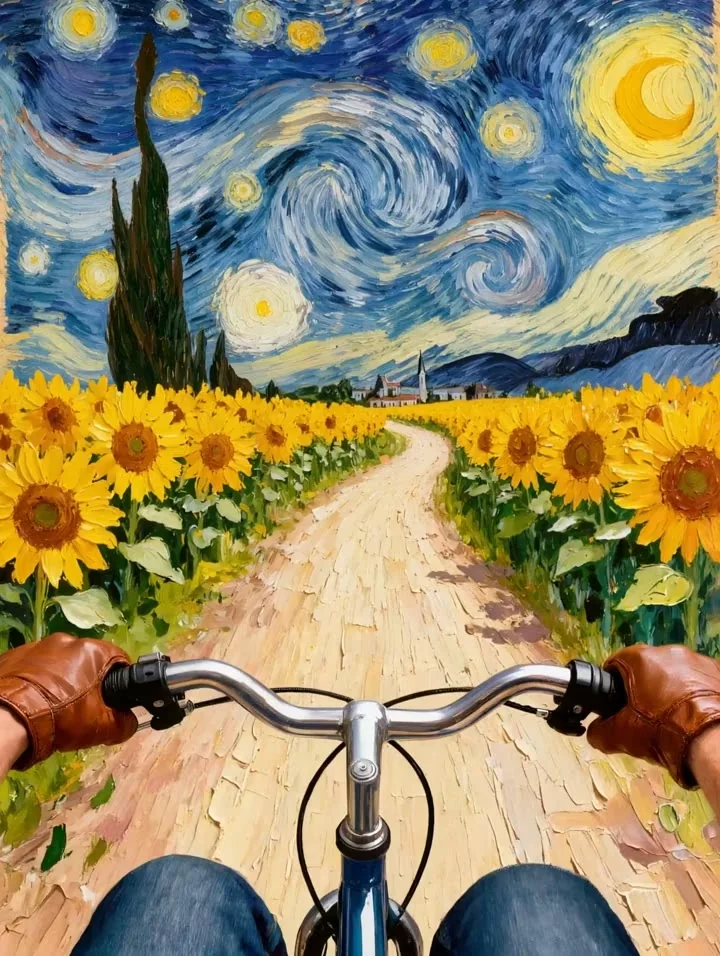
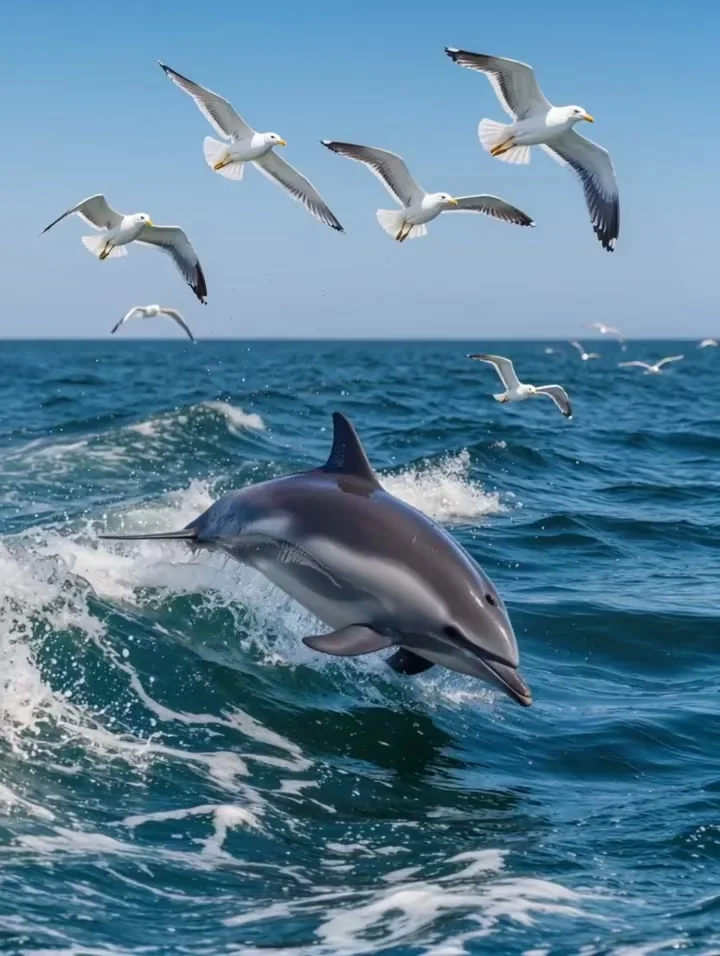
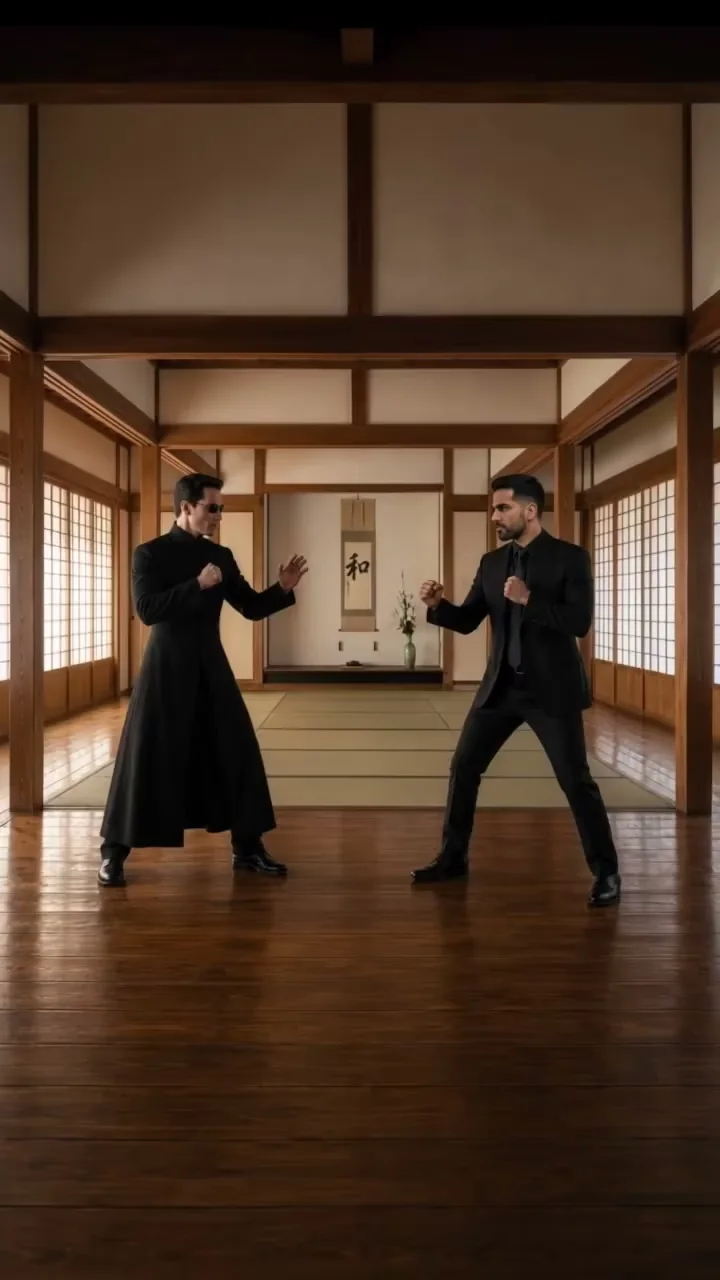
See how a first and last frame video generator can create smooth AI transitions between two images for character transformations, product reveals, before-and-after stories, camera moves, and day-to-night scene changes.
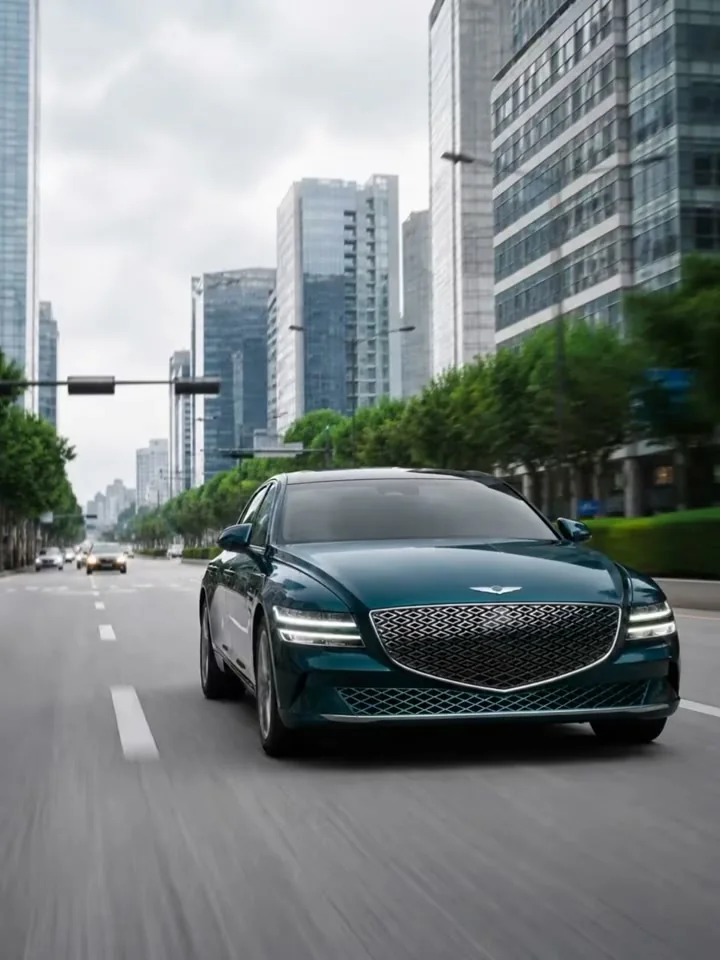
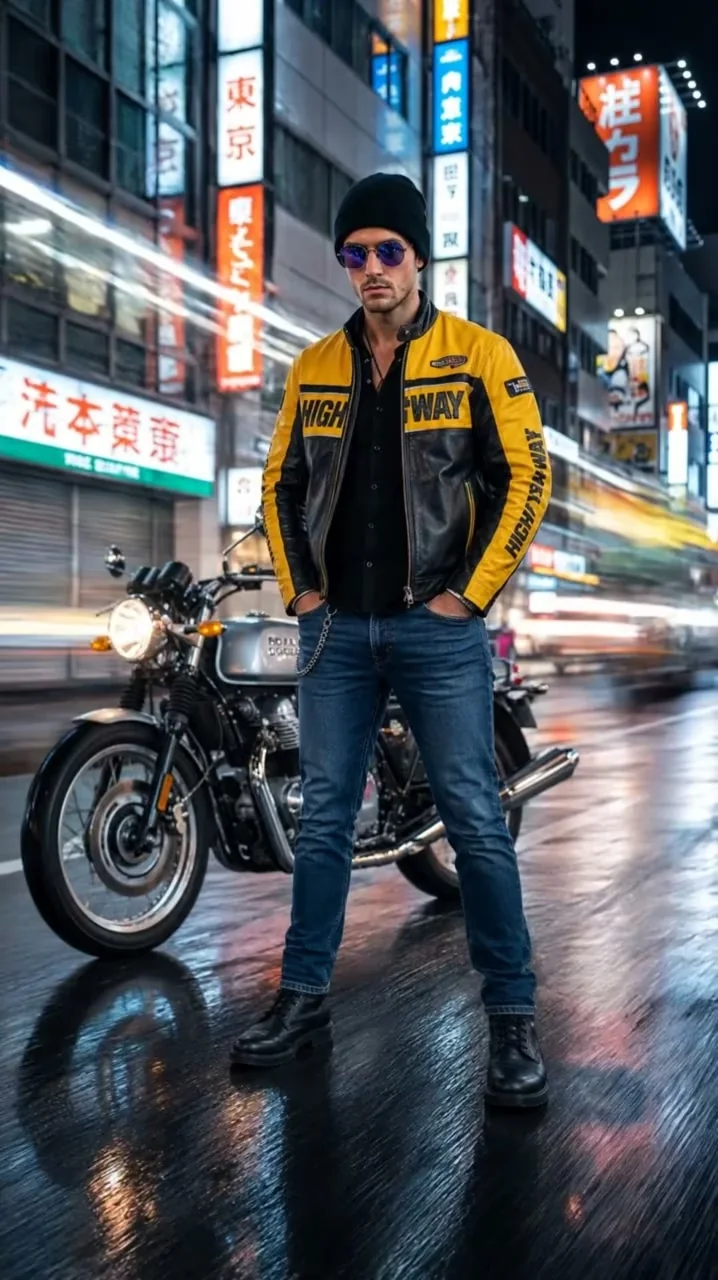
Shape the Motion Between Two Keyframes
Six practical choices make the transition clearer without overloading one prompt.
Two visual anchors
Set a clear opening and destination
The first image establishes the subject and scene; the last defines where the shot must finish. Keep both frames readable and use the ending image to guide the final pose, lighting, or composition. The model creates intermediate motion rather than applying a simple crossfade.
- Upload one opening image and one ending image as separate keyframes
- Use the ending image to guide the final pose or composition
- Review the generative intermediate frames across the full clip
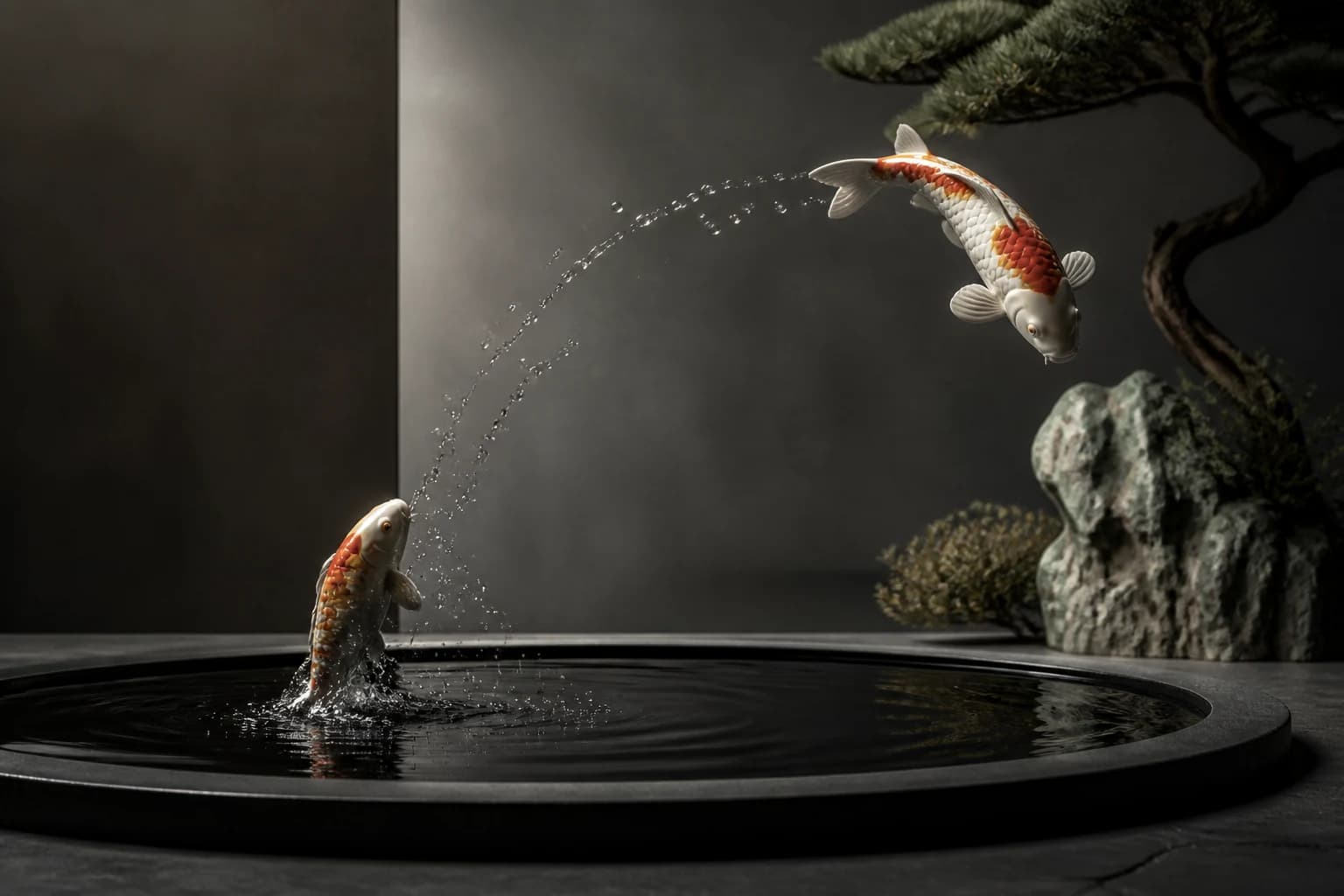
Transition direction
Describe one path between the frames
Use the prompt for what changes: one subject action, one camera move, and any essential environmental shift. A continuous orbit, dolly, reveal, or day-to-night transition is easier to resolve than several unrelated effects inside a short clip.
- Describe motion instead of repeating visible image details
- Match camera direction to the difference between keyframes
- Compare variations for faster, calmer, or more cinematic paths
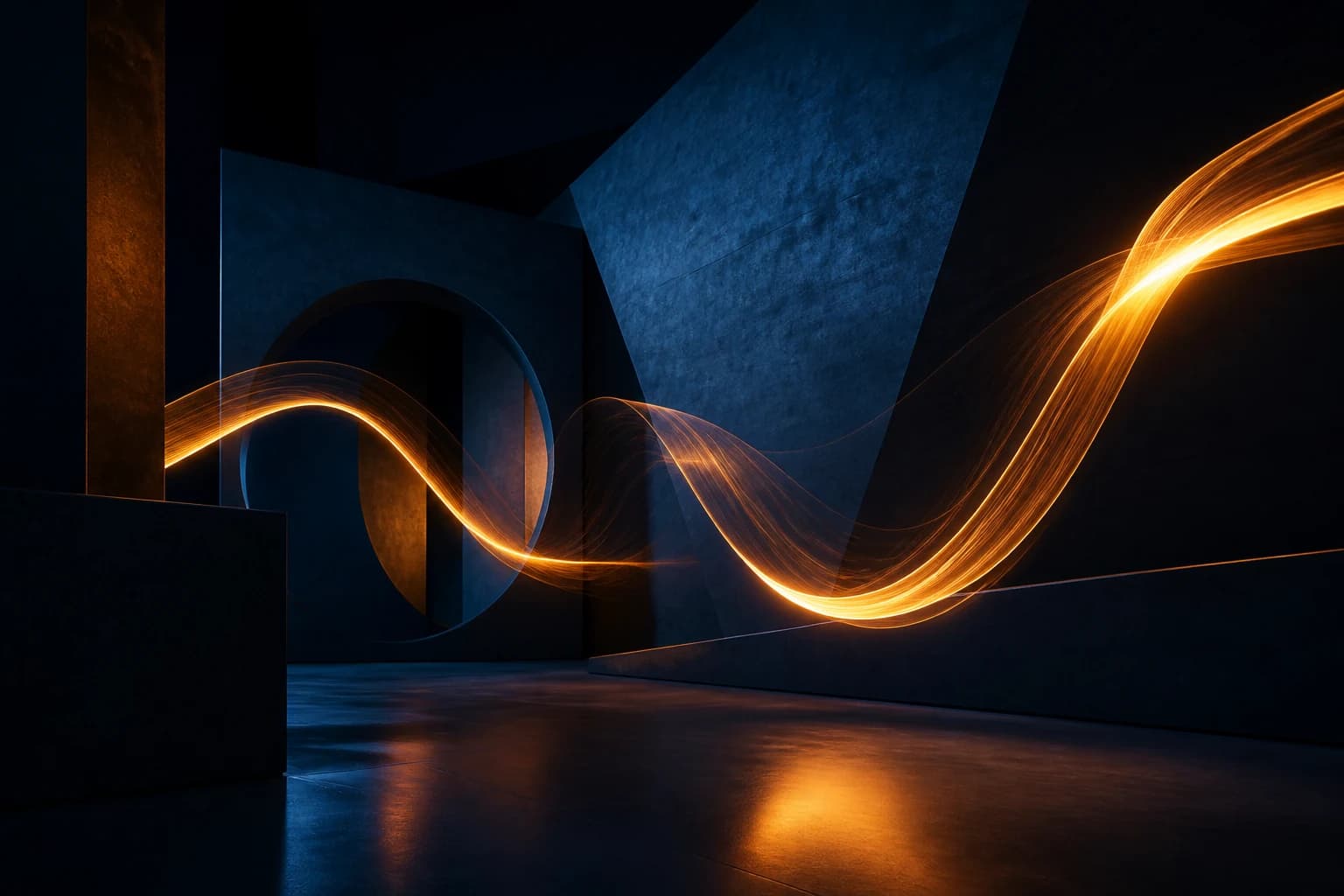
Composition matching
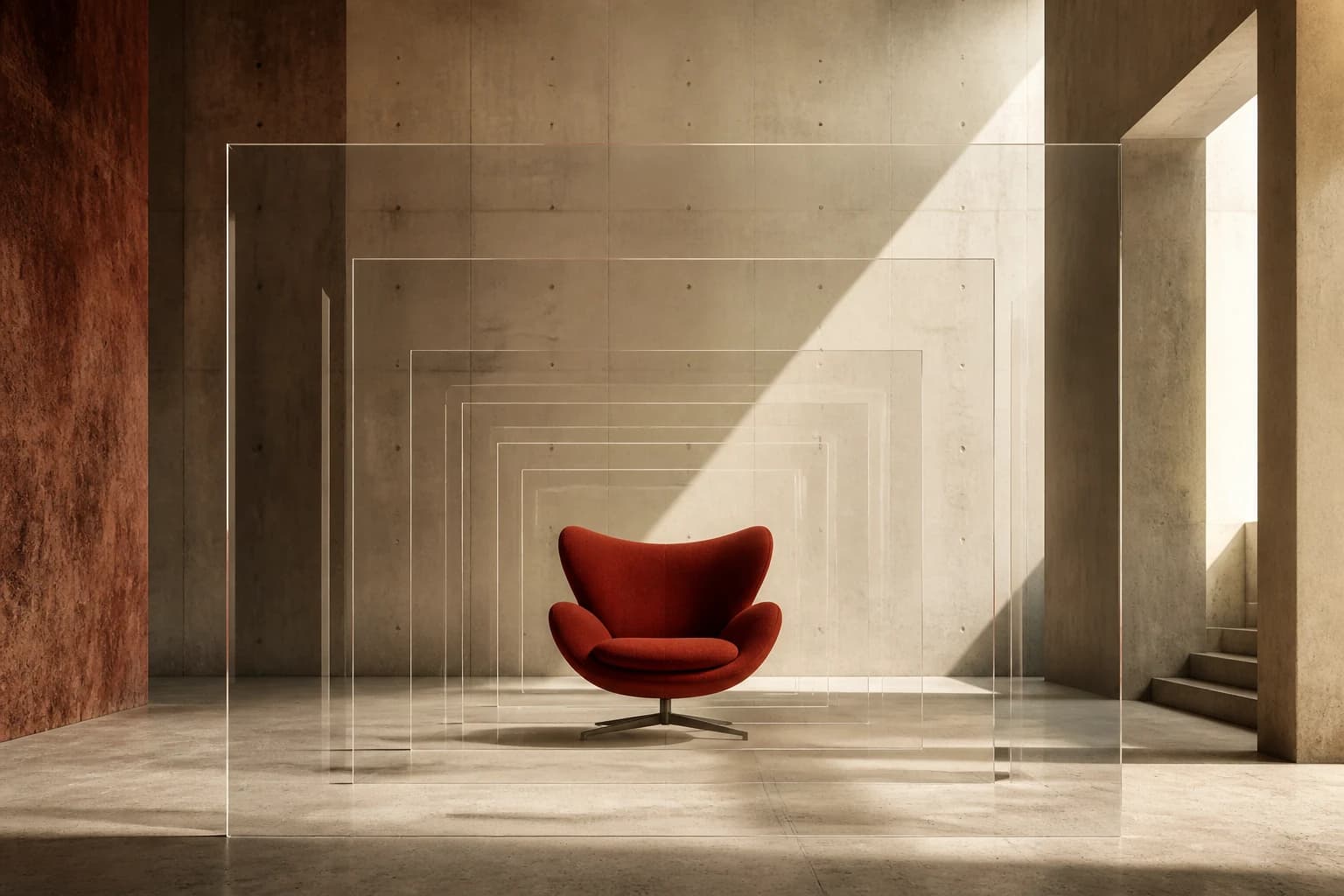
Match framing to reduce visual drift
Large changes in crop, viewpoint, subject scale, or scene structure force the model to invent more. Compatible framing gives faces, products, architecture, and fine edges a steadier route through the middle of the video.
- Keep subject scale, viewpoint, and scene structure compatible
- Avoid abrupt changes in people or important objects
- Check faces, logos, text, reflections, and thin geometry
Prompt strategy
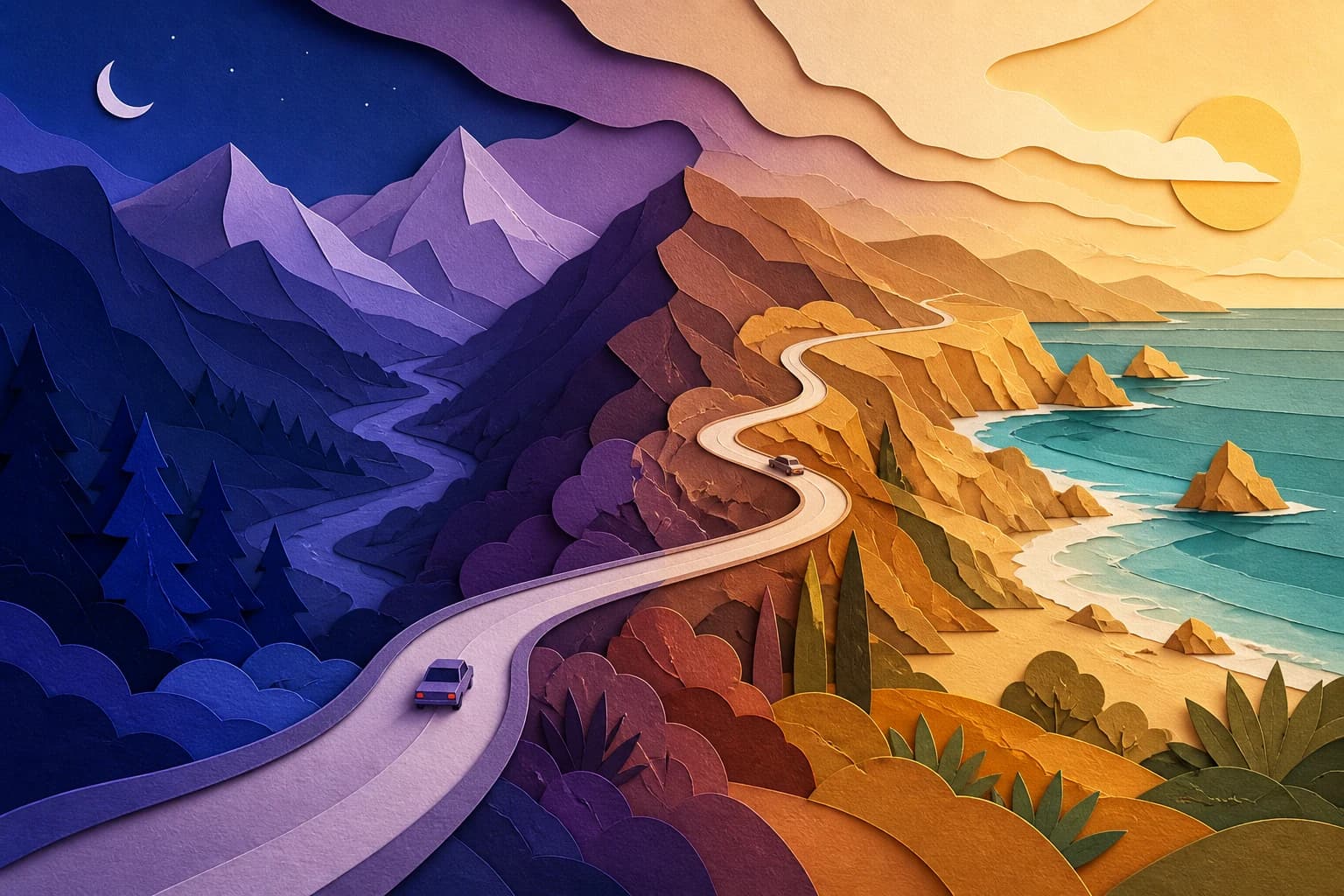
Let the frames carry the visual detail
The keyframes already contain appearance, color, and composition. Use the prompt to explain who moves, what transforms, how the camera travels, and how the atmosphere changes. A readable single-shot journey gives the model clearer direction than several forced cuts.
- Use chronological language when timing matters
- Choose one continuous shot for a smoother transition
- Mention only the elements that must remain stable
Motion pacing
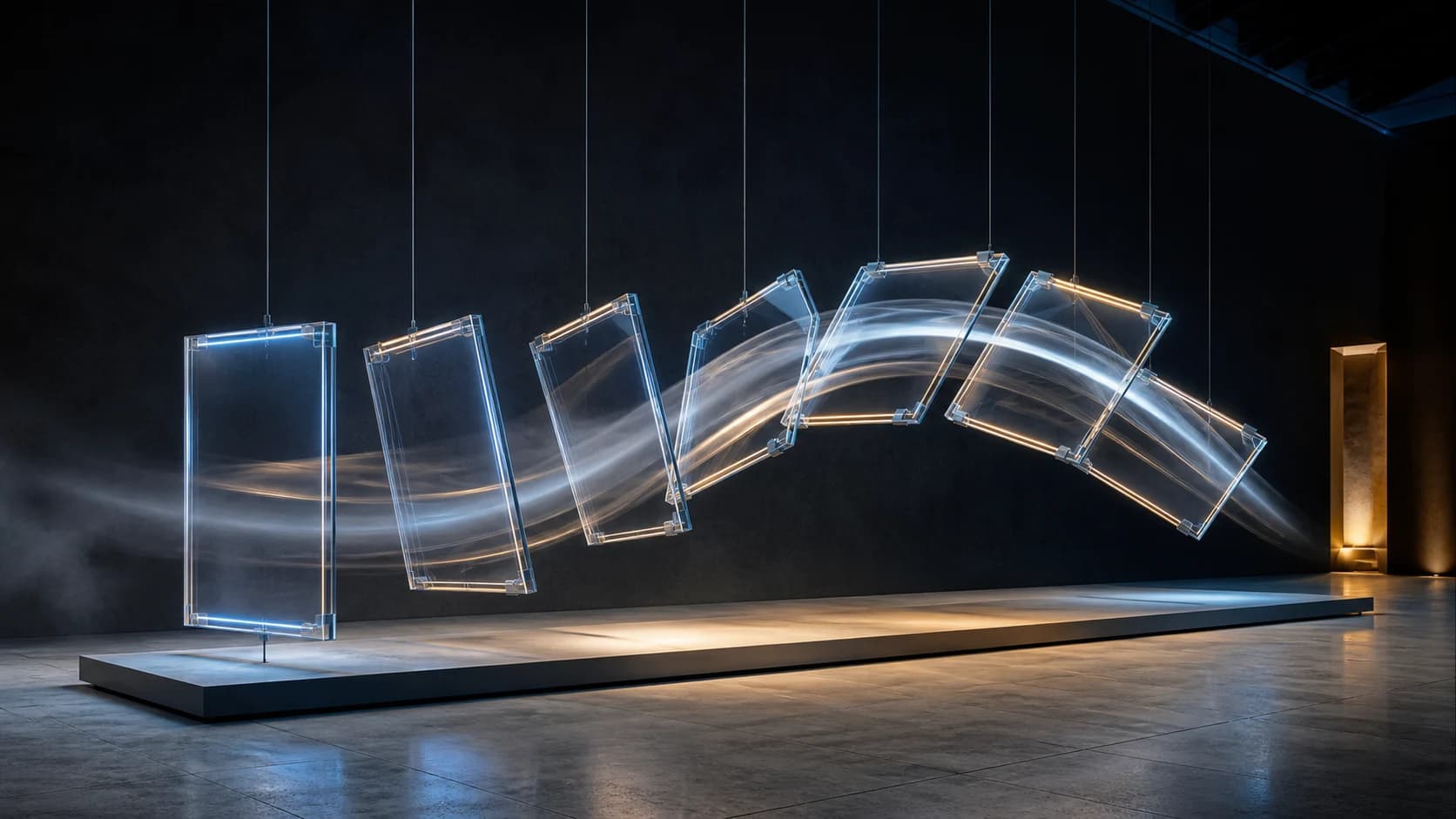
Plan when the change should happen
A transition can begin gently, accelerate in the middle, and settle into the final frame. Use simple timing language when a reveal or transformation must land cleanly. Avoid forcing several story beats into one short shot.
- Use early, middle, and final timing cues sparingly
- Leave time for the ending frame to settle
- Generate a slower variation when motion feels rushed
Output review
Inspect the full journey before publishing
The endpoints may look correct while the middle contains a warped hand, duplicated edge, unstable logo, or sudden camera jump. Watch the clip from start to finish and compare variations before choosing the cleanest path.
- Review the transition at normal speed and frame by frame
- Check the middle frames as carefully as both endpoints
- Keep the variation with the most coherent motion path

Who Uses a First and Last Frame Video Generator
For creators and teams who need a planned ending instead of leaving the final frame to chance.
Social creators making before-and-after videos
Turn styling, renovation, concept art, or seasonal before-and-after images into one smooth AI transition for Reels, TikTok, Shorts, and campaign posts.
Ecommerce teams planning product reveals
Start on packaging or a product detail and finish on an approved hero frame for launch teasers, product transformation videos, and paid social.
Filmmakers and designers building scene transitions
Connect wide and close shots, day and night, sketches and finished art, or two environments while directing the camera path between them.
Why Choose Photo to Video AI for Two-Image Transitions
Control both endpoints, work with compatible models, and review the settings and cost before generating.
Control both keyframes
Upload separate opening and ending images so the destination is part of the creative brief, not a result the model chooses on its own.
See compatible video models
The selector focuses on configured models that accept a final frame and shows the settings currently supported by each option.
Direct motion and format
Describe the in-between action and camera path, then choose a supported ratio for vertical social clips, square placements, or widescreen stories.
Review cost and results
See the required credits before generation, then inspect the endpoints and every intermediate movement before downloading the final clip.
How to Generate a Video Between Two Images
Go from two still keyframes to one continuous AI-generated clip in three steps.
Upload the first and last frames
Choose a clear opening image and a compatible ending image. Similar subject scale, viewpoint, and scene structure usually create a more coherent transition.
Describe the in-between motion
Write one chronological prompt for the subject, camera, and environmental change. Then choose an available model, duration, aspect ratio, and resolution.
Generate and inspect the full clip
Review the displayed credit cost, generate the video, and check the opening, intermediate motion, final frame, faces, products, and small details before download.
Use two frames to shape a specific transformation
Start and end frames can guide more than a camera move. Use matching viewpoints to describe a visible change between two states, then review whether the generated transition fits the story you want to tell.
Apply this workflow to your scene
These related scenarios use this tool when you have the matching source material and creative goal.
AI First and Last Frame Video Generator FAQ
What is an AI First and Last Frame Video Generator?
How do I make a video between two images?
Which AI video models support a last frame?
Is this the same as frame interpolation?
Why does the subject change between my keyframes?
Can I make a before-and-after transformation video?
What should I write in a first and last frame prompt?
Is the first and last frame video generator free?
Turn Two Images into One Directed Video
Upload two frames and create a transition with free evaluation credits.
AI First and Last Frame Video Generator Online
Photo to Video AI provides an online first and last frame video generator for two-image transitions, before-and-after transformations, product changes, and scene shifts. Upload two keyframes, direct the motion, choose a compatible model, review the cost, and generate an MP4.