AI Baby Dance Video GeneratorMake your baby photo dance
Turn a favorite photo into a little performance worth sharing. Our AI baby dance video generator pairs your baby's picture with a dance sample or your own reference video. Choose the moves, create your clip, and send a smile to someone you love.
Add a mood or scene for your baby dance…
Match orientation in the video. Recommended.
Choose whether the generated background follows the reference video or the character image.
Public
Preparing generatorControls will be ready in a moment.
A favorite photo. A whole new little personality.
Make something playful, personal, and full of movement with an AI baby dance video generator built around the picture and performance you choose.
01From your camera roll
Make your baby photo dance. Keep the camera off.
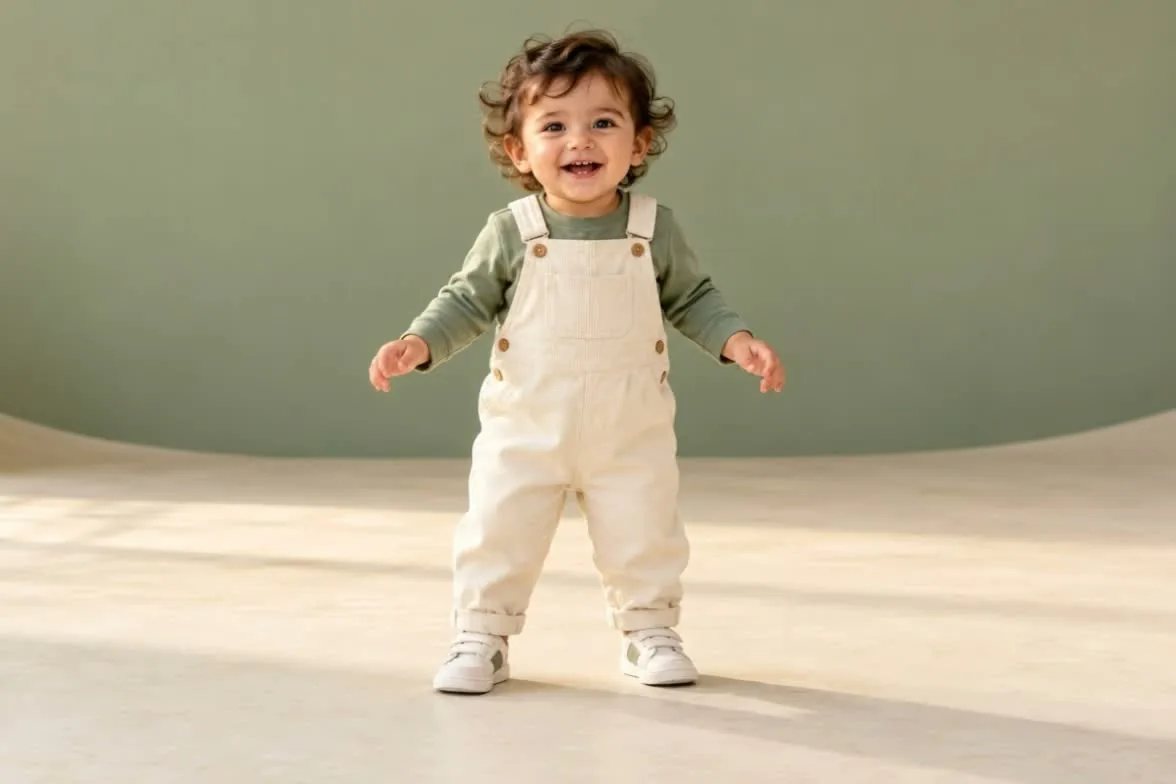
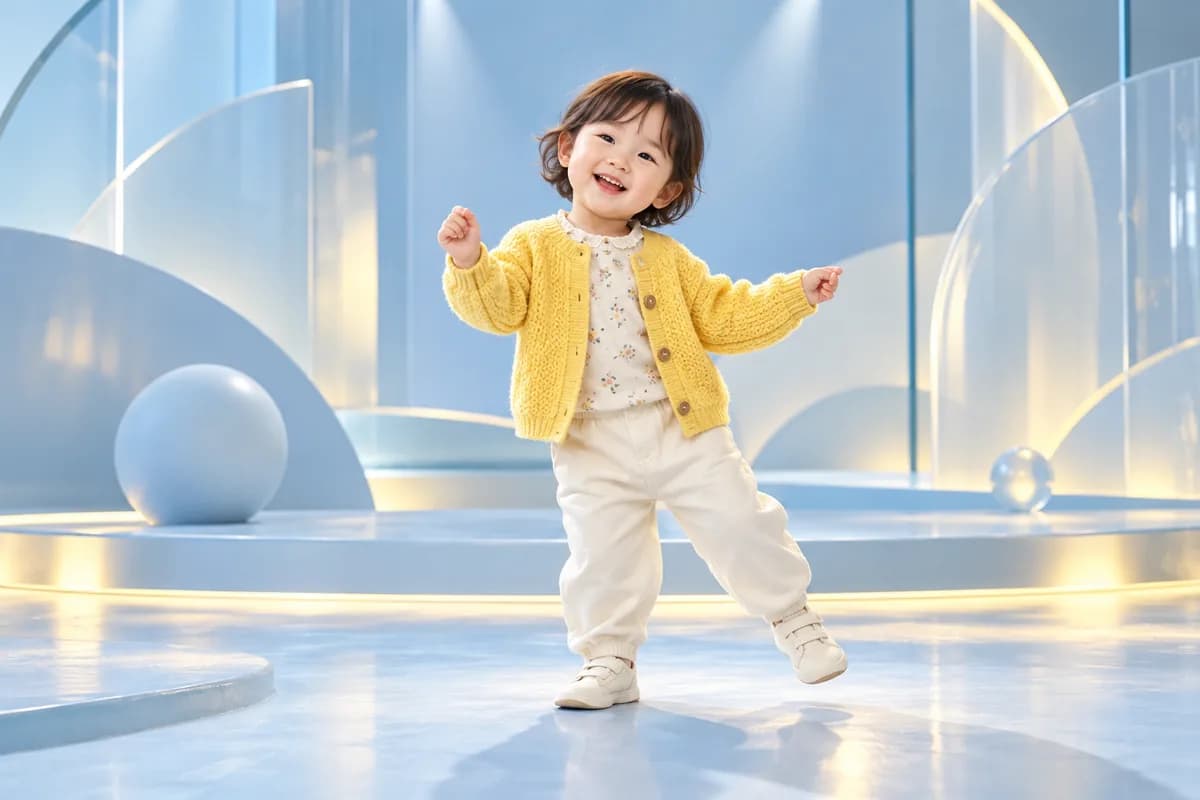
That cheerful picture on your phone can become the start of a new family favorite. Upload a baby photo and give it a playful performance, without organizing a shoot or asking your little one to copy a routine. The AI baby dance video generator combines the appearance in your picture with movement from a reference, turning a familiar smile and outfit into a fresh animated moment.
A bright, clear picture with one subject and visible hands and feet gives the performance room to shine. Choose a favorite full-body photo, add a dance, and let your next family message feel a little more alive.
A tiny side step, an upbeat bounce, or a cheerful arm wave: showing the movement is easier than writing out every beat. Start with the dance sample or upload a reference performance you have permission to use. Your chosen clip gives the AI baby dance video generator a clear direction for gestures, timing, and footwork, while the baby photo supplies the character's appearance.
Pick a performance with one clearly visible dancer and a steady view of the body. You can explore a favorite routine without recording yourself or learning choreography first. The creative decision stays simple: which moves would make this picture even more fun?
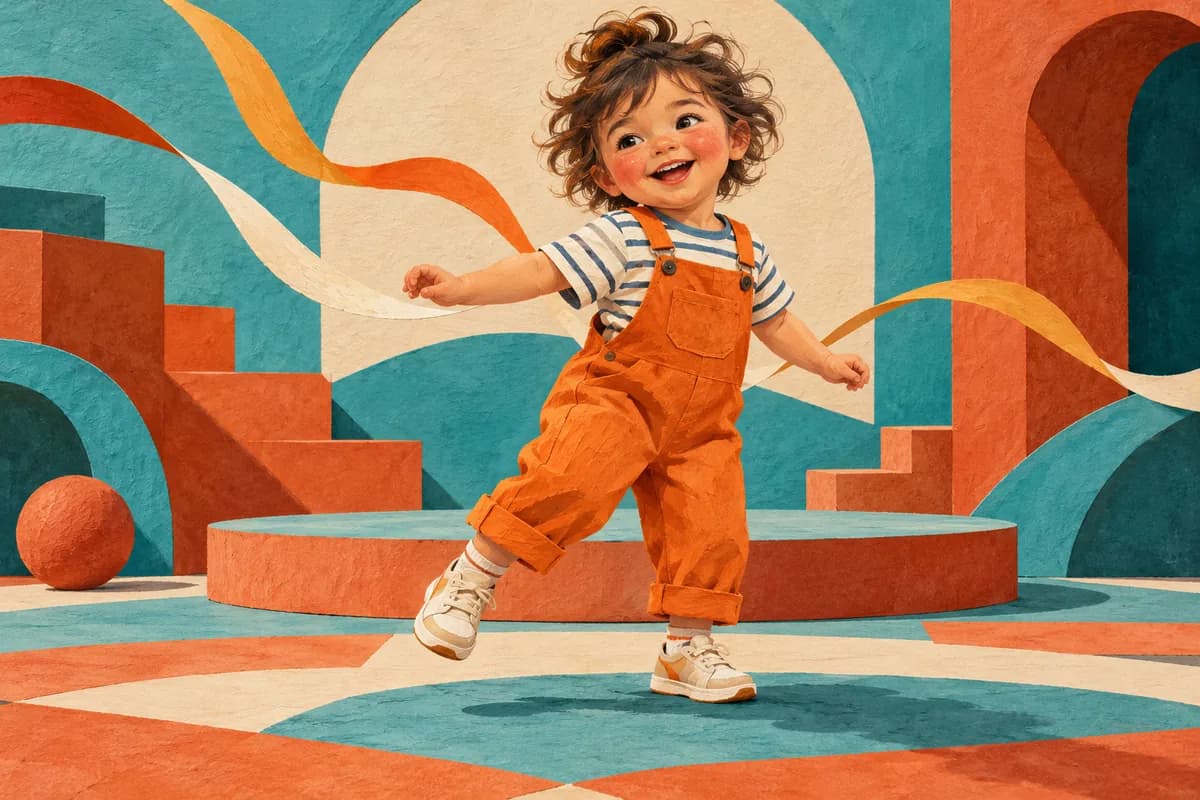
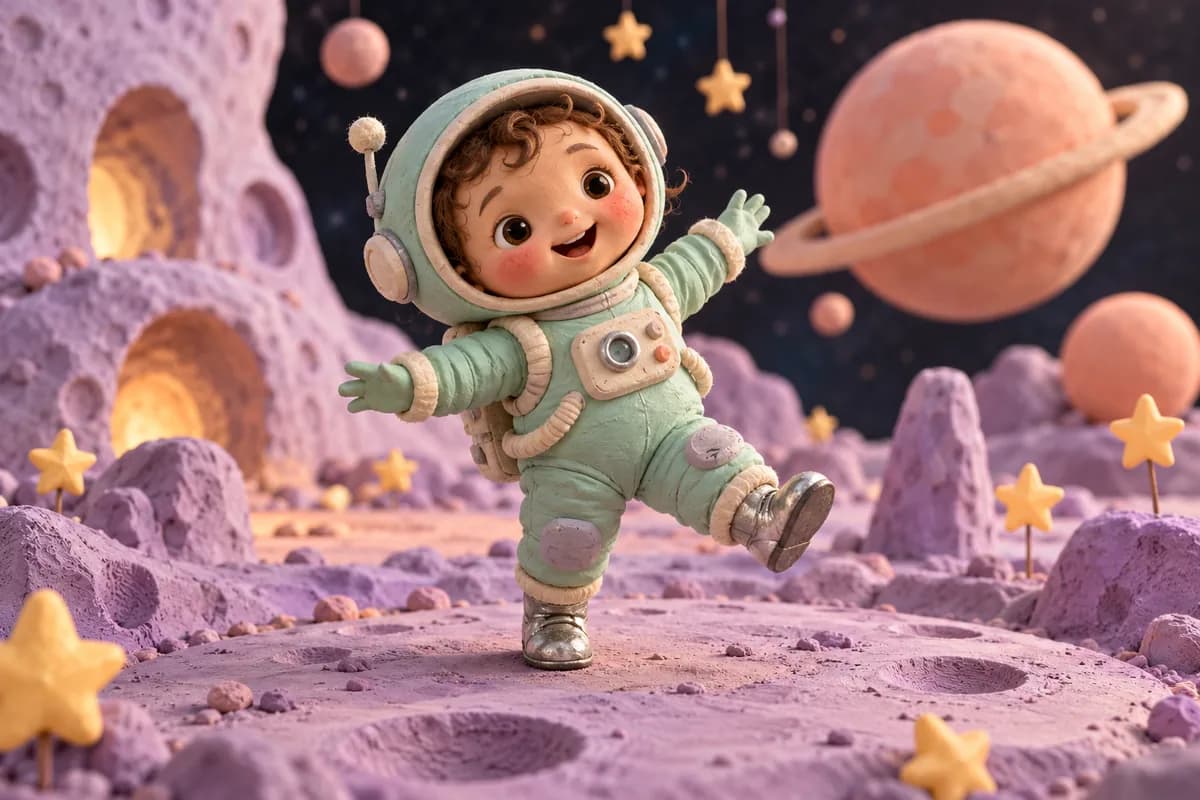
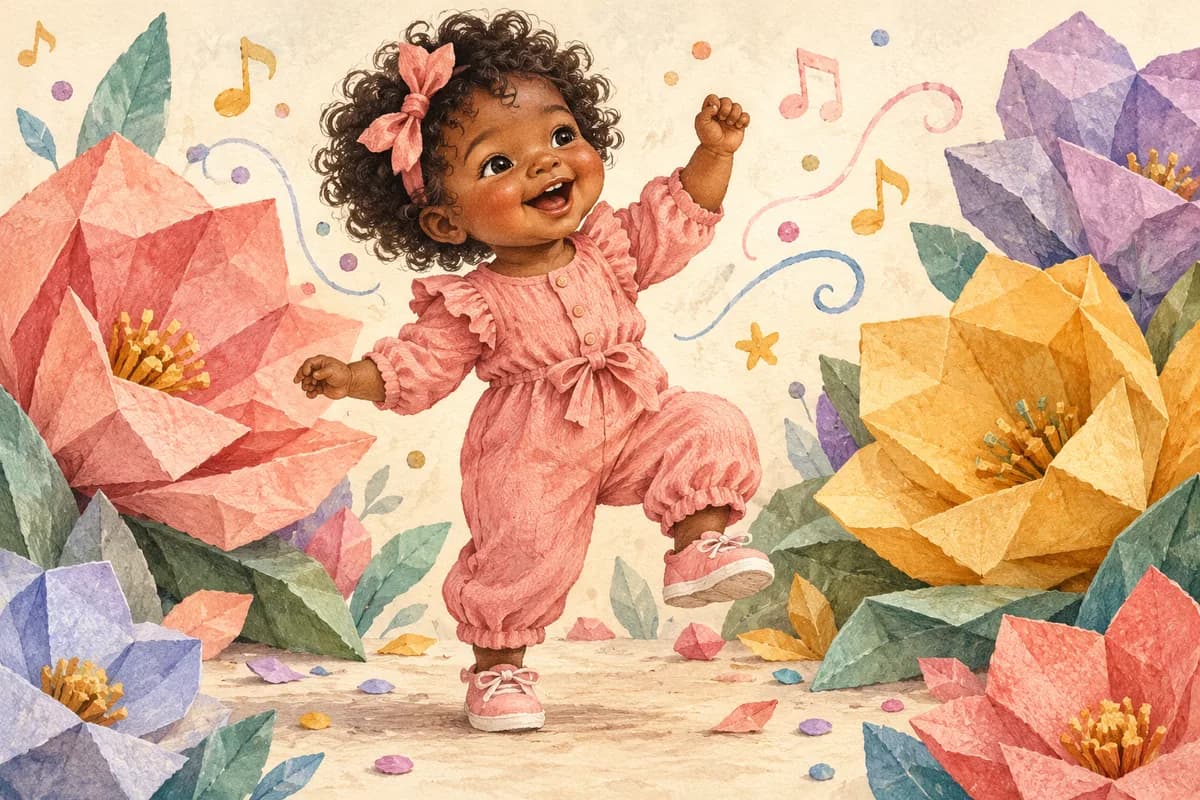
Your performer can be an original illustrated baby or a charming human-like character. Turn a clay-style explorer, a storybook toddler, or a playful digital persona into the center of a dance idea. An AI baby dance video generator gives character creators a way to explore movement from an image, making the jump from a static design to a short performance feel approachable.
Start with a character whose arms, legs, and face are easy to see. Carry its personality into a dance edit, a cheerful introduction, or a recurring social series. It is a lovely way to develop an original character beyond a single portrait.
A good result with the AI baby dance video generator begins with a clear view of the star. Pair a well-framed baby photo with a similarly framed reference, then choose the presentation that suits your idea. Image-led or video-led orientation helps you shape the result around the picture or performance. Select 720P or 1080P quality, and use optional scene notes to describe the atmosphere you want around the action.
Keep the creative direction focused: a cheerful studio moment, a cozy family scene, or a colorful character stage. With Kling 3.0, the background-source control gives you another way to guide the setting. You choose the feeling as well as the moves.
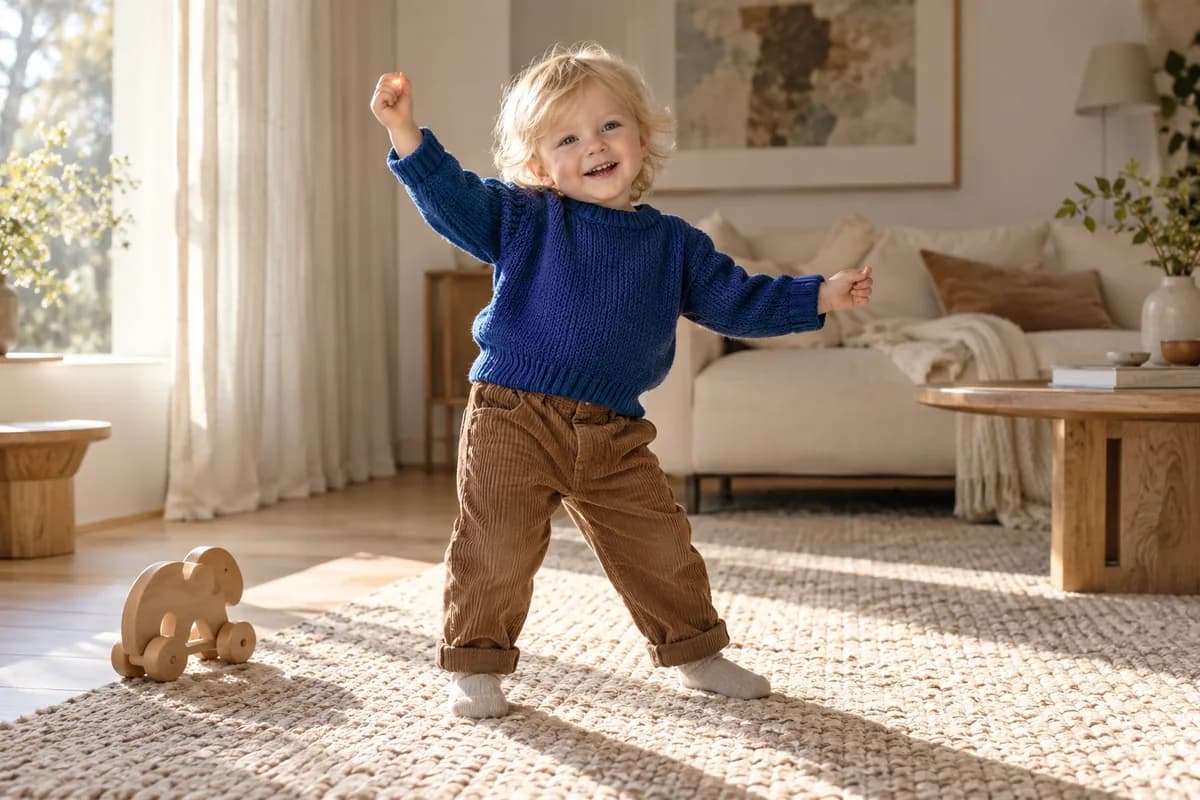
Keep a dance reference you love and try a different photo or original character in the AI baby dance video generator. A cozy outfit can suggest a family keepsake; a colorful illustration can become a playful creator identity. Exploring those directions helps you discover which combination of expression, styling, and movement best fits the story you want to share.
Preview each finished clip before picking your favorite. Save the version that feels right for a birthday message, a holiday hello, or your next social post. A small creative experiment can turn a familiar picture into something that feels personal, surprising, and worth watching again.
Upload a clear photo with one visible subject, or try the supplied original baby image.
02
Choose the dance
Select the dance sample or upload your own reference. Add optional scene direction if you have a particular mood in mind.
03
Create and share
Review the credit estimate, generate your clip, then preview and download the version you love.
Little videos for moments that matter
A smile in the family chat
Give grandparents and relatives a cheerful surprise. A familiar baby photo with an unexpected little dance makes an everyday message feel more personal.
Birthday and holiday wishes
Create a playful clip for a birthday greeting, party message, or seasonal hello. Add your own words and music when preparing the final greeting.
Your next short-video idea
Build a character-led dance edit for TikTok, Reels, or Shorts. Try an original illustrated baby persona for a recognizable, recurring creative theme.
Why choose our AI baby dance video generator?
Two Kling motion-control options
Choose Kling 3.0 or 2.6 in one workspace, with the controls that match your selected model and creative direction.
See the credits before you create
The estimate updates with your model, quality, and reference duration, helping you choose the setup that fits your next clip.
From upload to preview in your browser
Keep your photo, dance reference, and result together in the AI baby dance video generator. Start creating without installing animation software.
Your baby dance questions, answered
How do I make an AI baby dance video from a photo?
Upload a baby picture, choose a dance sample or reference video, and generate your clip. The AI baby dance video generator uses the image for appearance and the video for movement. Once the result is ready, preview the performance and download it for your family message or creative project.
Can I get started for free, and how do credits work?
New accounts receive signup credits. Video generation uses credits, with an estimate shown before you submit. Your selected model, quality, and reference duration determine the amount; compare that estimate with your balance and choose a plan or credit purchase when you need more. Each generation has its own cost.
Do I need to film a dance myself?
You can start with the supplied dance sample or upload a reference you are allowed to use. Choose one dancer with readable movement and steady framing. The reference provides the performance, so you can focus on choosing a photo and a mood rather than learning or recording a routine.
What kind of baby photo should I upload?
A clear, well-lit JPG or PNG showing one subject works best. Full-body framing with visible hands and feet gives the dance more useful visual information. Match the body framing to your reference where possible. For a creative alternative, try an original illustrated baby with a clear human-like pose.
How can I make a baby dance video with music?
Start by creating the movement from your dance reference. Then pair the downloaded clip with your preferred soundtrack in a video editor or your social app before sharing. This lets you choose music that suits a family greeting or creator edit, using audio you have permission to publish.
What video length, input formats, and quality can I choose?
Kling 3.0 accepts MP4 or MOV dance references between 3 and 30 seconds. The workspace offers 720P and 1080P output choices. Select your reference, then check the active model's upload guidance and quality controls. A short, clearly framed routine is an approachable starting point for a first baby dance.
Can I use cartoon babies and original characters?
Use the AI baby dance video generator to explore illustrated babies and human-like original characters as well as photos. Choose a design with a clear face and readable limbs, then pair it with a compatible reference. Try storybook, clay-inspired, or digital-art styling to give your short performance its own distinctive character.
How can I get a more natural-looking result?
Use a sharp photo, visible limbs, and a reference with a similar pose and body framing. Simple movement and a steady camera give the model a clear starting point. Preview the complete result, including the face, hands, and feet, before sharing; you can refine your inputs for another creative direction.
Can I download my video, and how do I choose its visibility?
Completed results can be previewed and downloaded from the workspace. Check the public or private setting before submitting; private generation unlocks after a purchase. Use photos you own or have permission to animate. For a child's photo, make sure you have the appropriate parent or guardian permission before uploading and sharing.