HappyHorse AI Video Generator for Cinematic Clips

Bring an idea, a photo, or your reference images to the HappyHorse AI Video Generator. Create a short scene with HappyHorse 1.1, then preview and download your video.

Start with a scene

Start with a scene
Describe a scene, an action, and the mood you want…
53-15

HappyHorse supports 3 to 15 seconds.

Checking access

HappyHorse 1.1 cinematic video example
Preparing generatorControls will be ready in a moment.

What will you create with HappyHorse AI Video Generator?

Explore five ways to shape an idea with the HappyHorse AI Video Generator, from a first sentence to a scene ready for your next edit.

Turn a few words into a world

Picture an observatory in the dunes or a city above the clouds. The HappyHorse AI Video Generator turns a written idea into a short scene, without requiring a starting image. Describe the subject, action, and atmosphere. Use the HappyHorse AI Video Generator to explore story openings, imaginative cutaways, and visual concepts before planning a larger production.

Start from an idea

Terracotta miniature observatory on an apricot dune with a golden ribbon of light reaching toward the moon

Give your photo its next moment

Start with the image you already have. The HappyHorse AI Video Generator can add a camera push, drifting fabric, or gentle environmental movement to a product photo, portrait, or illustration. Your image sets the opening composition. Keep the action focused, then review the HappyHorse AI Video Generator result for recognizable shapes, materials, and small details before publishing.

Explore image to video
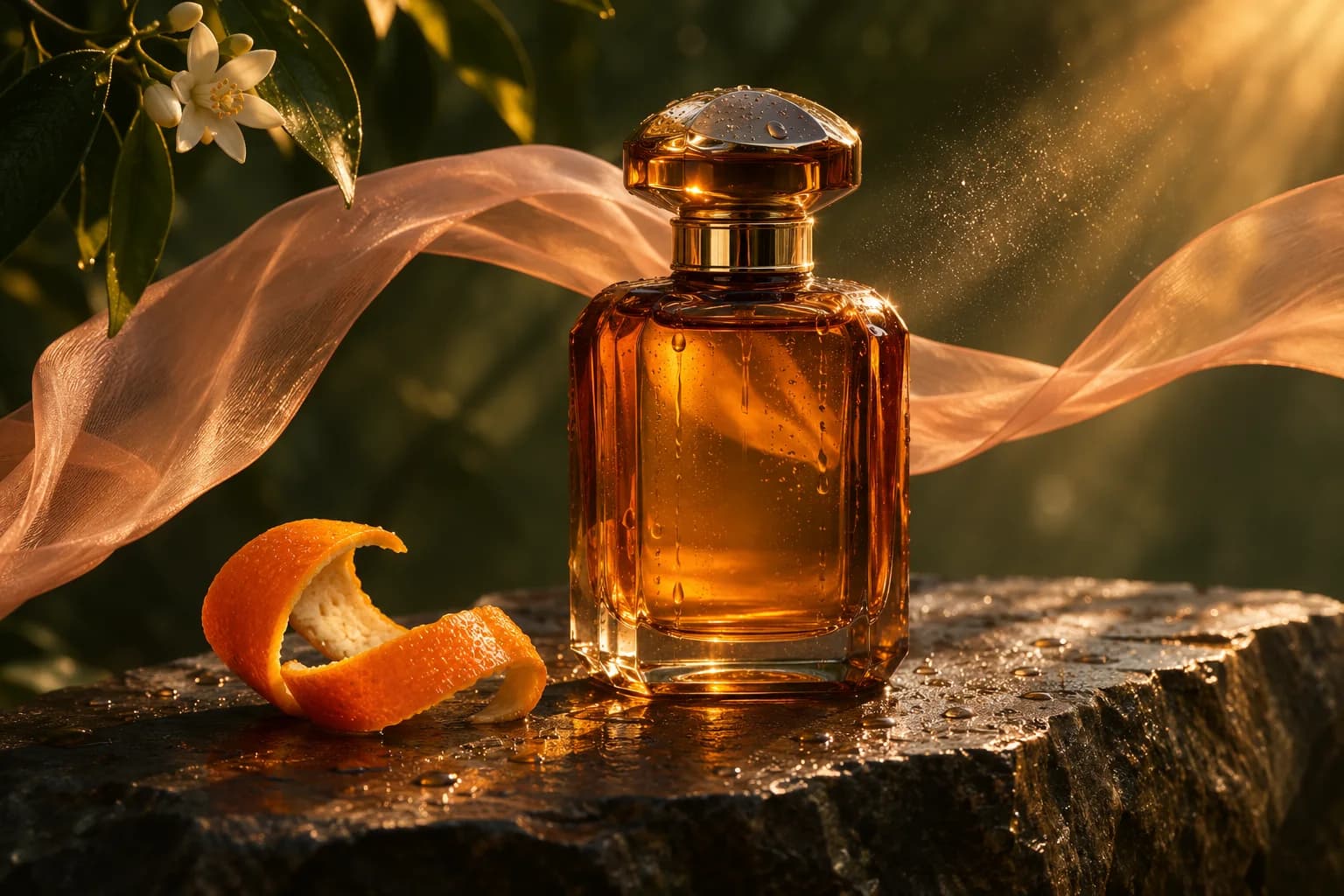
Amber perfume bottle on wet stone with a peach silk ribbon and citrus mist in warm sunlight

Bring your references into the story

Guide a new scene with a character, a product, or a place. Reference to Video in the HappyHorse AI Video Generator accepts up to nine images with the default HappyHorse 1.1 model. Explain which reference guides each part of the scene. The HappyHorse AI Video Generator uses those images as creative guidance, helping you explore a coherent look across your ideas.

Explore reference to video
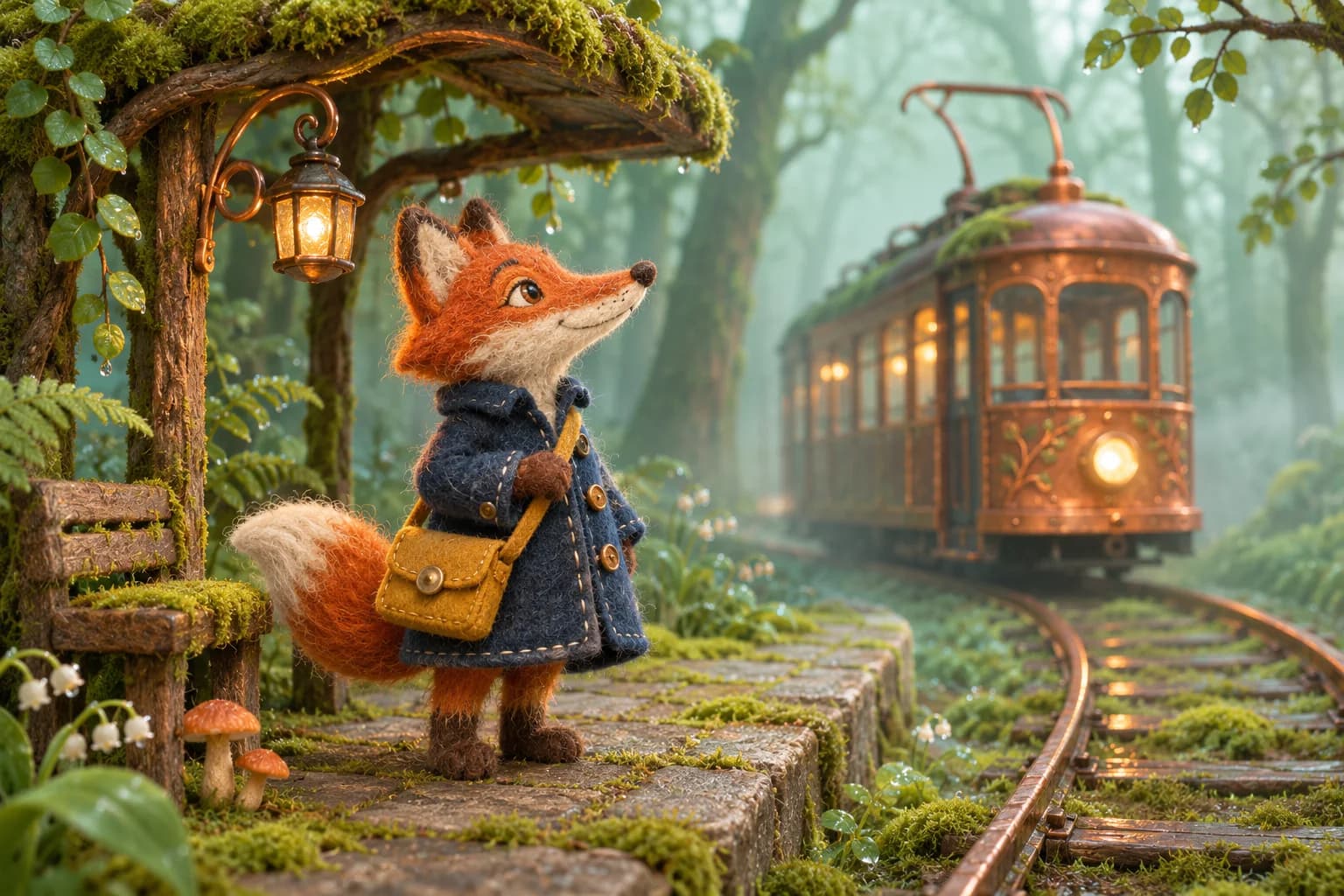
Handmade felt fox in an indigo coat waiting for a copper tram at a mossy forest stop

Direct the movement, not a timeline

Follow a cyclist along the coast, drift around a product, or ease into a quiet close-up. Describe camera movement and a clear action in the HappyHorse AI Video Generator. Small, deliberate directions make the scene easier to judge. Refine one detail in the HappyHorse AI Video Generator, generate another take, and compare the motion and pacing.

Try a camera direction
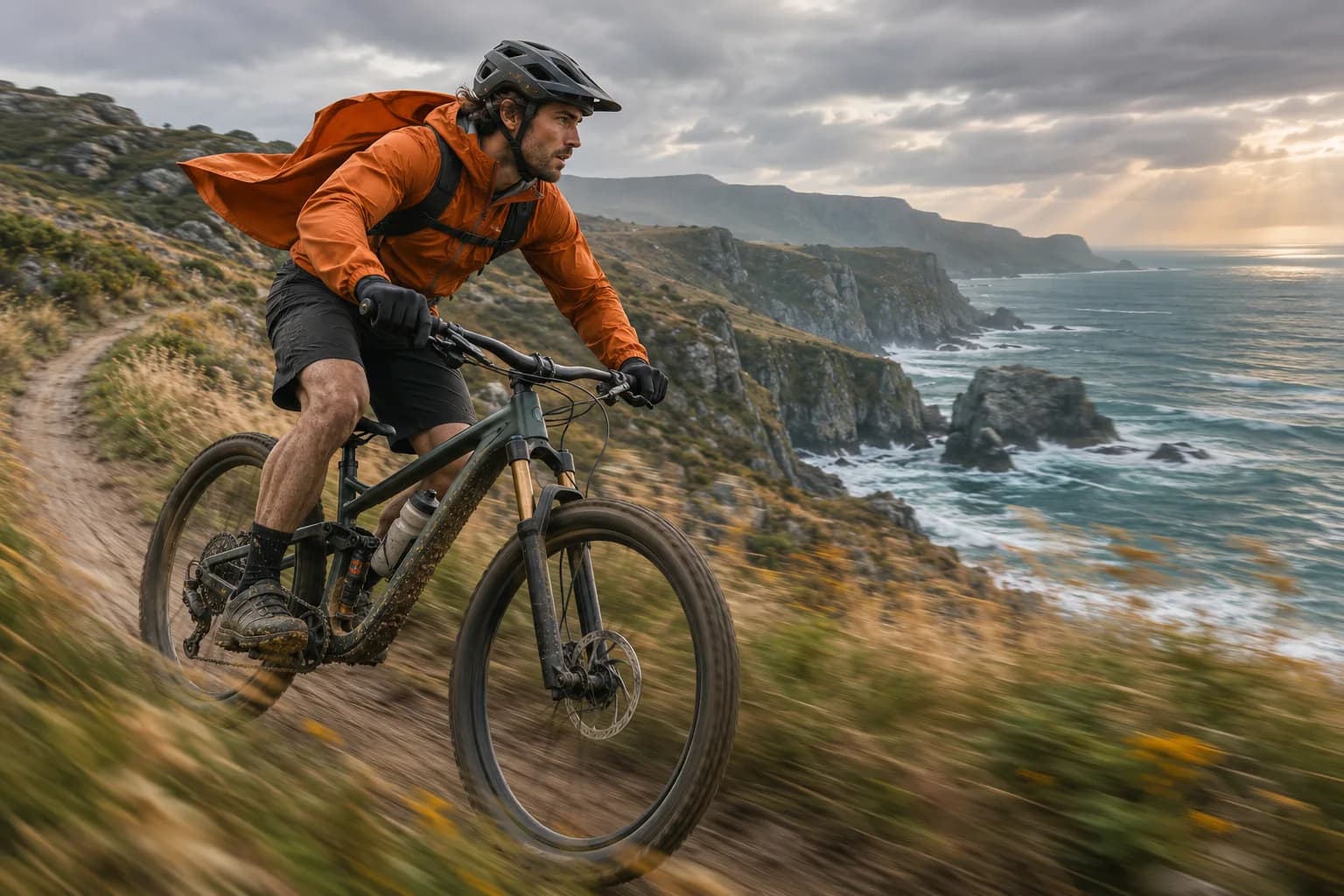
Mountain biker in a burnt-orange jacket captured in a low tracking shot above turquoise coastal cliffs

Compose for the screen you have in mind

Choose a wide scene for a presentation or a vertical composition for a phone screen. The HappyHorse AI Video Generator offers 720p or 1080p clips from 3 to 15 seconds on HappyHorse 1.1. Text and reference modes include aspect-ratio choices; image mode follows the source image. Check the estimate in the HappyHorse AI Video Generator before creating each take.

Compose your first clip
Coral art deco lighthouse and curved white marble stairs above a calm turquoise sea

How to use HappyHorse AI Video Generator

  1. Choose your starting point

    Select Text, Image, or Reference in the HappyHorse AI Video Generator, then describe your scene or upload your images.

  2. Set up your clip

    Choose the length and quality in the HappyHorse AI Video Generator, review the credit estimate, and generate.

  3. Preview and download

    Watch your HappyHorse AI Video Generator result, check the important details, and download it for your next edit.

Where HappyHorse AI Video Generator fits

Product launches

Explore a product reveal or atmospheric campaign shot with the HappyHorse AI Video Generator.

Character stories

Give an original character a small story moment, guided by your references and scene description.

Creative pitches

Use the HappyHorse AI Video Generator to show the mood and movement behind an advertising idea.

Social content

Create a short visual hook, a scenic cutaway, or a playful moment for your next post.

Why use our HappyHorse AI Video Generator?

Three starting points, one workspace

Move between text, image, and reference workflows in the HappyHorse AI Video Generator as your idea develops.

Know the cost before creating

The HappyHorse AI Video Generator shows a credit estimate that responds to your model, length, and quality choices.

Keep your creative options open

Start with HappyHorse 1.1, or choose another compatible model in the HappyHorse AI Video Generator workspace.

HappyHorse AI Video Generator questions

Which model does HappyHorse AI Video Generator use?

This page starts with HappyHorse 1.1 in Text to Video mode, with a 5-second, 720p clip. You can change the settings or select another compatible model. Available controls follow the selected model.

Can HappyHorse AI Video Generator animate a single photo?

Yes. Choose Image to Video and upload one clear image. It becomes the starting frame, and the output follows its aspect ratio. Add a simple motion description if you want to guide the action.

How many references can HappyHorse AI Video Generator use?

HappyHorse 1.1 supports one to nine reference images in Reference to Video mode. Use clear images and explain how the subjects and setting should work together. Other models may have different input limits.

What length and quality does HappyHorse AI Video Generator support?

HappyHorse 1.1 supports clips from 3 to 15 seconds in 720p or 1080p. Text and reference modes include landscape, portrait, square, and other aspect ratios. Build longer sequences by editing several downloaded clips together.

Is HappyHorse AI Video Generator free?

HappyHorse 1.1 requires paid access and uses credits for each generation. The current rate is 21 credits per second at 720p or 27 at 1080p. A 5-second clip costs 105 or 135 credits respectively. Review the displayed estimate before generating.

How long does HappyHorse AI Video Generator take?

Processing time varies with demand, clip length, and quality. You can follow the task status in the workspace. Wait for the result before submitting the same scene again.

Will HappyHorse AI Video Generator preserve every detail?

References guide the result, while generated motion can change small features, lettering, faces, or product geometry. Review the clip before publishing. For a clearer result, use a clean source and a focused action.

Can I use HappyHorse AI Video Generator for brand content?

Use images and characters you have the rights to, and review the model terms and your plan for the intended project. Download the finished clip, check brand details, and add exact captions or offer text in your final edit.

Your next scene starts with HappyHorse AI Video Generator

Open the HappyHorse AI Video Generator, choose a starting point, and bring your first short scene to life.