PixVerse AI Video Generator Cinematic scenes. Characters with a voice.

Create animated photos, cinematic scenes, and short talking clips with PixVerse AI Video Generator. Start with V6, enable audio for dialogue, and see the credit cost before you create.

Upload your photo or illustration

or drag and drop

PNG, JPG, WEBP · 1 image

Motion ideas

Motion ideas
Describe what should move and how the camera should behave…
51-15

Choose an output length from 1 to 15 seconds.

Turn on to apply this option

Adds native audio and uses the audio-enabled credit rate.

Checking access

PixVerse V6 video example
Preparing generatorControls will be ready in a moment.

What will you create with PixVerse AI Video Generator?

Explore words, photos, camera movement, and spoken scenes with PixVerse AI Video Generator. These concept artworks illustrate creative directions for your next clip.

Turn a written idea into a world worth watching

Imagine a city inside a seashell, a floating garden, or an unexpected opening scene. PixVerse AI Video Generator turns a written brief into a video without requiring footage. Describe one subject and one action, then guide the light and mood. Use PixVerse AI Video Generator to make a creative direction visible before developing the rest of your story.

Start with an idea

Pearlescent nautilus shell holding an ivory miniature city over a twilight sea, concept artwork

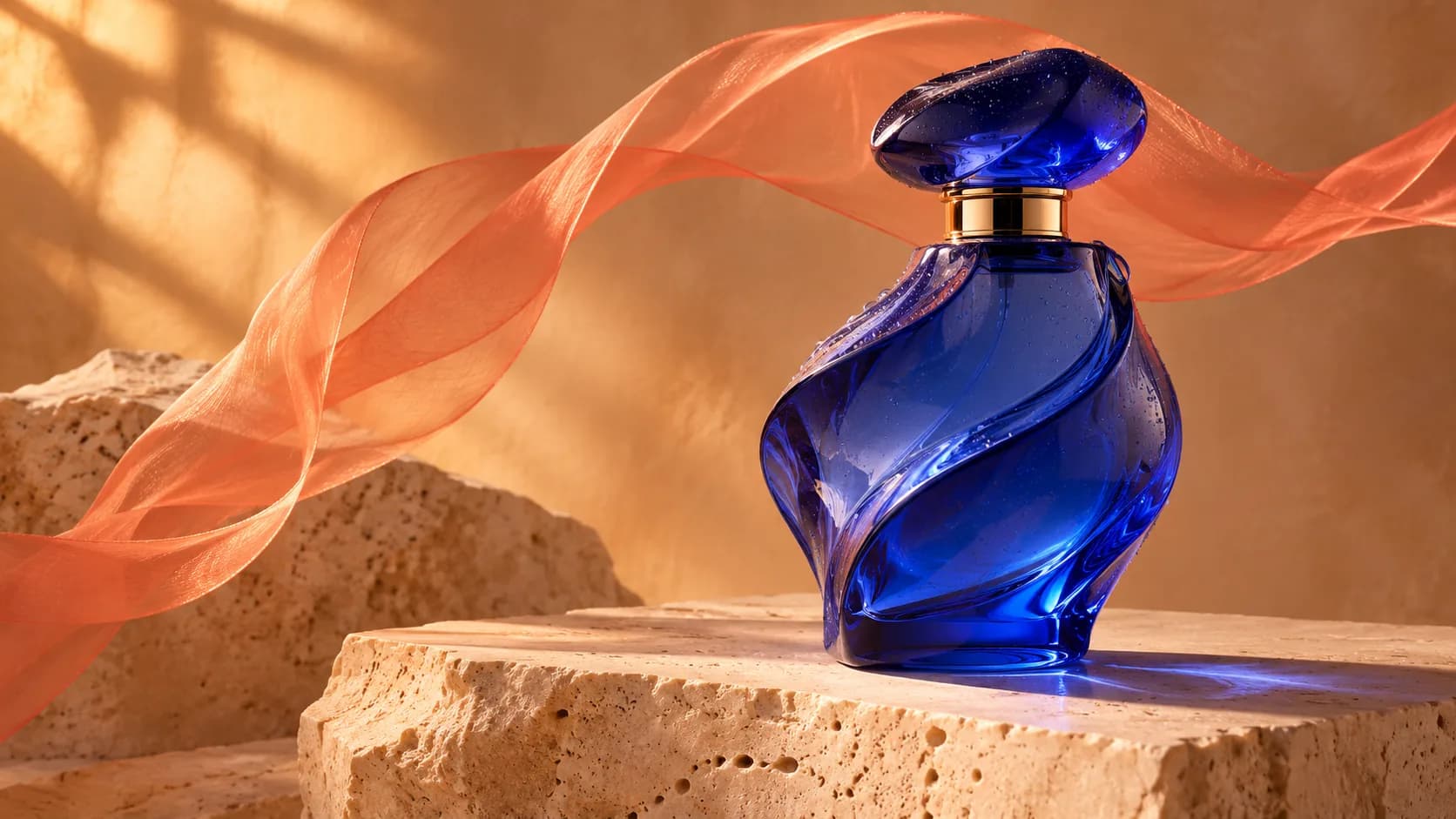
Give a product photo its next moment

Make an existing photo the starting point for movement. Upload one product image, portrait, or illustration to PixVerse AI Video Generator and describe what should happen next. Try a gentle reflection, drifting fabric, or subtle environmental motion. PixVerse AI Video Generator helps turn your visual assets into short creative clips. Review the subject and important details before sharing.

Animate your photo
Sculptural cobalt glass perfume bottle on travertine with suspended coral silk, concept artwork

Give the camera a clear direction

A slow push-in can reveal texture. An orbit can introduce a space. Describe your intended camera movement in PixVerse AI Video Generator, together with the action in the scene. One clear move gives the shot a readable focus. Explore cinematic framing with PixVerse AI Video Generator, then review the result and refine the direction when another take would work better.

Try a camera move
Sculptural terracotta pavilion opening toward a desert canyon in dramatic sidelight, concept artwork

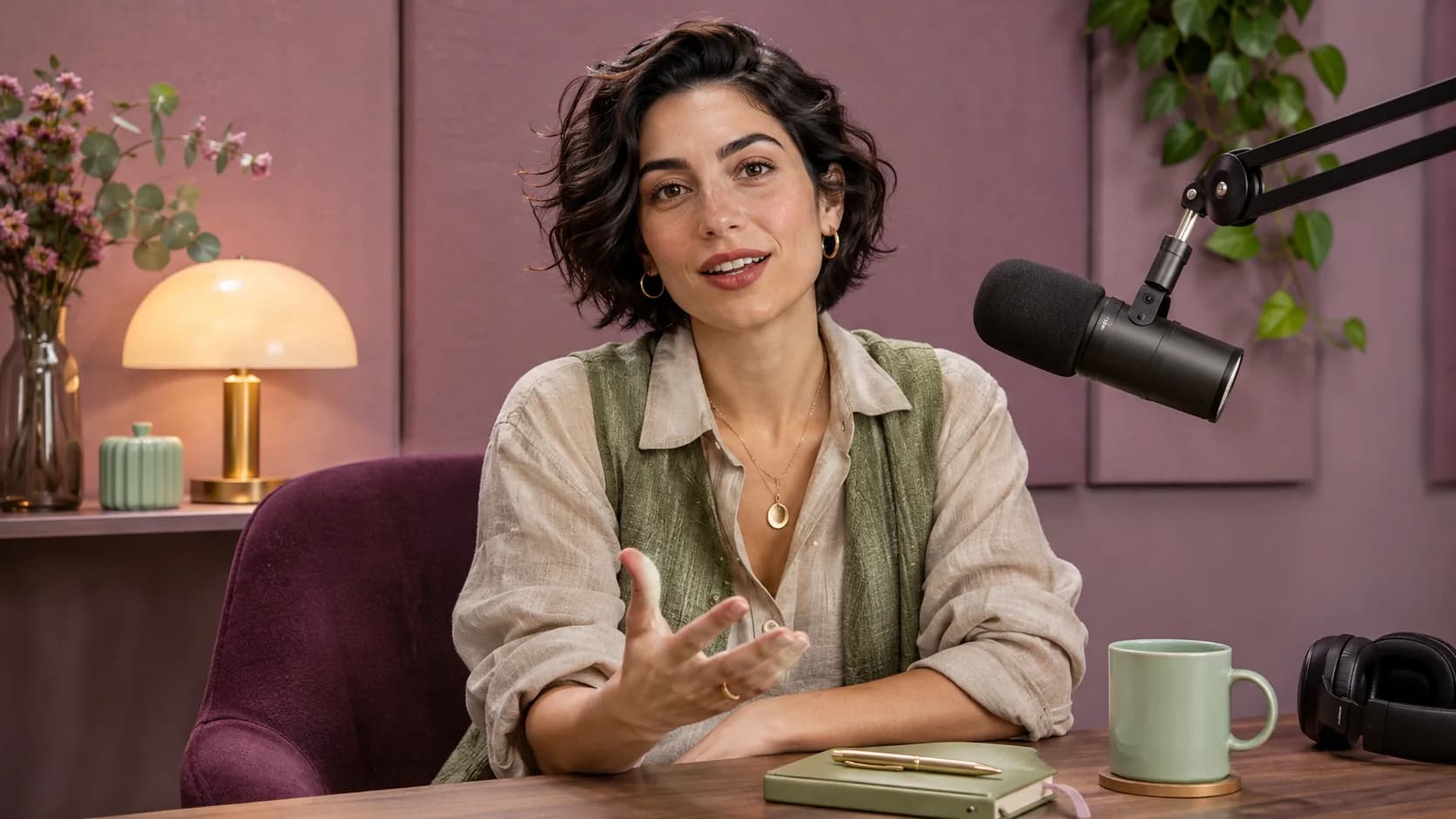
Give your characters a voice

Create a presenter opening, a podcast-style moment, or a short character exchange. Write a brief spoken line and enable audio in PixVerse AI Video Generator. V6 generates dialogue with matching mouth movement, plus sound effects and atmosphere. Use PixVerse AI Video Generator to explore a voiced scene, then review the words, sound, and lip sync before publishing.

Create a talking clip
A podcast host speaking beside a broadcast microphone in a softly lit mauve recording studio, concept artwork

Keep the clip the right size for your idea

Choose a brief visual beat or give an illustrated scene more time to unfold. PixVerse AI Video Generator supports V6 clips from 1 to 15 seconds in 360p, 540p, 720p, or 1080p. Choose the detail your project needs while keeping the subject clear. PixVerse AI Video Generator shows the cost of each configuration before generation.

Choose your settings
Textured gouache illustration of a red sailboat passing a moonlit botanical island, concept artwork

How to use PixVerse AI Video Generator

  1. 1.Choose your starting point

    Upload one image or switch to Text to Video in PixVerse AI Video Generator, then describe your scene.

  2. 2.Set the motion and output

    Choose duration, resolution, and optional audio in PixVerse AI Video Generator. Review the credit estimate and generate.

  3. 3.Preview and download

    Check your PixVerse AI Video Generator result, refine the prompt for another take, or download the clip for your project.

Put PixVerse AI Video Generator to work

Product launch teasers

Explore a reveal or atmospheric close-up for your next release with PixVerse AI Video Generator.

Social video openings

Give a Reel, Short, or social post an imaginative opening shot with PixVerse AI Video Generator.

Podcast-style clips & talking intros

Create short host openings, spoken social clips, or character dialogue with native audio in PixVerse AI Video Generator.

Illustrated stories

Develop a short moving moment from a drawing or character concept with PixVerse AI Video Generator.

Why create with PixVerse AI Video Generator here?

Two ways to start

Switch between V6 image and text workflows within PixVerse AI Video Generator while retaining each form's inputs.

Cost visible first

See the live credit requirement in PixVerse AI Video Generator as you adjust duration, resolution, and audio.

More models to explore

PixVerse AI Video Generator starts with V6. Choose other compatible models when a different creative approach suits your task.

PixVerse AI Video Generator FAQ

Which PixVerse model does this tool use?

PixVerse AI Video Generator opens with PixVerse V6 for text-to-video and image-to-video generation. The model selector also offers compatible alternatives. Available settings and credit costs change with your selected model.

Can I animate a photo with PixVerse V6?

Yes. Choose Image to Video in PixVerse AI Video Generator, upload one photo or illustration, and describe the movement. V6 accepts one source image per generation. A clear subject and a simple motion direction provide a useful starting point.

What video length and resolution can I choose?

PixVerse AI Video Generator offers V6 durations from 1 to 15 seconds, with 360p, 540p, 720p, and 1080p output. The form starts with a 5-second, 720p clip. Text-to-video also offers landscape, portrait, square, and other aspect ratios. Image-to-video starts from your source image.

Can I create talking videos or podcast-style clips?

Yes. Write a short spoken line and enable audio in PixVerse AI Video Generator. V6 can generate dialogue and matching lip movement for a host introduction, podcast-style scene, or character exchange. Clips are 1–15 seconds. Audio is off initially, and enabling it changes the credit estimate. Review the generated words, pronunciation, and lip sync.

Is PixVerse V6 free to use here?

PixVerse V6 in PixVerse AI Video Generator is available to customers who have purchased a plan or credit pack. Each generation uses credits based on duration, resolution, and audio. The form shows the current requirement before you start.

Do I need a prompt if I upload an image?

Yes. PixVerse AI Video Generator uses your prompt to guide motion even when you supply a photo. For V6, write between 3 and 5,000 characters. You can select a motion preset and edit it to describe the action you want.

Can PixVerse lip sync use my existing recording?

For an existing voice recording, open our AI Lip Sync Video Generator and choose PixVerse Lip Sync. Upload a source video and speech audio to match the mouth movement to that track. This dedicated workflow complements the prompt-generated audio in PixVerse AI Video Generator. Use a clear speaking face and review the completed synchronization.

Is this the official PixVerse website?

This PixVerse AI Video Generator is a tool on Photo to Video AI that integrates the PixVerse V6 model. Use your Photo to Video AI account and credits to generate here. PixVerse's own website and account system are separate.

Make your next idea move with PixVerse AI Video Generator

Start with a photo or a few words in PixVerse AI Video Generator. Choose a creative direction and bring it into motion.