Skip Multi-Hour Sequence Rendering
Start with an approved still. 3D Render to Video AI can add rising steam to an espresso machine or a highlight pass to an electronic enclosure. Use the shot in your next review deck.
Animate a product still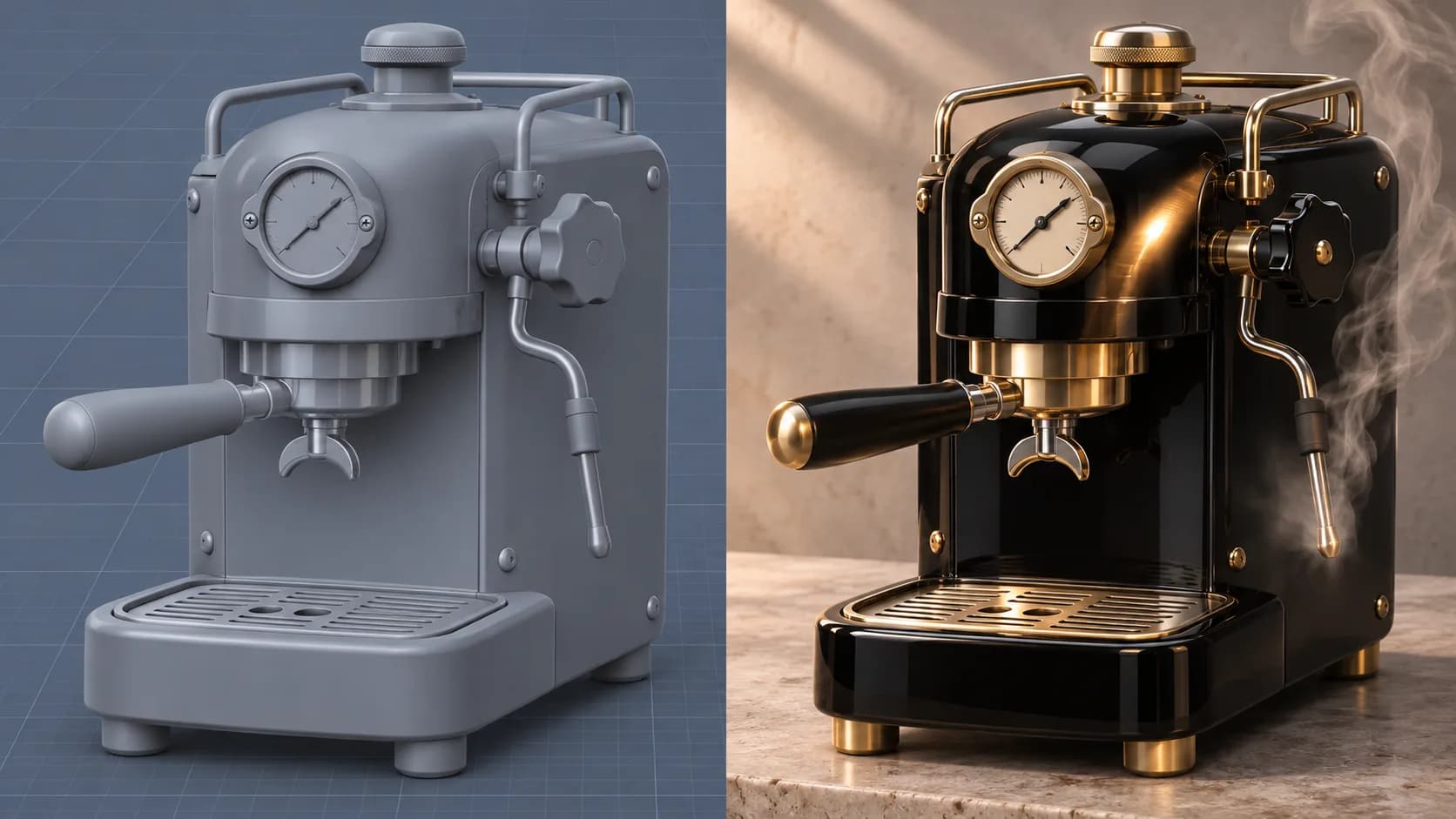
With 3D Render to Video AI, add camera motion or a lighting sweep to one Blender, Cinema 4D, KeyShot, Maya, or Unreal still. Upload matching clay and textured renders for a material reveal.
Upload a rendered still frame (PNG, JPG, WebP)
or drag and drop
Choose a 3D camera & lighting pass

Clay / viewport render · start
Final textured render · end
Upload both views with matching framing and perspective.
Choose a 3D camera & lighting pass
Upload both the clay and final textured renders to animate the reveal.
Give an approved product render, character, or game asset a shot you can share for review.
Start with an approved still. 3D Render to Video AI can add rising steam to an espresso machine or a highlight pass to an electronic enclosure. Use the shot in your next review deck.
Animate a product stillUse slow movement to keep bevels, seams, and proportions in view. A macro sweep lets brushed metal and tinted glass catch the light. Inspect fine edges and reflections before sharing the shot.
Try a material sweep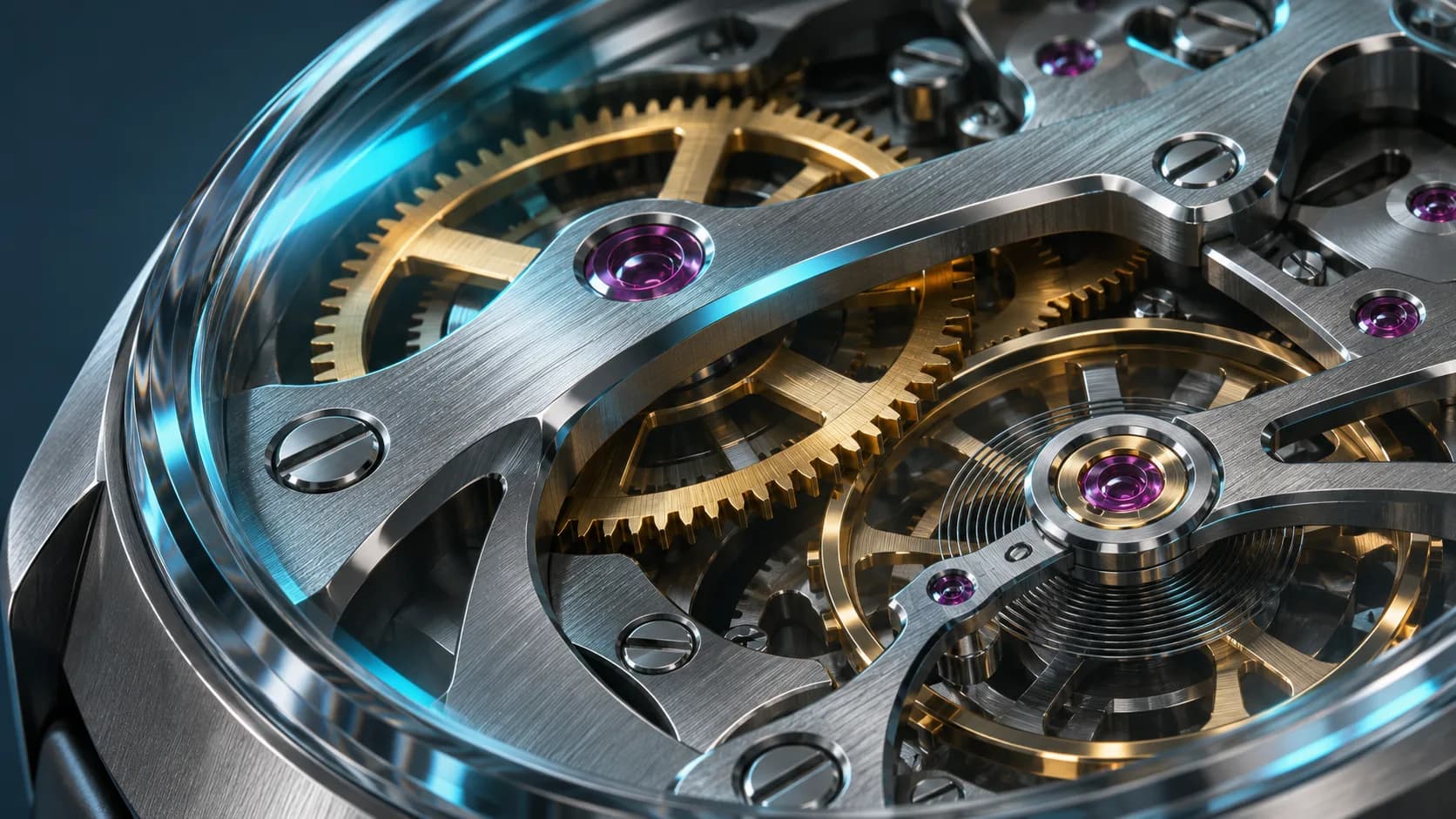
Pair a clay viewport still with its textured version at the same angle and scale. Use Clay to final mode to reveal colors, surface textures, and final lighting in one portfolio shot.
Create a clay reveal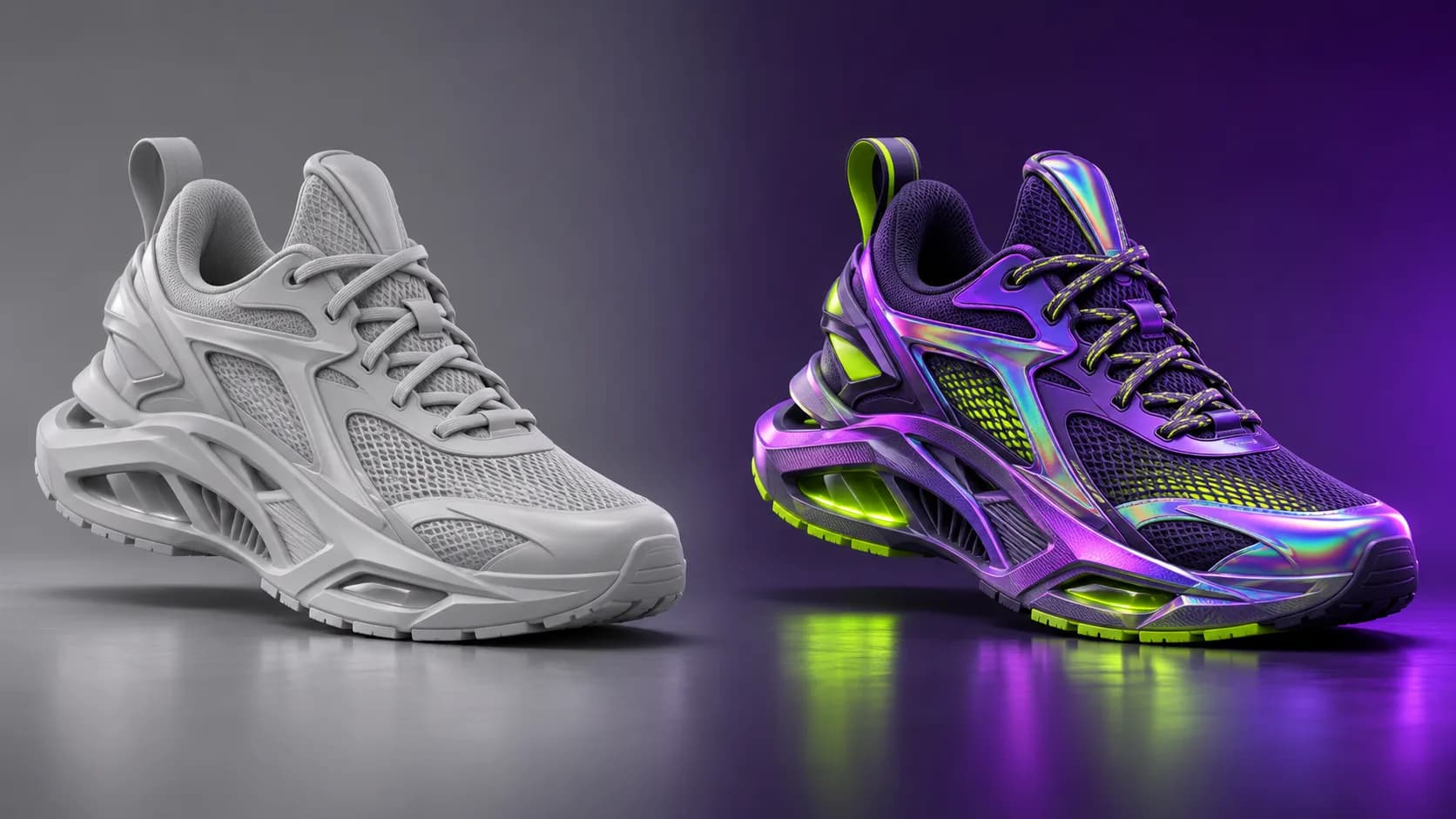
3D Render to Video AI accepts common image formats from path-traced scenes, viewport previews, and CAD visualizations. Animate a C4D glass study or a KeyShot packaging concept in the same workspace.
Upload an exported frame
Choose a turntable orbit for a collectible, a dolly-in to reveal layered props, or an HDRI light shift to track reflections. Edit the preset to highlight the details that matter.
Choose a camera path
Frame the entire subject and use an image with sharp edges. For a reveal, export the clay and textured versions from the same camera with matching crops.
Choose a preset in the active mode and edit the prompt to name one movement. Review the model, duration, framing, and estimated credit cost.
Generate the clip and check the complete preview for stable geometry and believable reflections. Download the MP4 for your reel, product page, or client review.
Give stakeholders a moving look at a device, appliance, or packaging concept. Show the curve of a shell, the fit of a latch, or a reflective finish.
Use a restrained orbit to present a character, designer toy, or game prop. Keep the silhouette and surface finishes readable in a reel or pitch.
Use 3D Render to Video AI to show your clay model followed by the finished materials and lighting. Matching compositions let viewers follow the forms from blockout to finish.
Upload the views you want to animate. Keep editable models, material libraries, and scene files in your 3D workspace.
Give one render a camera move or establish a clear opening and closing look with the two-frame mode.
Compare supported models and settings in the studio. Check the estimate before you use credits on a preview or final clip.
Use PNG, JPG, or WebP stills from Blender, Cinema 4D, KeyShot, Maya, Unreal, or any CAD renderer that exports images. Choose a sharp still with clear shape boundaries and enough room for the camera move.
Upload the exported image for a camera or lighting pass. For a clay reveal, upload two images showing the same asset. Project files, scene meshes, and texture archives stay in your 3D software.
Name the edges, colors, or finishes to preserve and start with a short, controlled move. Large rotations ask the model to infer hidden surfaces, which can change proportions or small details. Review critical measurements separately in your source model.
Choose Clay to final and add the untextured view first and the textured version second. Use matching camera, scale, and aspect ratio. Apply Clay-to-Shader Reveal and adjust the prompt to describe how textures and lighting should appear.
AI generates frames from your images and prompt. A 3D renderer calculates each frame from the geometry, lighting, and camera data. Use your 3D renderer for shots that require exact surfaces or calibrated lighting.
The studio starts with a five-second Kling 3.0 Standard clip at 720p. Available resolutions, aspect ratios, and credit costs depend on the selected model and settings. Paid plans and credit packs are available. Use assets you have rights to and follow the applicable terms for commercial work.
Start with an exported still or a matched clay and textured pair. Choose a camera move, preview the result, and download a clip ready for review.
Animate My 3D Render