AI Before and After Video GeneratorTurn Your Before and After Photos into One Seamless Reveal

Upload a Before photo and an After photo, then choose how the change unfolds. Create one continuous AI transition for a room makeover, a product reveal, or a restoration.

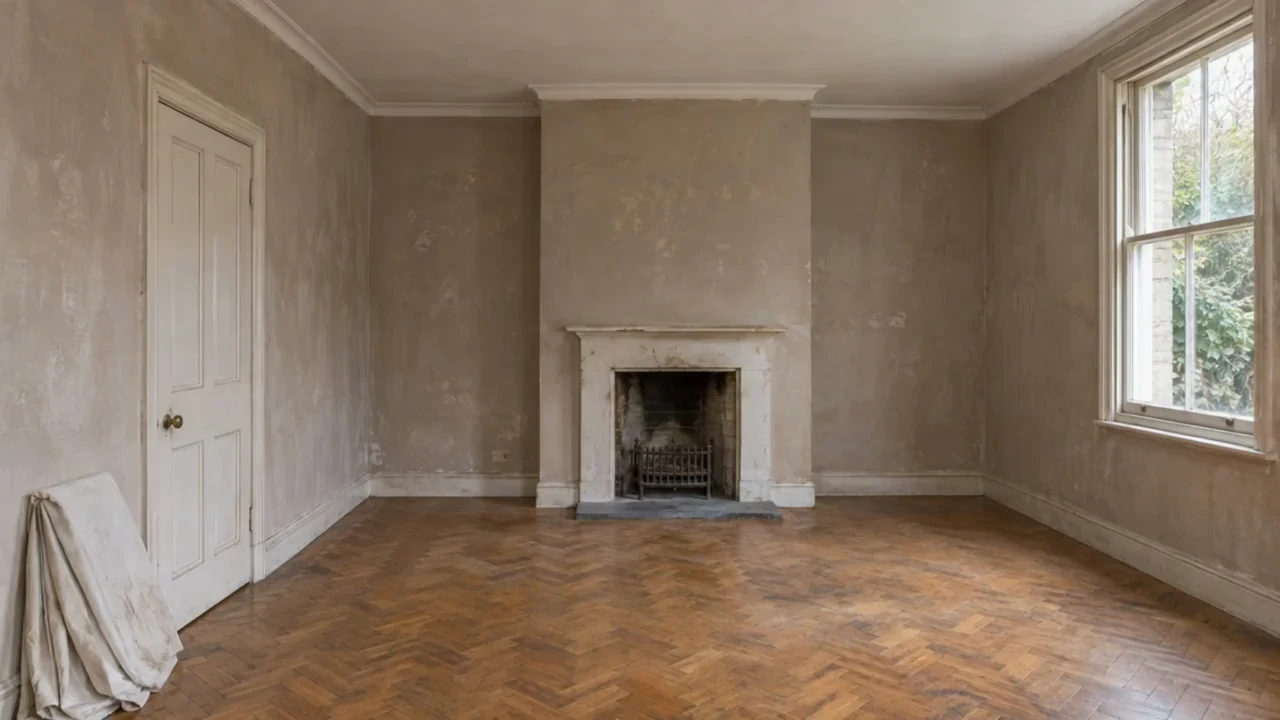
Before photo · start

After photo · end

Upload two photos taken from a similar angle and aspect ratio for the smoothest transformation.

Choose a transformation reveal style

Choose a transformation reveal style
53-15
Living room makeover · Kling 4.0 · 5 seconds · 720p
Preparing generatorControls will be ready in a moment.

Show the Transformation Between Two Photos

Show what changed, from the texture of a restored surface to the light in a newly furnished room.

Generate the Reveal Between Your Frames

The Before and After Video Generator uses both photos to create the motion in between. Ask for a gentle sweep of light, color spreading across a surface, or new materials coming into view. A steady camera keeps the change readable.

Create a morph reveal
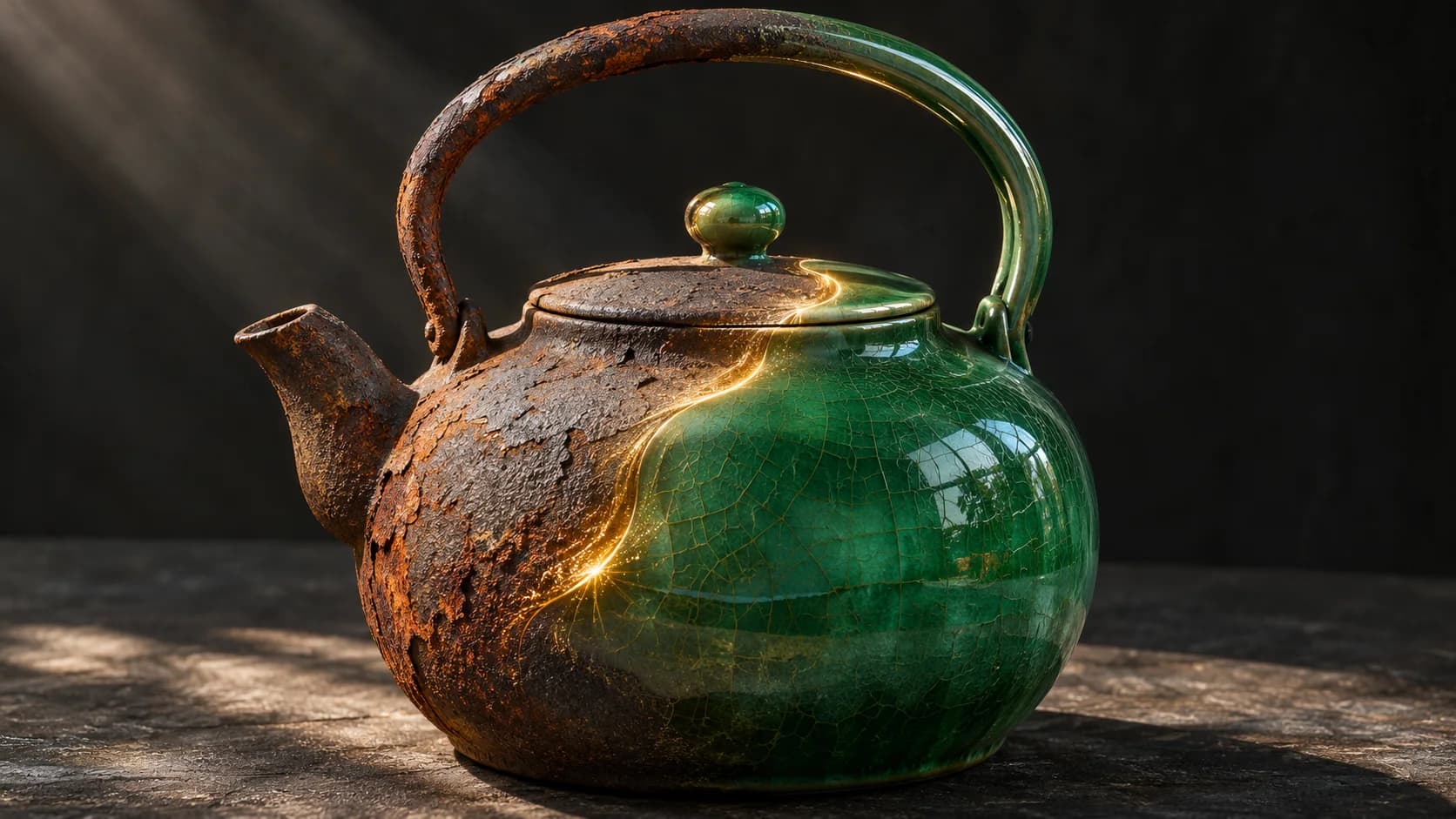
A rusty cast iron kettle turning into glossy jade ceramic along a sweep of light

Show an Interior Makeover from the Same View

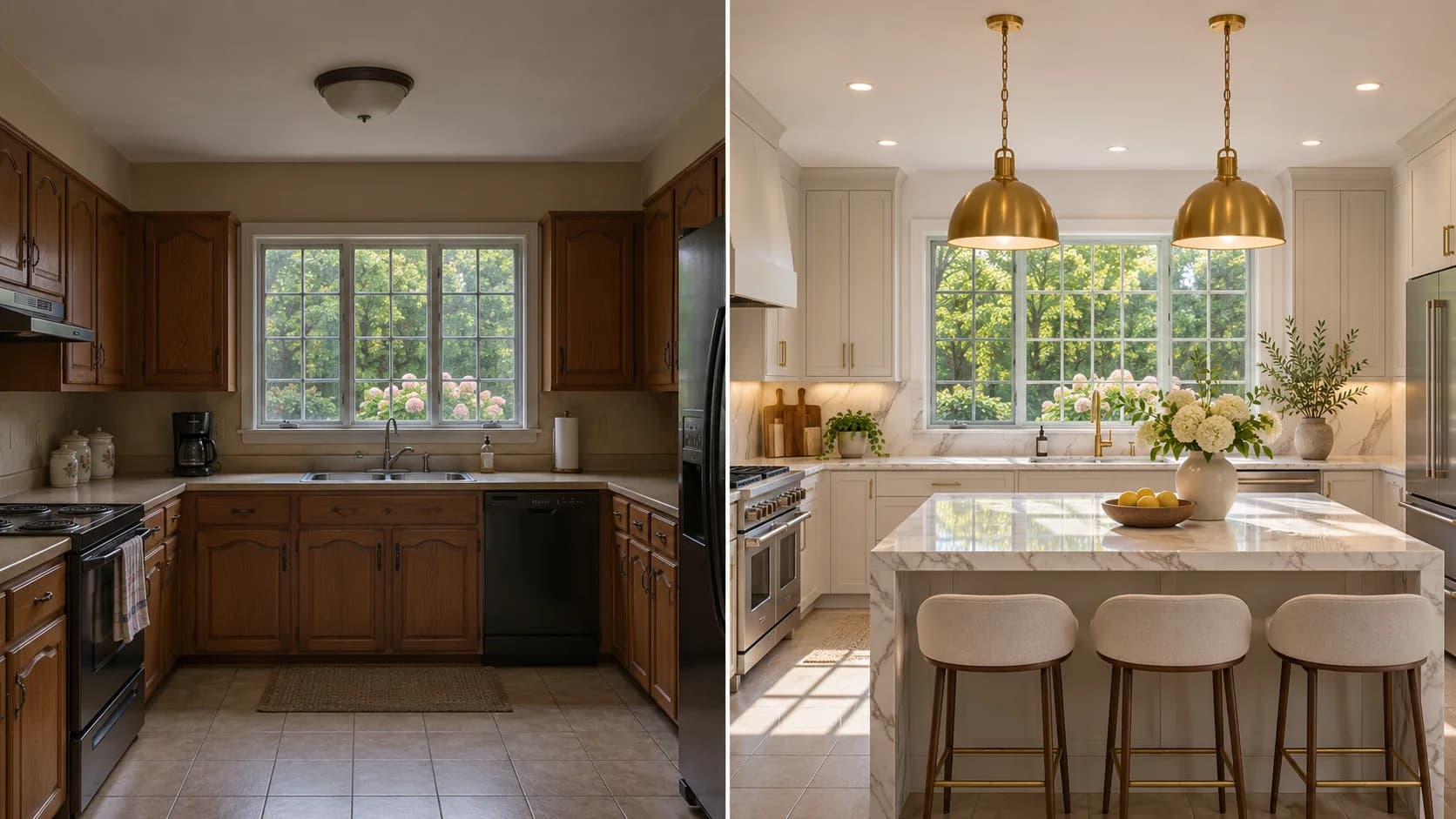
Pair a photo of a dated kitchen or empty room with a matched shot of the finished space. Align doorways and windows across the photos. Let lighting, fabrics, and furniture carry the change.

Show a room makeover
One kitchen shown with dated wood cabinets and after renovation with a marble island

Take a Concept Sketch to a Finished Product

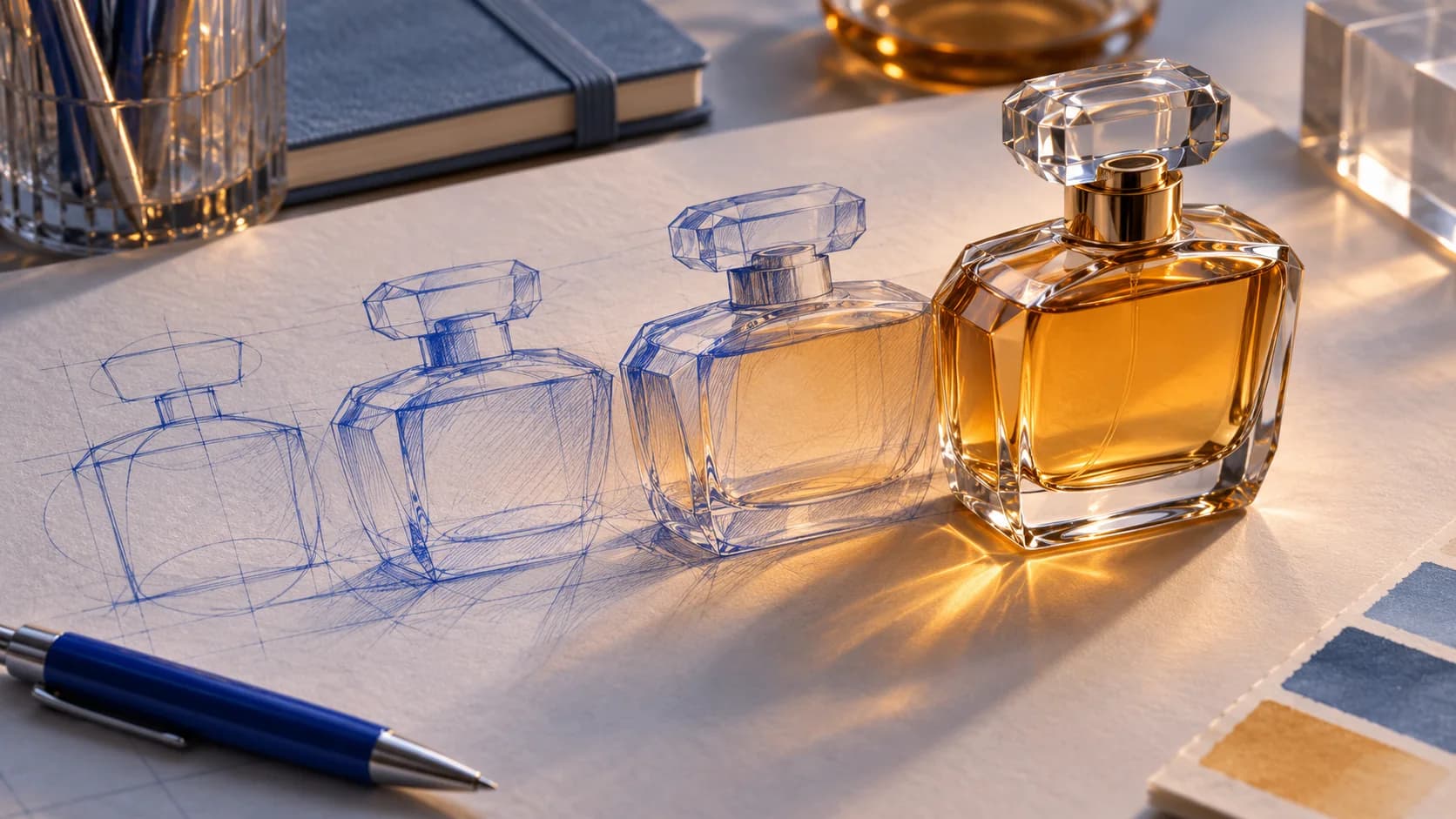
Start with a packaging sketch, industrial drawing, or product concept. Use a render or product photo as the endpoint. Match the outline and scale, then use the sketch preset to describe how volume, materials, and reflections develop. Share the reveal in your design review.

Animate a product concept
A blue ink concept sketch gradually taking the form of an amber perfume bottle

Highlight Restoration, Cleaning, and Retouching

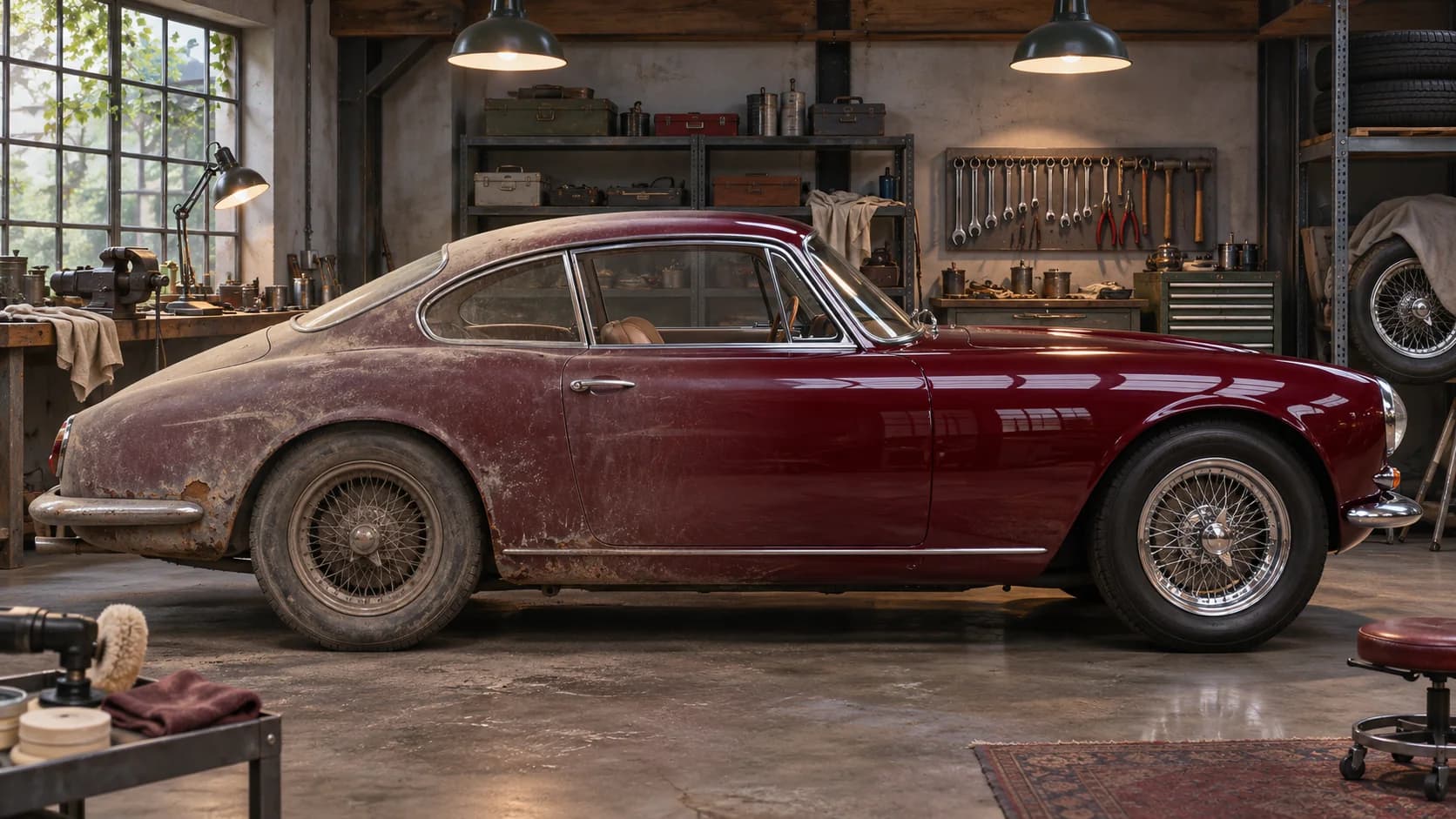
Use a fixed view to show paintwork regaining its shine, a workbench clearing, or a scanned photo regaining contrast. Keep the subject in place across both photos. Frame close to emphasize texture.

Create a restoration reveal
A dust-covered classic coupe transitioning to a restored burgundy finish in a garage

Frame a Reveal for Reels, TikTok, Shorts, or Slides

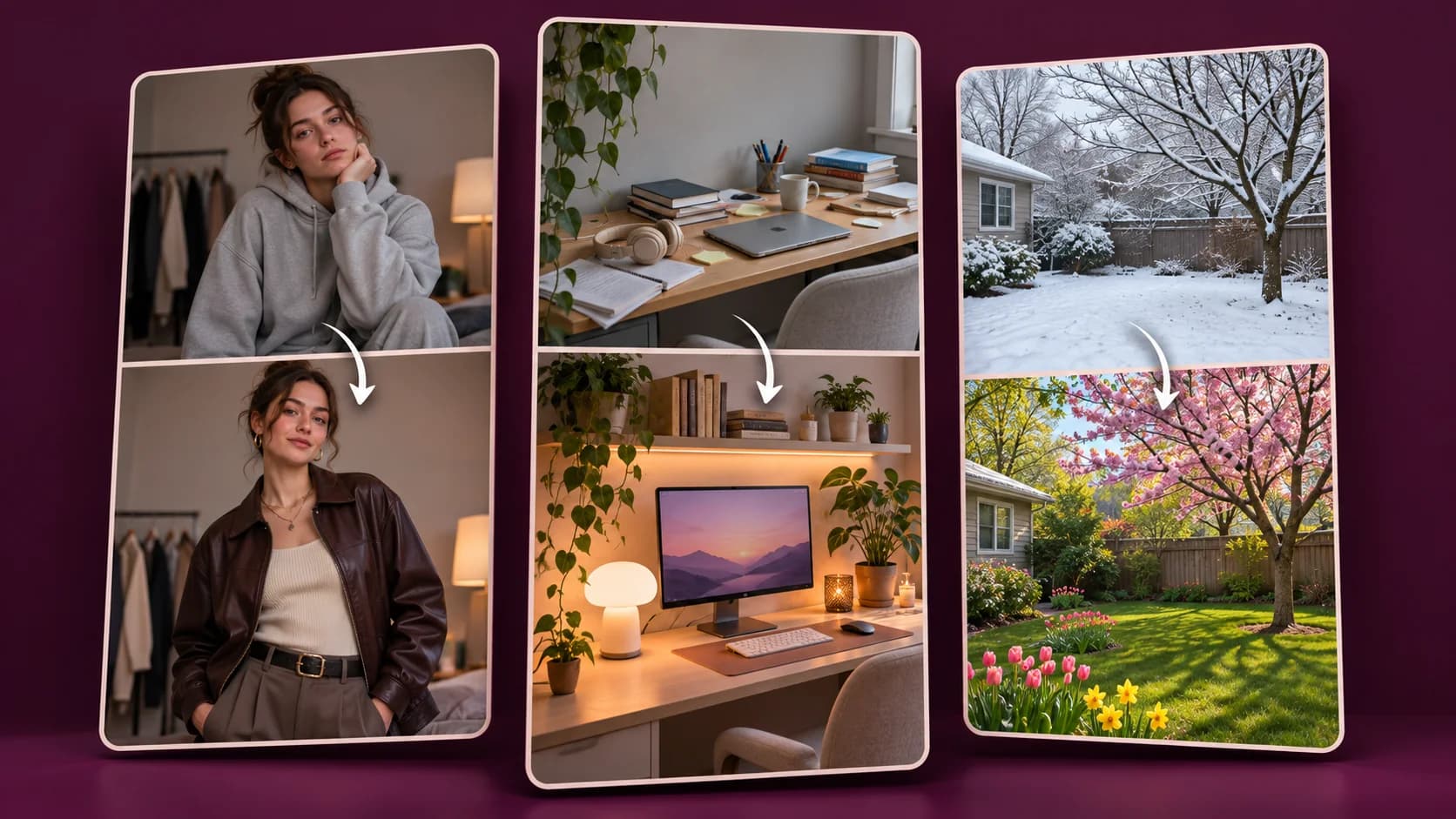
Prepare matching 9:16 photos for a vertical post or matching 16:9 photos for a presentation. Leave space for captions and platform controls. Preview the clip at its intended size.

Build a reveal for social
Three vertical examples comparing an outfit, a desk makeover, and a seasonal yard

How to Use the Before and After Video Generator

  1. Upload two matched photos

    Place the original image in Before and the finished image in After. Use photos with a similar viewpoint, crop, and aspect ratio. Use Swap before and after if you want to reverse the order.

  2. Choose a reveal style

    Select a makeover, light sweep, sketch, restoration, or seasonal preset to fill the prompt. Edit it to describe which surfaces, colors, or objects change during the shot.

  3. Generate, preview, and download

    Check the credit estimate and create the video. Preview the transition and download the finished clip.

Before and After Video Ideas

Interior Designers and Home Stagers

Show an unfurnished listing becoming a welcoming room. Share the view from the doorway to give clients a recognizable point of reference for the changes.

Ecommerce and Product Marketing Teams

Put a packaging redesign or refreshed product colorway into one short reveal. Keep the product centered and give the updated design a moment on screen.

Social Media Creators and Agencies

Use the Before and After Video Generator to make restoration, style, or seasonal reveals for a vertical series. Open on the original so viewers can see the scale of the change.

Direct the Reveal From Start to Finish

Two Images Anchor the Shot

Your opening and closing photos establish both endpoints. The model uses those views and your prompt to generate the frames between them.

Five Editable Transformation Presets

Start with a direction designed for the kind of change you want to show, then tailor the description to the actual scene.

See the Credit Cost Before Generating

The Before and After Video Generator shows the credit estimate for your current model and settings. Create an account to receive free evaluation credits, or choose a paid plan.

Before and After Video Generator FAQ

How does the Before and After Video Generator connect two photos?

The AI uses your first and final images as visual endpoints. Your transformation prompt guides what happens between them. The model synthesizes intermediate frames, so details can evolve as colors, materials, lighting, and objects change.

How do I align the photos for a smooth result?

Use the same viewpoint, crop, and subject scale where possible. Align a fixed detail, such as a windowsill or the edge of a worktop, before uploading. Similar framing gives the AI a stable guide.

How does an AI reveal differ from a split-screen wipe?

A split-screen wipe slides a boundary across the original pair. An AI reveal animates the change inside the shot. It can show a finish developing across a surface or pieces of a room settling into place.

What if I only have the Before photo?

Use Image to Image to make an After version. Describe the desired change and keep a similar viewpoint. Save that image and bring both photos into the video generator.

Can I create a vertical video for TikTok and Instagram Reels?

Yes. Prepare both images at 9:16 for a portrait reveal. With Kling 3.0, the first image sets the output ratio. Check the full clip in preview before sharing.

How much does the Before and After Video Generator cost?

The workspace shows the current credit cost before you submit. Paid plans offer watermark-free downloads and commercial use under the applicable terms. Use source photos you have permission to publish.

Give Your Makeover a Reveal

Pick your best matched photos and use the Before and After Video Generator to show how one became the other.

Create Before & After Video