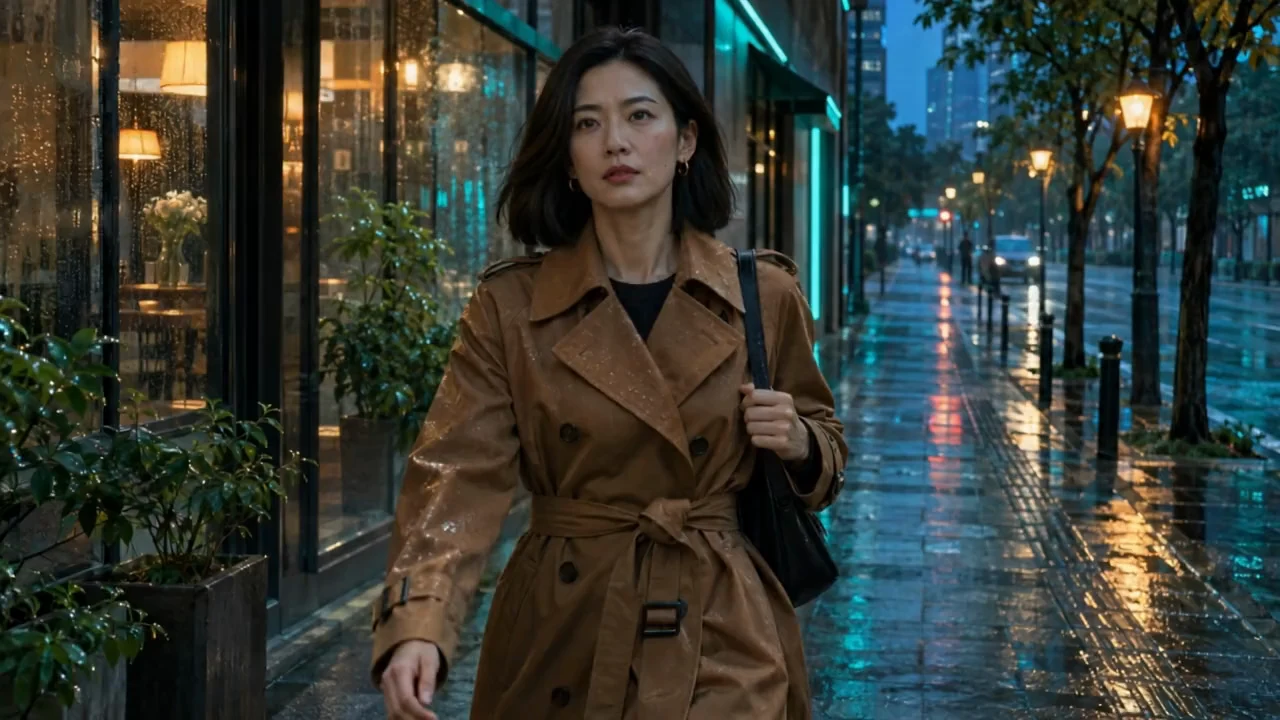
Consistent Character Video GeneratorKeep the Same Face and Outfit Across Every Shot

Upload one to three character references or a single character frame. Guide a new scene, pose, or camera move while keeping the same face, hairstyle, and outfit recognizable.

Upload 1–3 clear views of your character

or drag and drop

PNG, JPG, WEBP · 3 images max

Choose a character shot direction

Choose a character shot direction
Detective on a rainy street · Kling 4.0 · 5 seconds · 720p
Preparing generatorControls will be ready in a moment.

Build a Consistent Character Video From Your Cast References

Give every shot a clear visual description of who appears, what they wear, and how they move.

Multi-Angle Reference Locking

A front portrait establishes the face, a three-quarter view shows its shape, and a full-body shot captures the outfit. Give the Consistent Character Video Generator views of the same character in similar lighting. Those visual anchors guide a new shot when you change the setting or give the character a new action.

Add character references
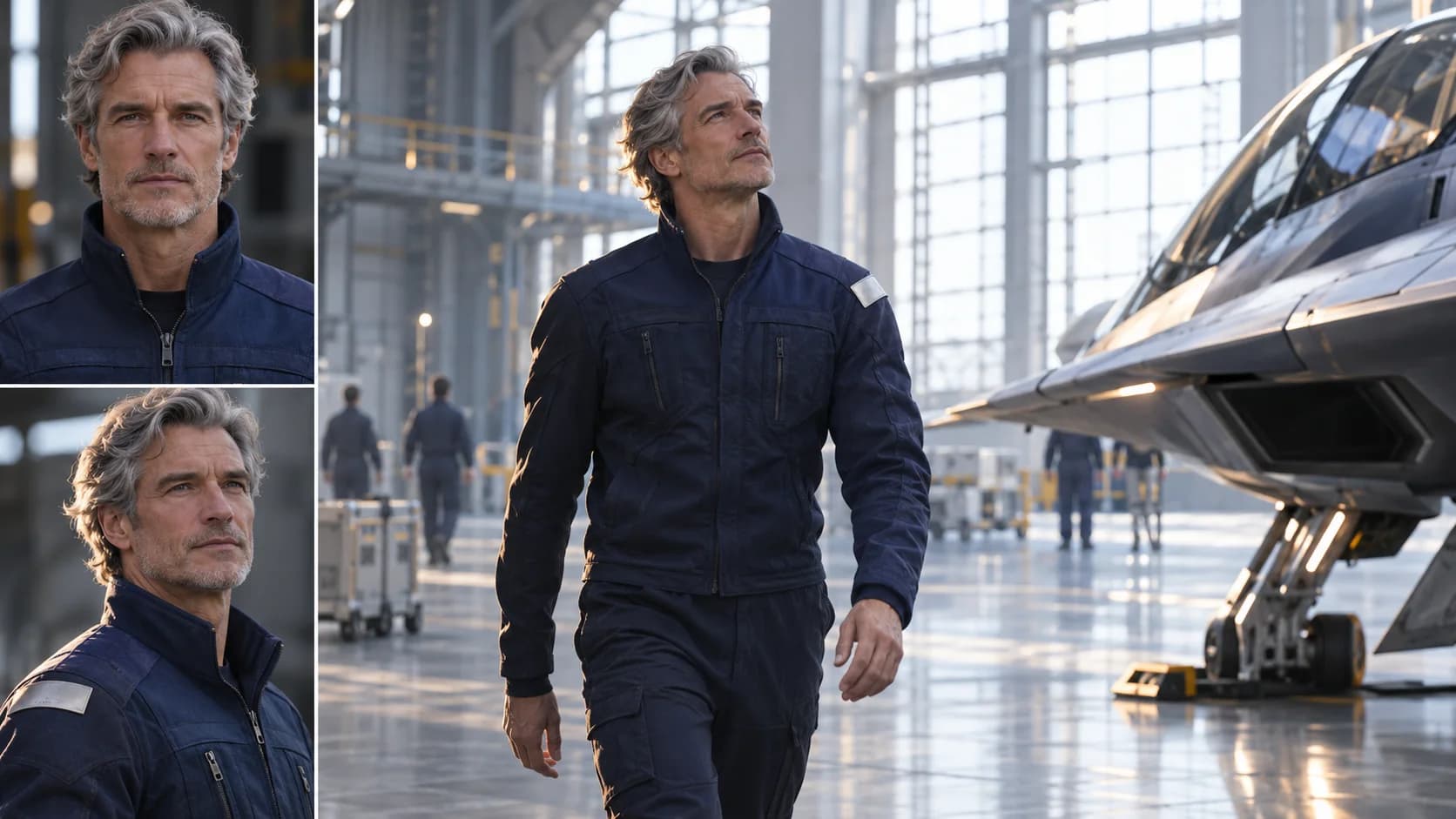
Two angles of a silver-haired pilot alongside a hangar scene featuring the pilot in the same navy jacket

Outfit and Silhouette Continuity

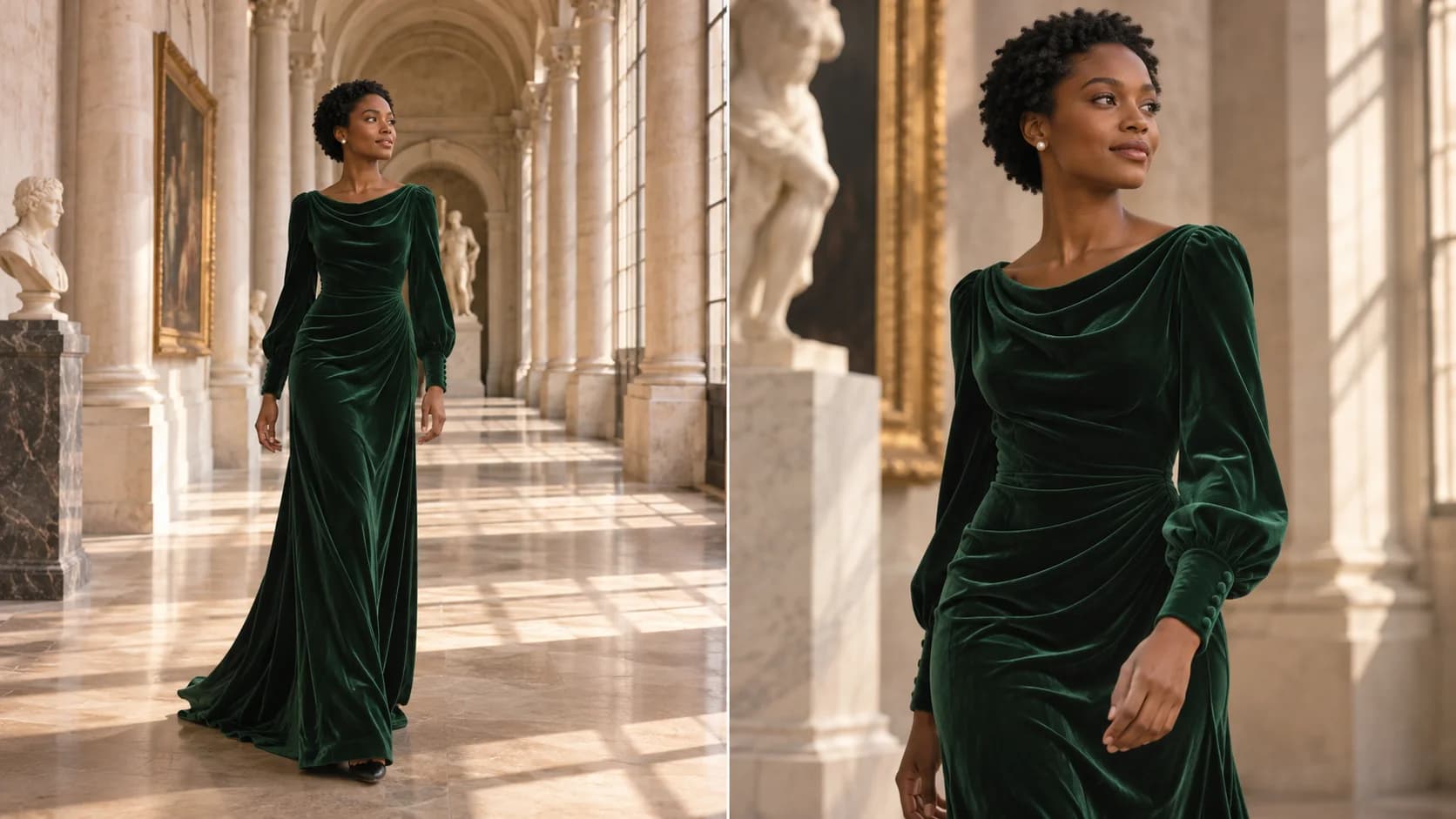
Keep distinctive details visible in your references, such as a velvet sleeve, pearl earrings, or the shape of a coat. Carry those details into your prompt, especially when the framing changes. A short, well-lit walk gives you space to check the costume from a full figure to a closer view.

Direct a wardrobe-focused shot
A woman in an emerald velvet gown and pearl earrings shown at two distances in a gallery

Character Turnaround Sheet to Storyboard

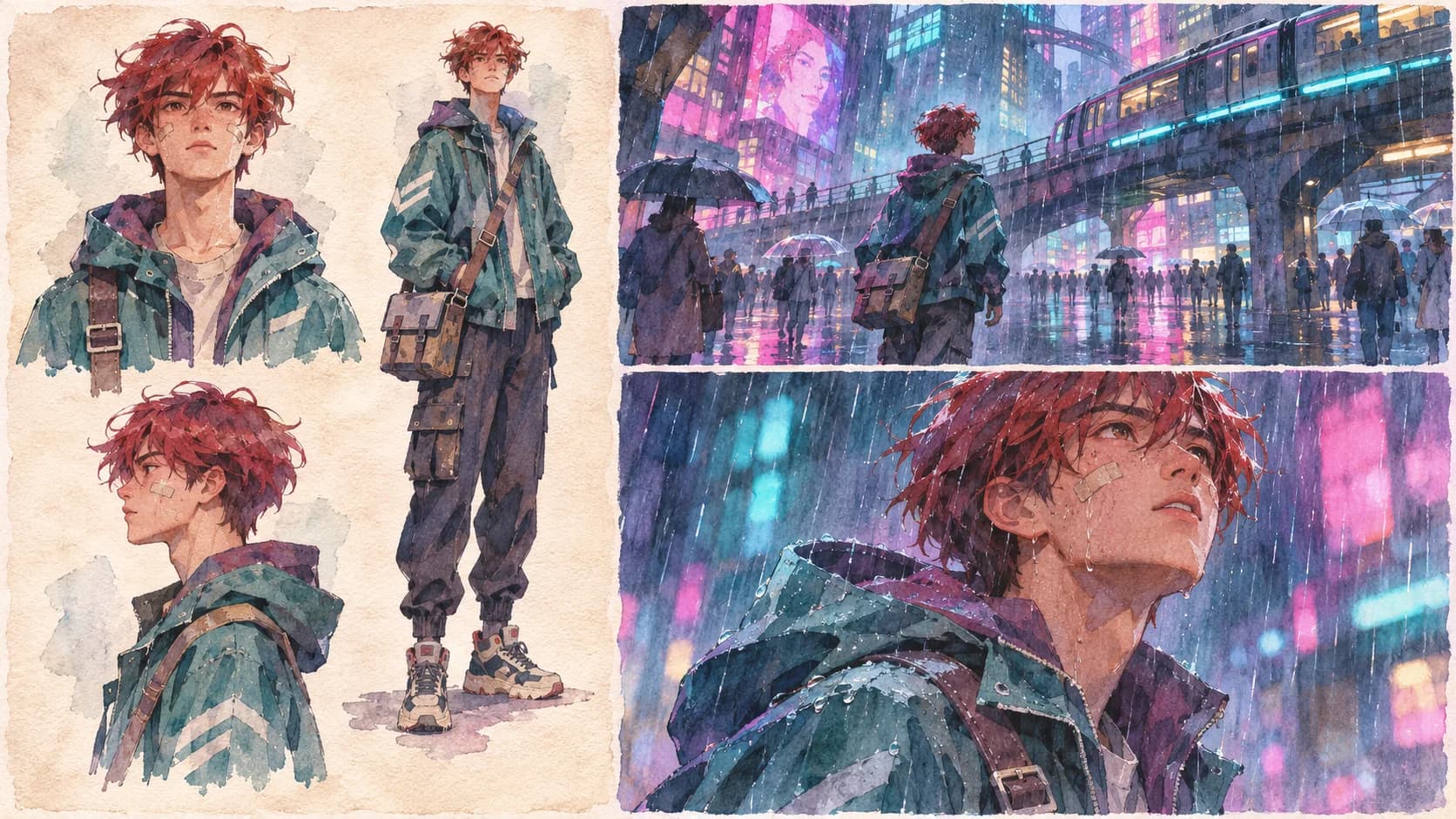
Use an existing turnaround sheet in One character image mode, or export its cleanest views as separate references. Generate one story beat at a time and reuse the same design in each clip. Build a Consistent Character Video sequence by pairing an establishing shot with a close-up of the same character.

Start from a turnaround sheet
A red-haired character’s turnaround drawings beside two watercolor storyboard frames

Realistic, Anime, and Stylized Cast Support

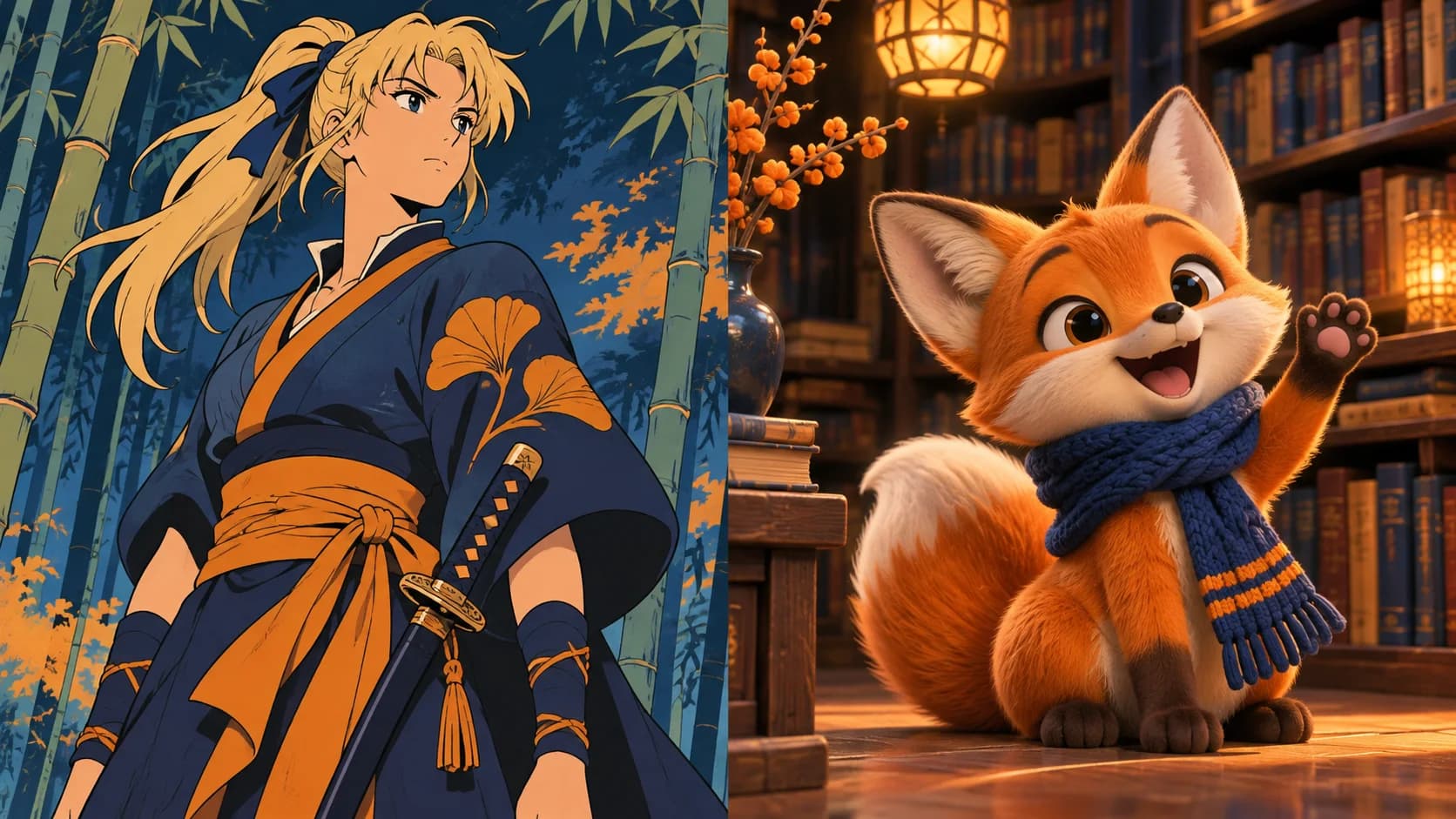
Direct a photographed actor, a cel-shaded anime character, or a rendered brand mascot from a clear image. Call out the visual traits your audience recognizes, from a signature hair shape to a mascot’s knitted scarf. Use references in a matching style so the model gets a coherent design brief.

Animate your character design
A cel-shaded swordfighter beside a three-dimensional fox mascot waving in a bookshop

Reduce Facial Drift With Controlled Motion

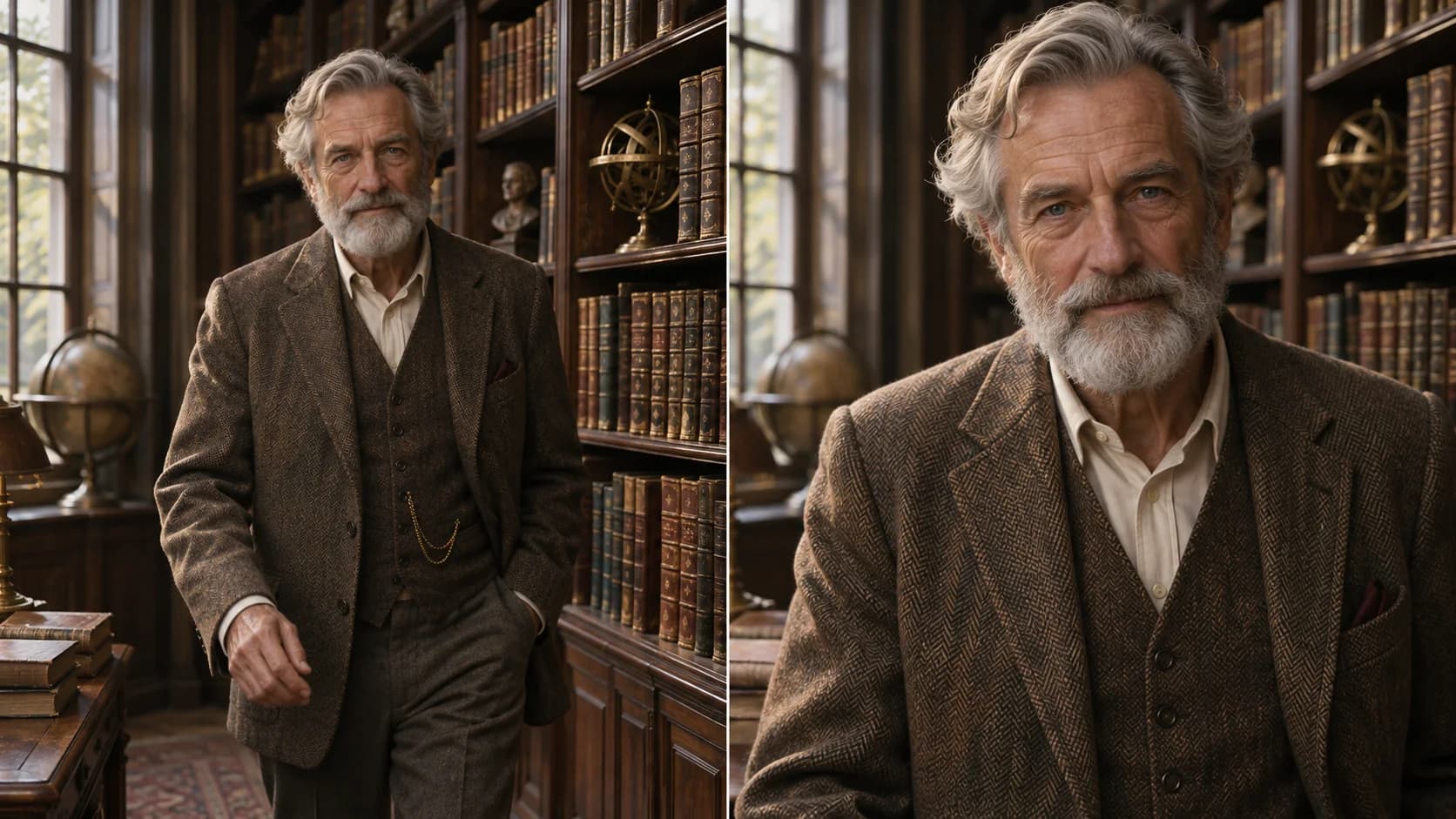
A steady camera, a small head turn, and even light make it easier to review face continuity. Try the close-up direction for a reaction or the orbit for a gradual reveal. For a Consistent Character Video, check both the middle and end of the shot before making the motion more ambitious.

Choose a camera direction
Two views of a bearded professor in a tweed suit as the camera moves closer in a library

How to Make a Consistent Character Video

  1. Upload Your Character References

    Add up to three clear views of one character. Choose One character image if you want to animate a single frame or a turnaround sheet.

  2. Direct the Scene and Camera

    Choose one of five shot directions or write your own. Describe a setting, one main action, and the hair or costume details to retain.

  3. Review Continuity and Download

    Generate the clip and preview the whole shot. Check the face, outfit, and proportions before downloading the result or revising the direction.

Cast the Same Character in More Scenes

Episodic AI Short Dramas

Carry a recurring lead from a street scene to a quiet dialogue close-up. Reuse their references and wardrobe notes across episodes.

Brand Mascots and Virtual Creators

Make a Consistent Character Video for a campaign, a product introduction, or a social post with your mascot’s familiar colors and silhouette.

Animation Storyboards and Pitch Reels

Give your team moving versions of key boards. Test an entrance, reaction, or reveal with the same design before settling on shot order.

Control the Shot From Reference to Export

Two Ways to Begin

The Consistent Character Video workspace supports multi-angle guidance and one-image animation, with separate drafts for each mode.

Editable Shot Directions

Start with a tracking shot, close-up, orbit, action pose, or two-character interaction. Adjust the prompt to match the scene you are planning.

Credit Estimates Before Generation

Start with Veo 3.1 Lite for references or Kling 3.0 for one image. Review the credit estimate for your model and settings before generating.

Consistent Character Video FAQ

How many references work best for a Consistent Character Video?

One clear portrait is enough to begin. Add a three-quarter view for a turn or a full-body image when clothing and posture matter. Keep the character’s hair and outfit similar across all views.

How do I reduce face drift during a turn?

Use a reference that already shows the face at the angle you want. Slow the head turn and keep the face well lit. A steady medium shot makes changes easier to spot.

When should I use one image or a reference sheet?

Choose One character image when you want motion to start from an existing composition. Choose Reference sheet when multiple views of the character should guide a newly described scene.

Can two characters appear in the same clip?

Yes. Start with a shared frame or separate images that clearly show each character. Describe each person’s placement and clothing, then give them a simple interaction that keeps both faces visible.

How much does a Consistent Character Video cost?

The studio shows the credit estimate for your selected model and settings. New accounts receive evaluation credits, and paid plans and credit packs offer additional generations.

Can I use the result commercially?

Paid plans offer watermark-free exports and commercial-use benefits. Use reference images you have permission to upload and check the applicable plan terms and rights for your intended release.

Direct Your Next Consistent Character Video

Bring your character references, choose a shot direction, and create a clip for your next scene.

Create My Character Video